Admin panel
Databases
What this does: these tools look after the database servers on this machine. A database is where a website keeps its content in an organised way: a WordPress site, for example, keeps its posts, pages and users in one. Customers make their own databases in their own panel; here you see all of them, tune the database servers, and fix problems.
When you need it: when sites are slow because the database server is short of memory or connections, when a customer needs to reach their database from their own computer, or when you want to upgrade the database server.
Words used on this page:
- The installer is the command you ran once to put freePanel on the server (see Getting started). Some parts are only set up when you give the installer an extra option, such as
--mail. To add such a part later, run the installer again with that option. - When a page says a program is not running, open Services and status > Services, find the program in the list and click its Start or Restart button.
- A database server is the program that keeps the databases and answers the websites that use them. MariaDB and PostgreSQL are database servers.
- A database user is a login a website uses to reach its database. It is different from the customer's panel login.
- A connection is one program, such as one visit to a website, talking to the database server at that moment.
Database servers
What this does: shows each database server this machine runs, whether it is running, how long it has run, how many connections are open, and how much data it holds. You can also see the open connections and end one that is stuck.
When you need it: when sites that use databases are slow or show "error establishing a database connection".
Where: Databases > Database servers
To check a database server
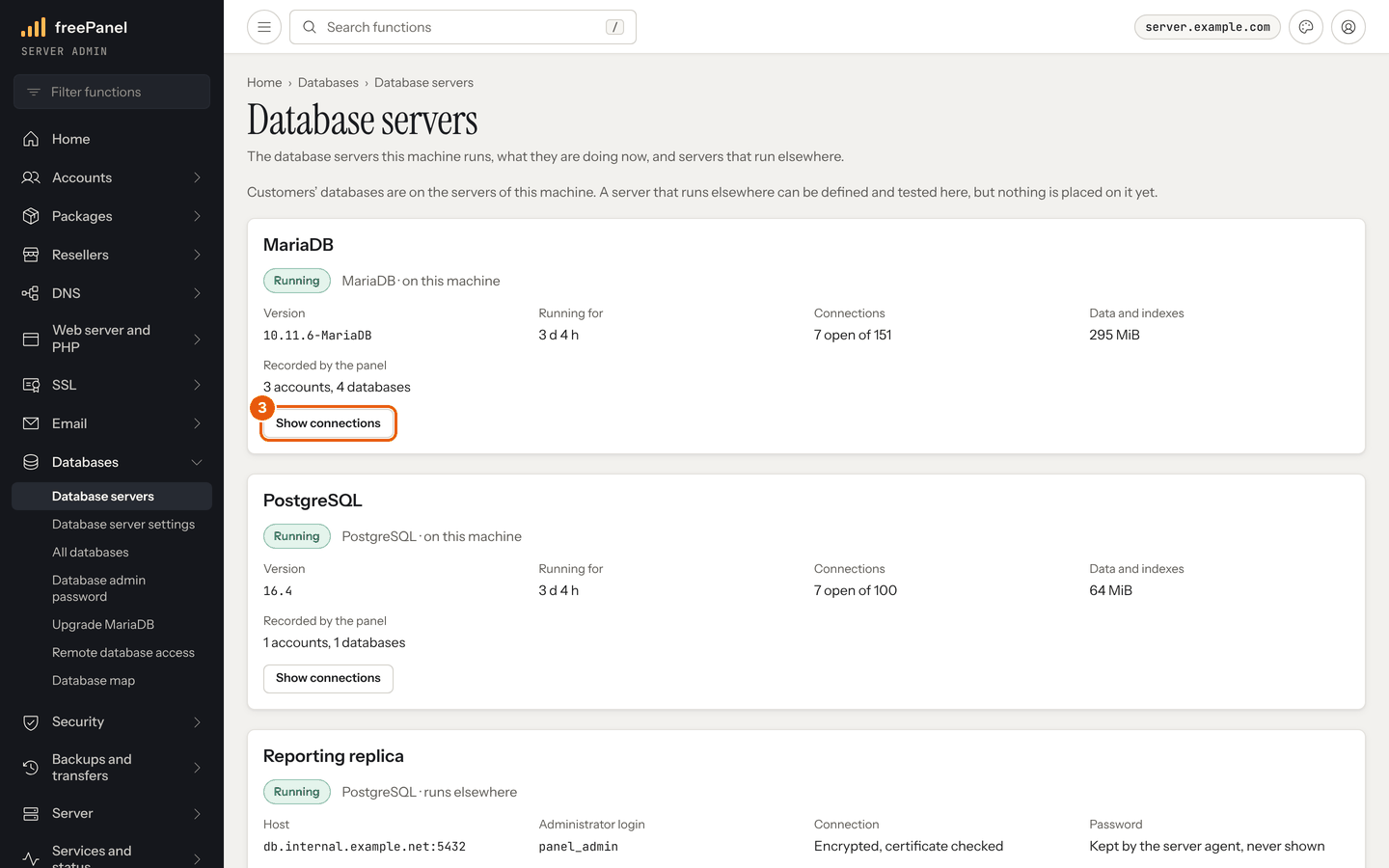
- Open Databases > Database servers. Each server has a card, for example MariaDB, with its state, such as Running.
- Read Connections, for example "7 open of 151". If the first number is close to the second, the server is nearly full. Data and indexes is how much disk the databases take (GiB is about a gigabyte). Recorded by the panel counts the accounts and databases the panel knows about.
A card marked runs elsewhere (such as "Reporting replica" in the picture) is a database server on another machine that you defined yourself; see below.
- Click Show connections to list them. The table shows each connection's User, Database, State and how many Seconds it has run, longest first.
- To end a stuck connection, click End in its row, then confirm. You see The connection was ended.
To define a database server that runs elsewhere
You can record a database server on another machine and test that it answers. Nothing is placed on it yet; a later freePanel release can use it.
- Scroll to the card Define a server that runs elsewhere.
- Fill in Name, Kind of server (MariaDB or PostgreSQL), Host (a name or address, without a port), Port (empty means the usual one), Administrator login and Password.
- In Connection, choose Encrypted, certificate checked if you can: the connection is scrambled, and the panel checks the other server's certificate (its proof of identity) so no one can pretend to be it.
- Click Define server. You see "Defined (name). Test it to see that it answers."
- On the new card, click Test. You see "Tested (when): it answered, version (version), in (ms) ms."
If something goes wrong
- If a server shows "Not answering", start it on Services and status > Services.
- If a server shows "Not set up", the page says "This server was installed without it." Run the installer again with the option it names, such as
--mysqlor--postgres. - If Connections is nearly full, raise Most connections at once on Databases > Database server settings.
Database server settings
What this does: changes the few settings of MariaDB and PostgreSQL that matter most for speed: how many connections they accept and how much memory they use.
When you need it: only when the database server is short of something, such as connections or memory. A box left empty lets the server decide.
Where: Databases > Database server settings
To change a database setting
- Open Databases > Database server settings. Each server has its own card. The card says how much memory this machine has, for example "This machine has 8 GB of memory."
- Find the setting. Each one shows its plain name, its technical name in brackets, what it does, its range, and Running now: with the value in use.
- The boxes start empty: empty means the server decides for itself, and Running now: shows what it uses. To change a setting, type the new number in its box. To go back to the server's own value later, empty the box again.
- Click Save changes. You see "Saved. One setting changed." (or how many changed).
- Some settings say Needs a restart. The page then lists them as waiting. Restart the database server when it suits you: click Open Services and restart it there.
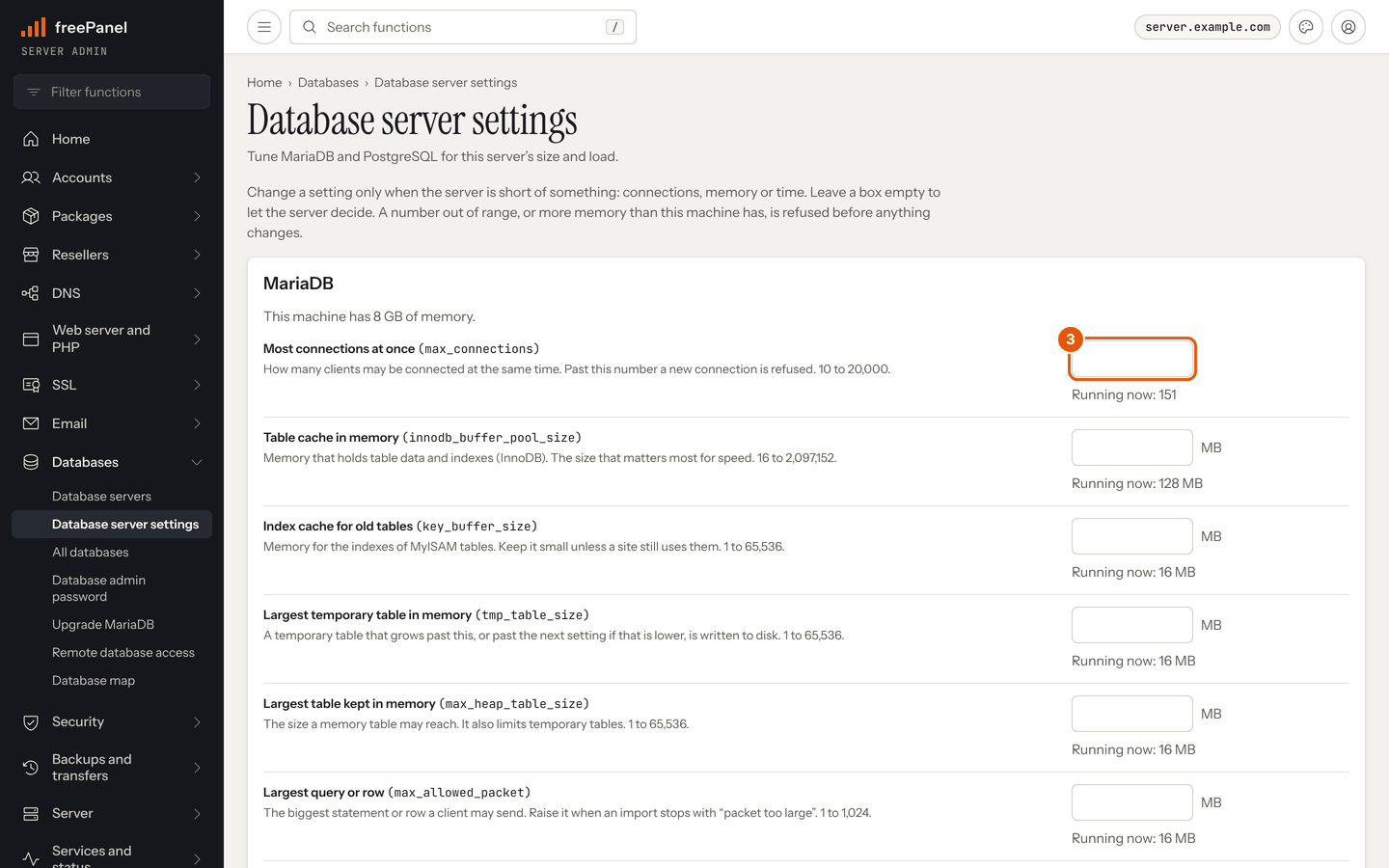
Words you will meet on this page: InnoDB and MyISAM are two ways MariaDB stores tables (almost every site today uses InnoDB); a temporary table is scratch space MariaDB makes while it answers a big question; "packet too large" is the error a big import gives when Largest query or row is too small.
The two settings most hosts change are Most connections at once (when sites get "too many connections") and Table cache in memory (the memory MariaDB uses to keep data close; the bigger, the faster, as long as the machine has the memory).
If something goes wrong
- If you see "Use a whole number from (min) to (max), or leave the box empty.", type a number in the range written under the box.
- If a value is refused because it needs more memory than this machine has, choose a smaller number.
- If you see "Waiting for a restart. Running now: (value)", the new value is saved but the server still runs the old one until it restarts.
All databases
What this does: lists every database the panel knows about, on both database servers, with the account it belongs to and its size.
When you need it: to find which account owns a database, or which databases are the biggest.
Where: Databases > All databases
To find a database
- Open Databases > All databases.
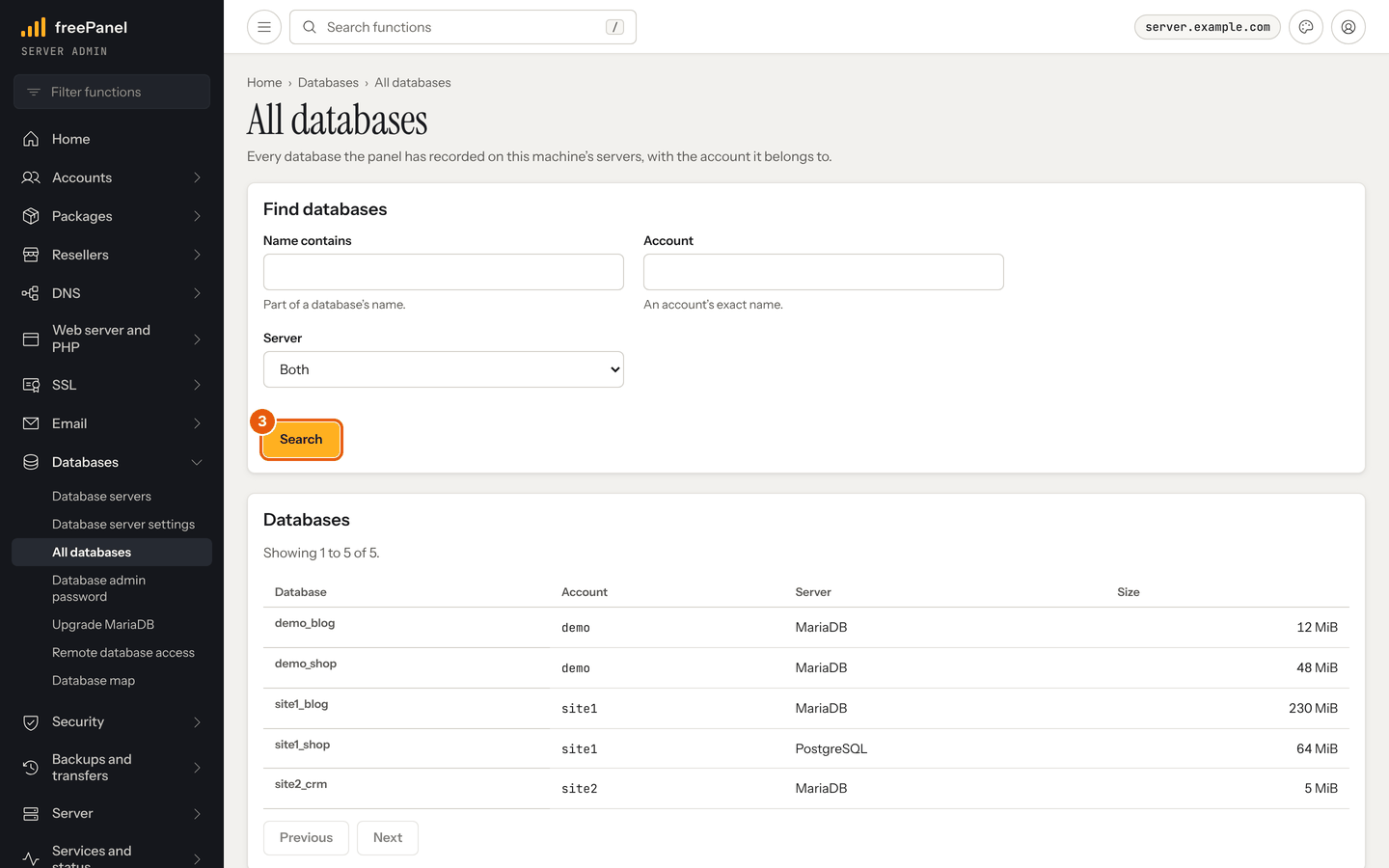
- In Name contains, type part of the database's name. In Account, type an account's exact name. In Server, choose Both, MariaDB or PostgreSQL.
- Click Search. The table Databases lists each Database, its Account, its Server and its Size.
- Use Previous and Next to move through long lists.
If something goes wrong
- If you see "(engine) is not set up on this server, so it has no databases here.", that database server was not installed.
- If sizes show as 0 with a note, the sizes could not be read this time. Search again later.
Database admin password
What this does: gives the database server's own administrator login (root for MariaDB, postgres for PostgreSQL) a password, for your own use at the server's command line (the text window you reach over SSH). With it you can, for example, run mysql -u root -p on the server and type the password.
When you need it: only if you want to work with the databases yourself at the command line with a password. The panel does not need it: it signs in without this password and keeps doing so.
Where: Databases > Database admin password
To set the database admin password
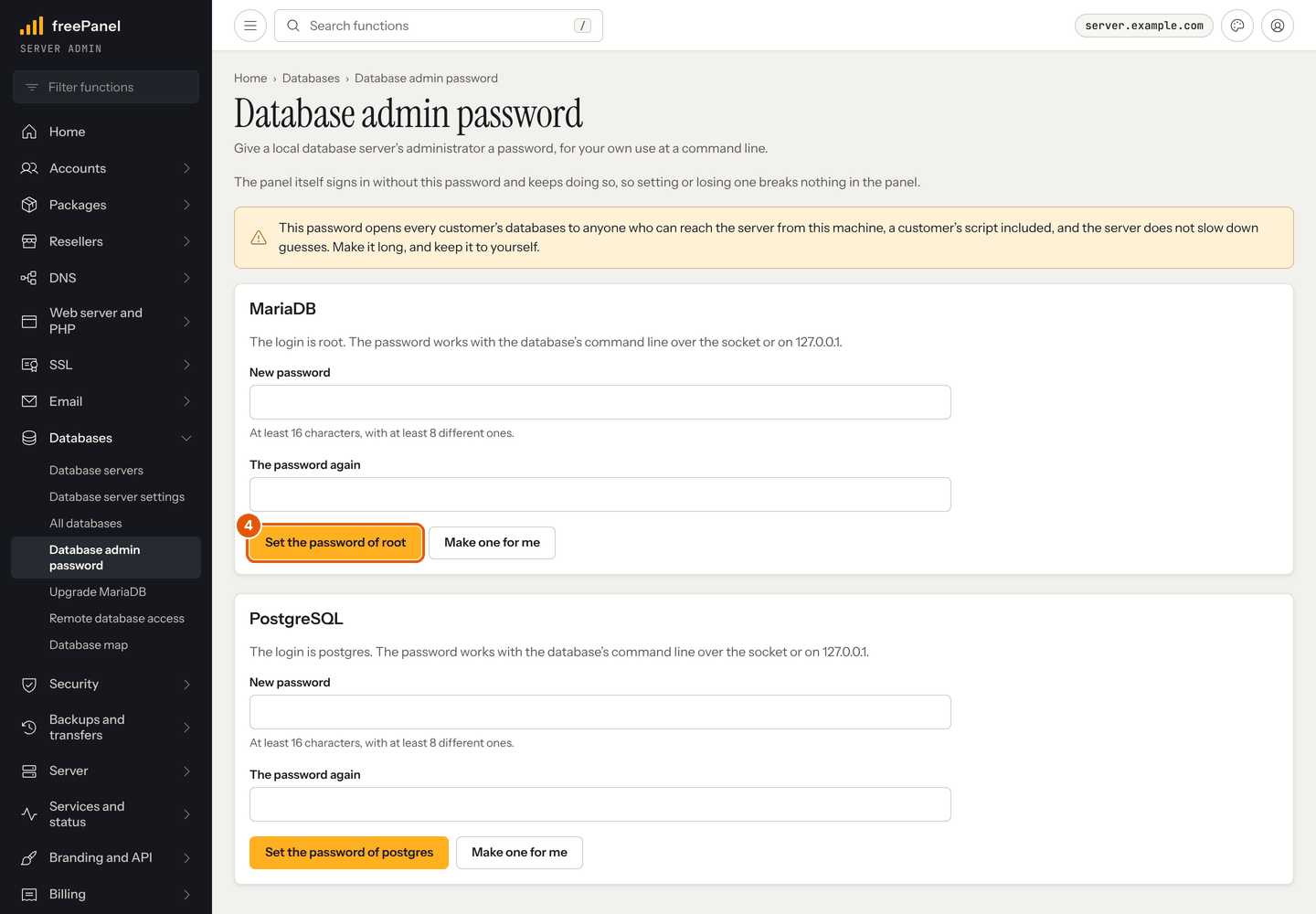
- Open Databases > Database admin password. Read the warning: this password opens every customer's database.
- In the card of the server, for example MariaDB, type a password in New password. It needs at least 16 characters, with at least 8 different ones. Or click Make one for me, and copy the password it shows.
- Type it again in The password again.
- Click Set the password of root (or of postgres).
- You see "The password is set for (login). It is not shown again." Keep it somewhere safe.
If something goes wrong
- If you see "Use at least 16 characters, with at least 8 different ones.", make it longer, or click Make one for me.
- If you see "PostgreSQL takes only letters, digits, spaces and the symbols on a keyboard.", remove accented letters and other special characters.
- If you lose the password, set a new one here. Nothing in the panel breaks.
Upgrade MariaDB
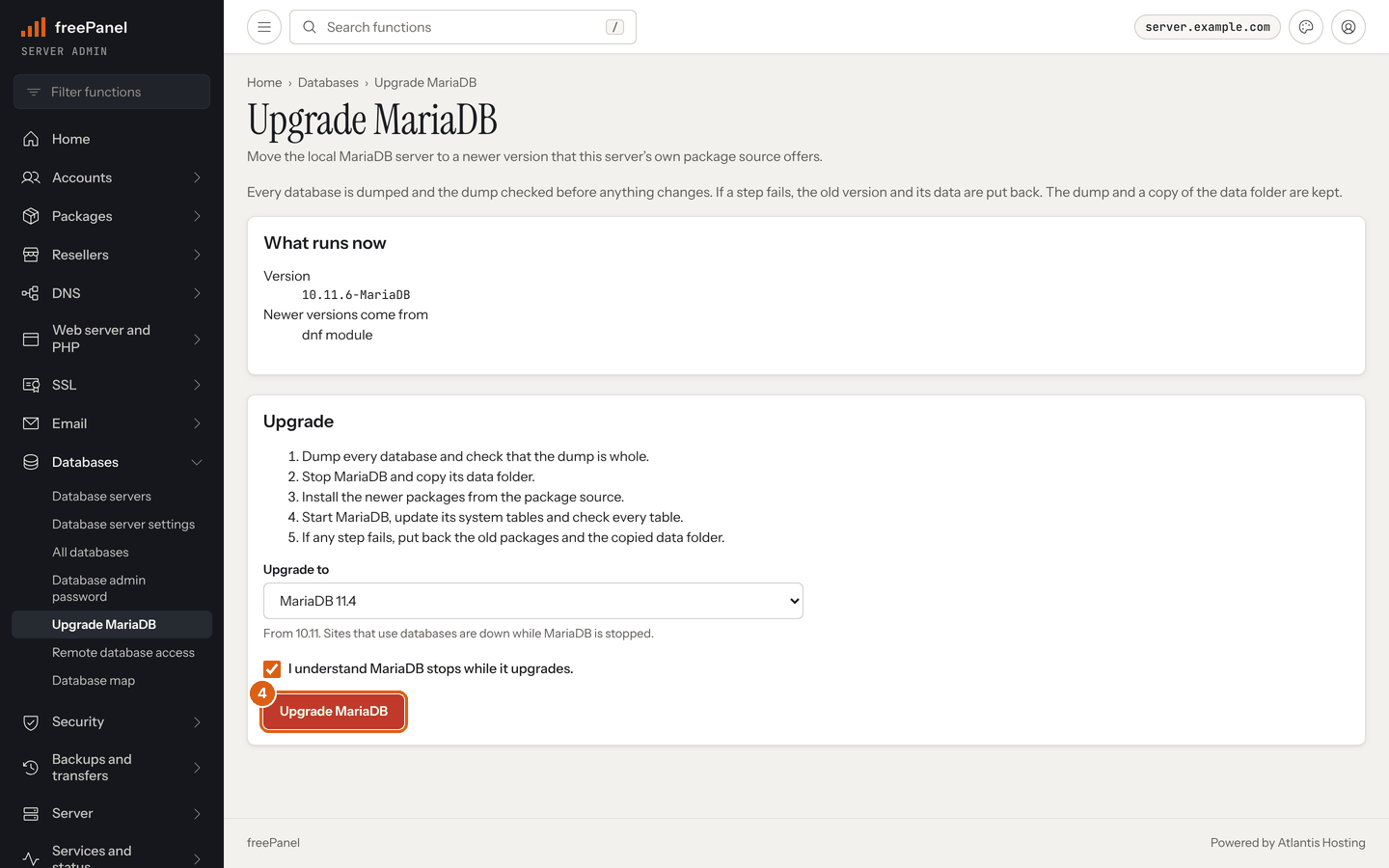
What this does: moves MariaDB to a newer version from this server's own package source (the place the operating system gets its software from; the page names it, for example dnf module). Before it changes anything, it saves a full copy (a dump) of every database and checks it, and copies MariaDB's data folder (where it keeps the databases on disk). If any step fails, it puts the old version and data back.
When you need it: when a customer's software needs a newer MariaDB, or when your version is old.
Where: Databases > Upgrade MariaDB
To upgrade MariaDB
- Open Databases > Upgrade MariaDB. The card What runs now shows the current Version.
- The card Upgrade lists the steps it takes. In Upgrade to, choose the newer version, for example MariaDB 11.4.
- Tick I understand MariaDB stops while it upgrades.
- Click Upgrade MariaDB.
- The card Latest upgrade shows "running" and checks again every few seconds. You can watch the Upgrade log.
- When it ends, you see the upgrade's name followed by "finished.", for example "MariaDB 11.4: finished."
If something goes wrong
- If you see "MariaDB is not running. Start it before upgrading.", start it on Services and status > Services.
- If you see "Tick the box to say you understand MariaDB stops while it upgrades.", tick the box, then click again.
- If you see "(label): failed. The log says whether the old version was put back.", read the Upgrade log. In most cases the old version and data are already back and sites work again.
- If no newer version is offered, this server's package source has none yet.
Remote database access
What this does: lets customers connect to their MariaDB (MySQL) databases from other computers, for example from a program on their own office machine. Each customer lists the addresses allowed to connect.
When you need it: when a customer asks to reach their database from outside this server. It is off by default, which is the safest choice.
Where: Databases > Remote database access
To turn on remote database access
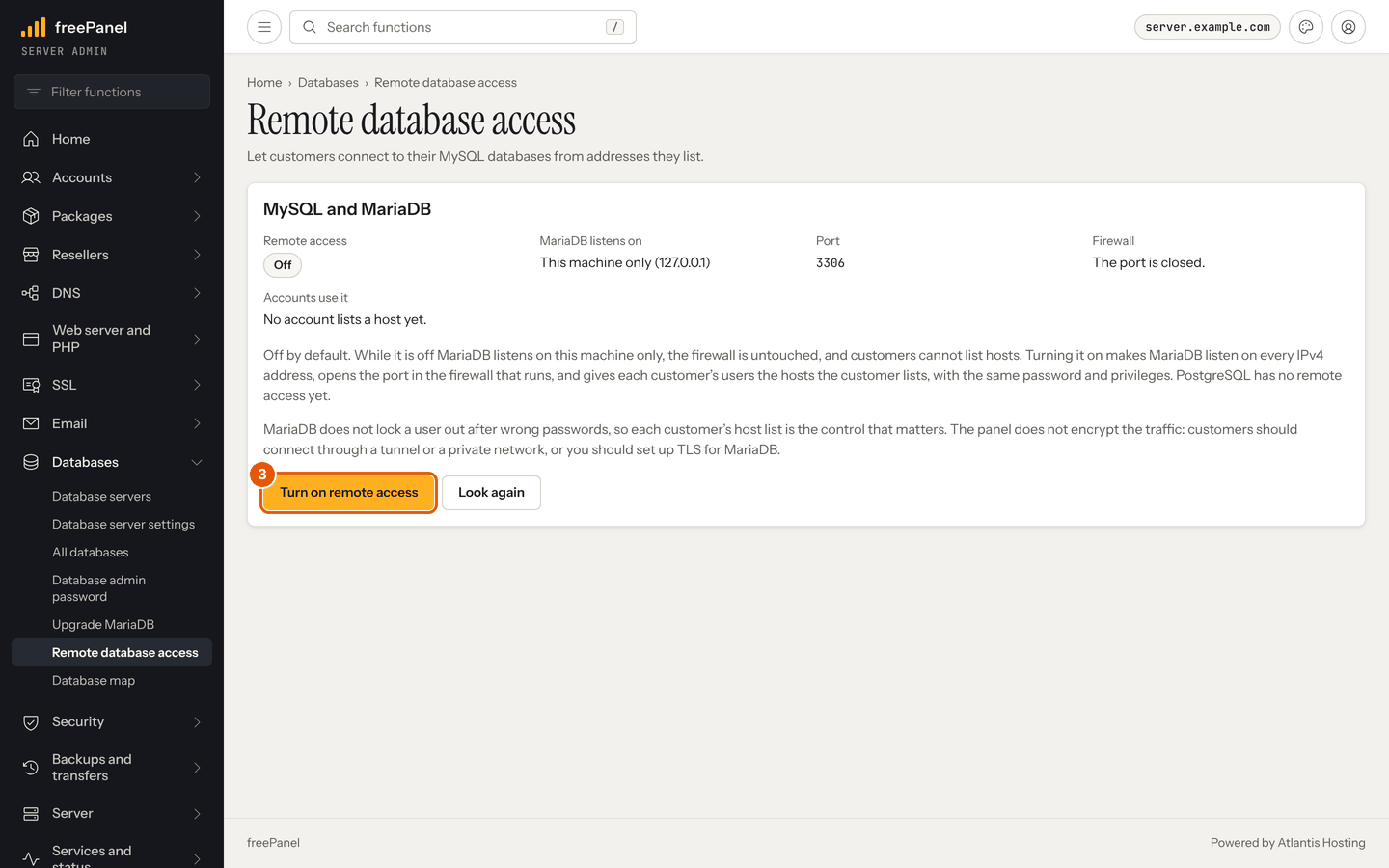
- Open Databases > Remote database access. The card MySQL and MariaDB shows whether Remote access is On or Off, what MariaDB listens on, the Port (normally 3306) and the Firewall.
- Read the two paragraphs: MariaDB does not lock out wrong passwords, and the traffic is not encrypted.
- Click Turn on remote access.
- A question explains what happens: MariaDB restarts, the port is opened in the firewall, and customers can list hosts. Confirm with Turn on remote access.
- You see Remote access is on.
Customers then add the addresses they connect from in their own panel. To turn it off, click Turn off remote access and confirm. Customers keep their lists, but nobody can connect from outside.
If something goes wrong
- If you see "A step did not finish: (problem)", the server tries again every few minutes. If MariaDB could not be made to listen, turn remote access off and on again.
- If you see "This server cannot do remote database access", the reason follows the message.
- If a customer still cannot connect, check that they listed the right address in their panel: their public internet address, the one websites see. They can find it by searching "what is my IP" from the computer that connects.
Database map
What this does: compares the panel's record of an account's databases and users with what the database server really has, and repairs the record when they differ.
When you need it: when someone deleted a database or a user directly at the database server's command line, and the customer's panel still lists it, or shows errors.
Where: Databases > Database map
To check and repair an account
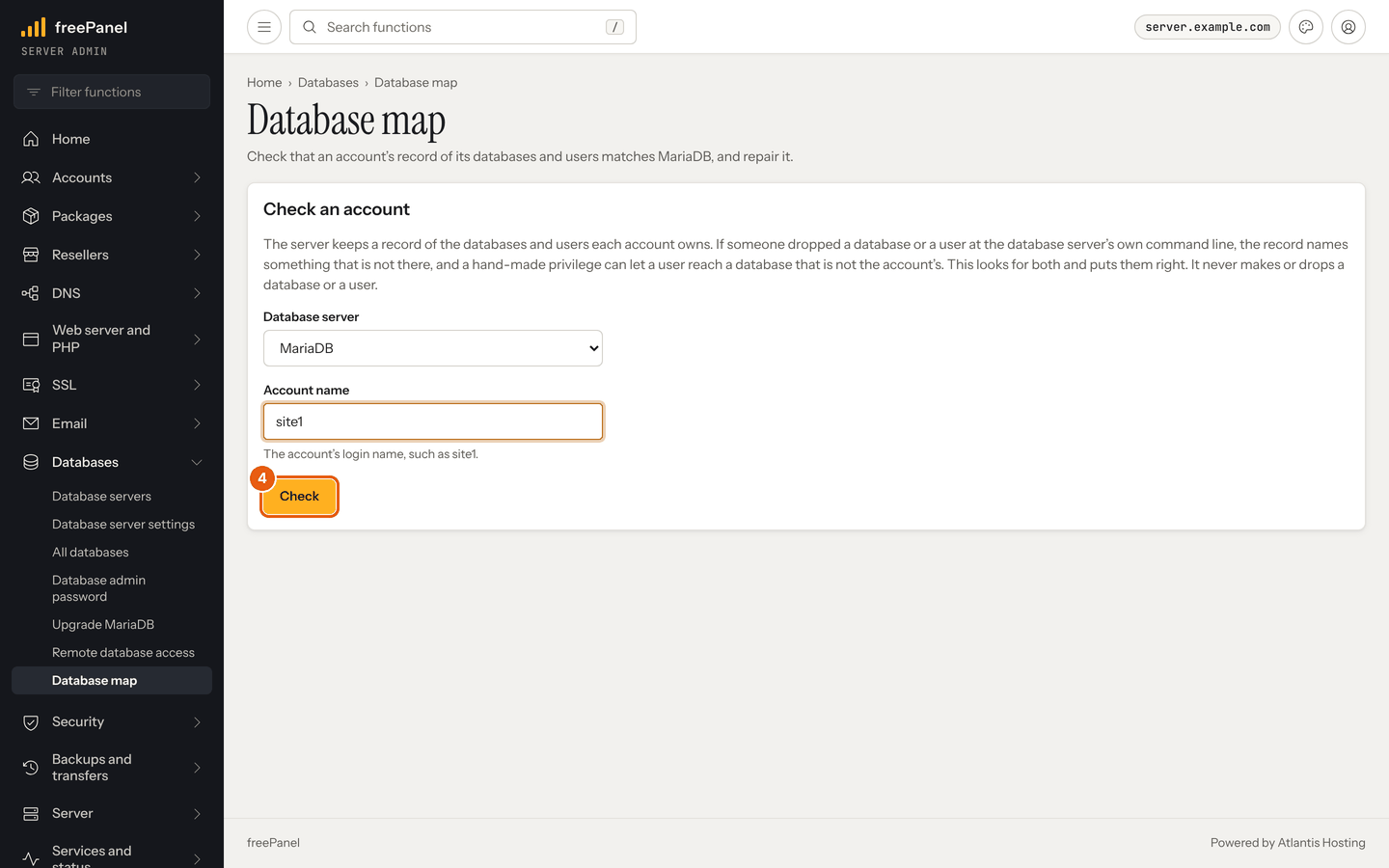
- Open Databases > Database map.
- In Database server, choose MariaDB or PostgreSQL.
- In Account name, type the account's login name, for example
site1. - Click Check.
- If all is well, you see "The record of (account) and the database server agree. There is nothing to repair."
- If not, you see "The record of (account) and the database server do not agree." with a list of what is wrong. Click Repair and confirm.
- You see "Repaired." with how many databases and users left the record.
The repair never makes or deletes a database or a user. It only fixes the record and takes away rights that should not be there.
If something goes wrong
- If you see "Use the account’s login name: 1 to 16 lowercase letters or digits, starting with a letter.", check the spelling.
- If you see "Repaired as far as it goes. Rights left: (n).", some rights were given with a wildcard (a pattern such as
site1_%that matches many database names). Someone with database experience has to remove them at the database server's own command line with aREVOKEstatement.
MongoDB
What this does: installs MongoDB on this server, or removes it. MongoDB is a different kind of database: it keeps each record as a document (much like a small file of named values) instead of rows in a table. Some apps, mostly ones written in Node.js, need it. Once it is installed, customers make their own MongoDB databases and users in their panel, under Databases > MongoDB databases.
When you need it: when a customer's app asks for MongoDB. If nobody needs it, leave it off: it uses memory even when idle.
Where: Databases > MongoDB
MongoDB comes from MongoDB's own download site, so the Version list always shows the versions MongoDB offers for your server's system today. You choose the version once; updates within it come with the server's normal updates.
What it needs:
- AlmaLinux, Rocky Linux or Red Hat Enterprise Linux 9 or 10, Ubuntu 24.04 or 26.04, or Debian 12. On Ubuntu, only MongoDB 9.0 and newer is offered.
- On an ordinary PC-type server (x86_64), a processor with AVX. Most servers made since 2012 have it; some low-cost virtual servers hide it.
- Debian on an ARM server is not supported.
If the server doesn't meet these, the page says "MongoDB cannot be installed on this server." with the reason.
To install MongoDB
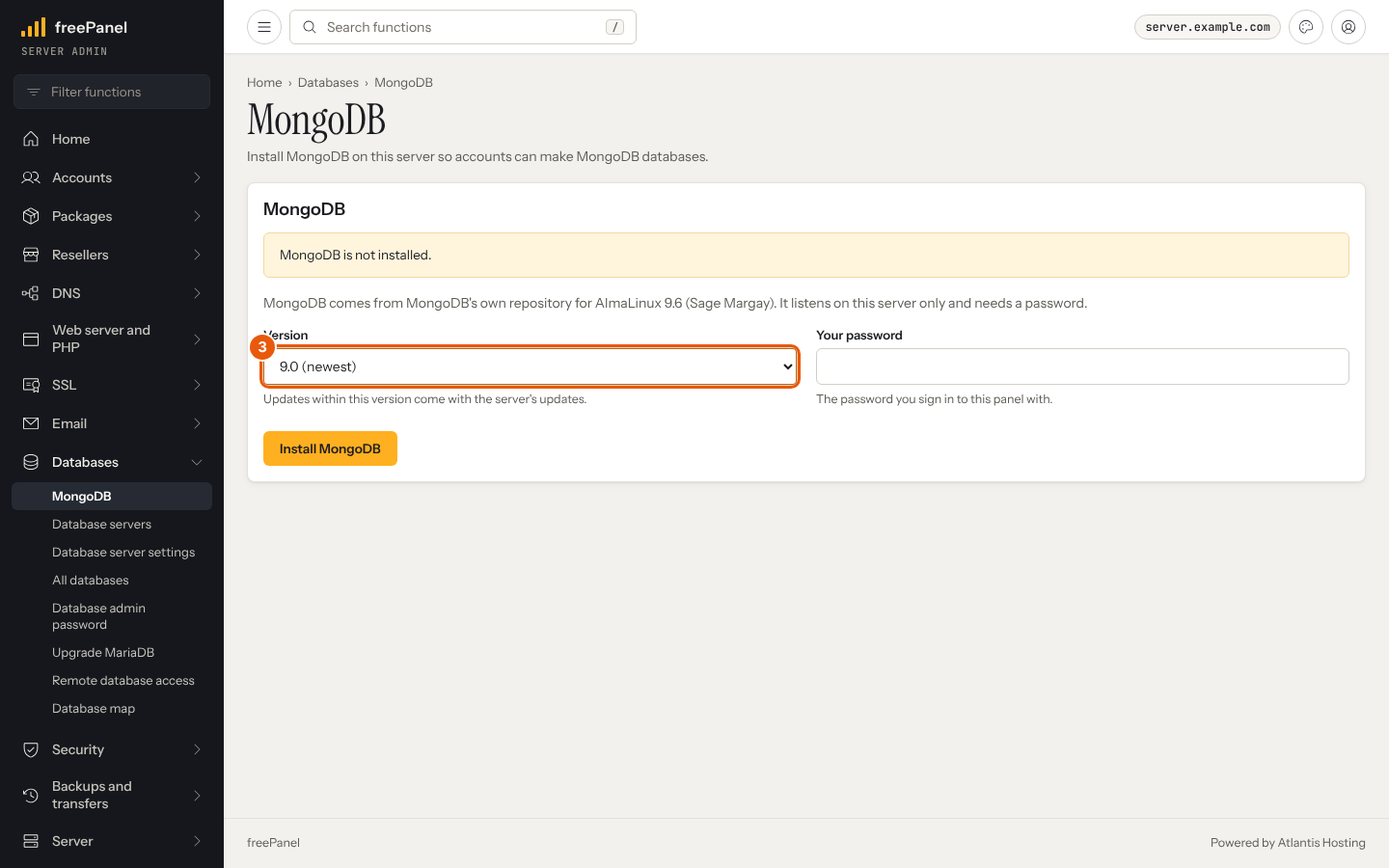
- Open Databases > MongoDB. You see "MongoDB is not installed."
- Click Install MongoDB.
- In Version, leave the newest version chosen unless an app needs an older one.
- In Your password, type the password you sign in to this panel with.
- Click Install MongoDB. Keep the page open: Progress shows each step, and it takes a few minutes.
- When you see "Done." and "MongoDB (version) is running.", customers can make MongoDB databases.
MongoDB listens on this server only (127.0.0.1) and every connection needs a password. No firewall port is opened for it, so apps on other computers can't reach it. Each customer's users can only open that customer's own databases.
To remove MongoDB
- First, the customers must remove their MongoDB databases and users. The page shows how many accounts still have some in Accounts with MongoDB databases or users.
- Open Databases > MongoDB and click Remove MongoDB.
- Type your password and click Remove MongoDB again.
MongoDB is stopped and its packages removed. Its data folder and settings are kept on the server under a dated name, so nothing is lost by mistake.
If something goes wrong
- If you see "Accounts still have MongoDB databases or users. Remove those first.", the customers' MongoDB databases and users must go before MongoDB can be removed. When an account is removed, its MongoDB data is set aside for you too.
- If you see "It did not finish. The output says why.", read the lines under Output. The most common cause is that the server could not reach MongoDB's download site: check that the server can reach the internet, then try again.
- If an error shows instead of the Version list after you click Install MongoDB, the server could not read the list of versions from MongoDB's site. Check that the server can reach the internet and try again in a few minutes.
- If you see "MongoDB (version) is installed but not running.", sign in to the server over SSH as root and run
systemctl restart mongod. If it stops again,journalctl -u mongodshows why; a full disk is the usual cause.