Hosting panel
Databases
What this does: the Databases tools make the databases your website keeps its information in, the users that may open them, and fast caches that make a site quicker.
When you need it: when you install WordPress or another app by hand, when an app asks for a "database name, user and password", or when you want to look inside your site's data.
A few words you will meet on this page:
- A database is where a website keeps its information in tables: posts, customers, orders and so on.
- A database user is a login that a website uses to open a database. It has its own name and password, separate from your panel login.
- A privilege is one thing a database user is allowed to do, such as read rows or make new tables.
- MariaDB (shown as MySQL databases) and PostgreSQL are two kinds of database. Most apps, including WordPress, use MariaDB/MySQL.
- MongoDB is a third kind that keeps each record as a document instead of rows in a table. Some apps, mostly ones written in Node.js, need it. You only see it once your host has installed it.
Database browser
What this does: opens the database manager in a new tab, already signed in to all your databases for an hour, so you can look at and edit their tables in the browser.
When you need it: when you want to check a value in your site's data, fix a setting stored there, or import or export a table.
Where: Databases > Database browser
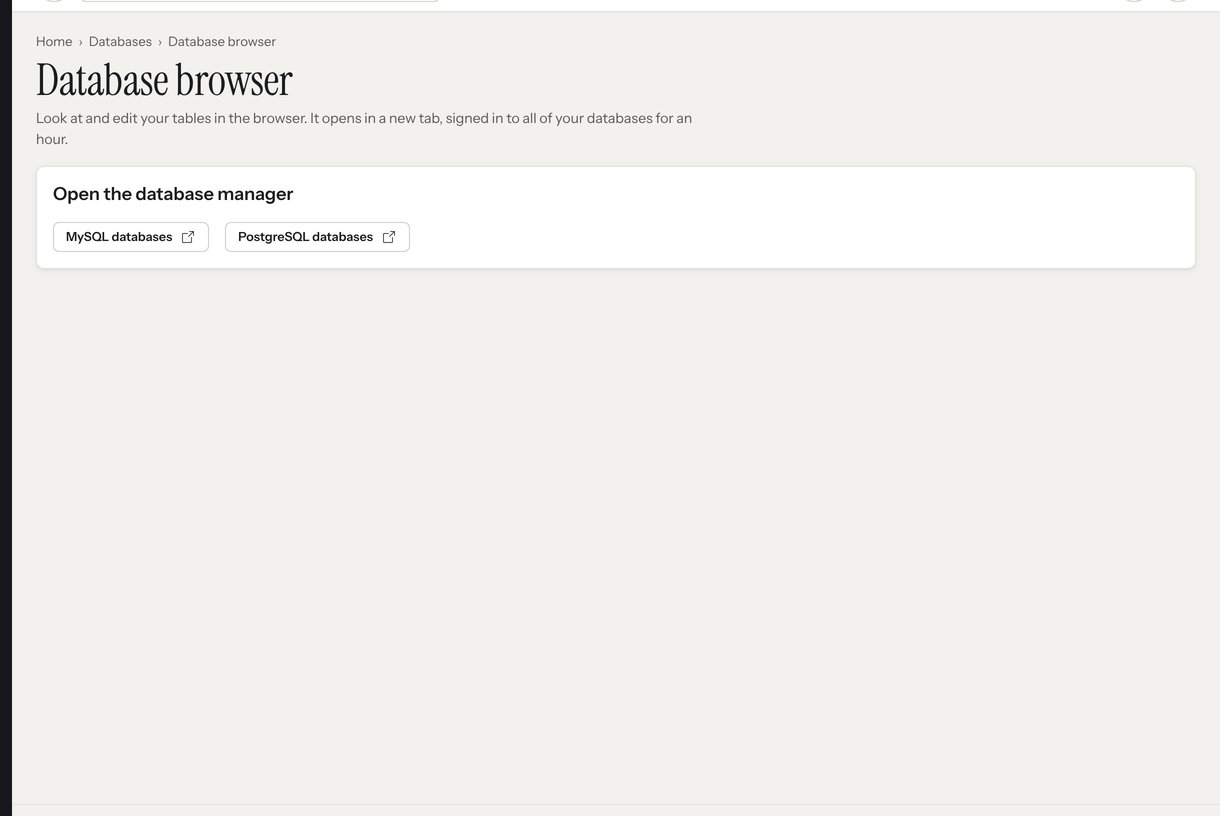
To open the database manager
- Open Databases, then Database browser.
- Under Open the database manager, click MySQL databases, PostgreSQL databases or MongoDB databases. The database manager opens in a new tab.
If something goes wrong
- If you see "The database manager isn't set up on this server.", ask your host.
- If you see "This account has no database engines turned on.", your package has no databases. Ask your host.
- If nothing opens, your browser may have blocked the new tab. Allow pop-ups for the panel and try again.
MySQL databases
What this does: makes MariaDB databases and users, and chooses what each user may do in each database.
When you need it: when an app or website you install by hand asks for a database.
Where: Databases > MySQL databases
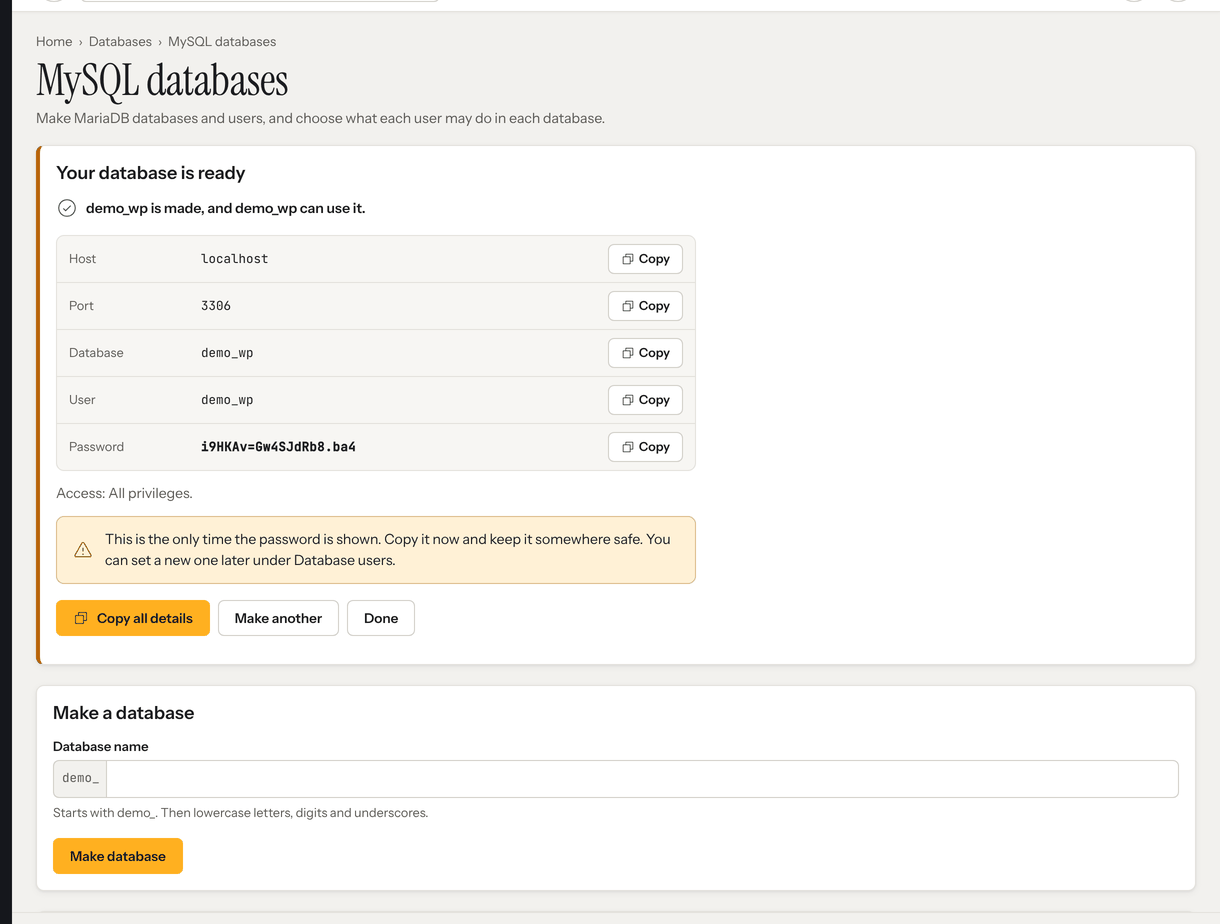
Every name starts with your account's prefix: your username and an underscore, such as demo_ for the account demo. The panel shows it in front of the box, so you only type the rest. In the examples below, the database and its user are both called demo_wp: that is allowed, because databases and users have separate lists.
To make a database and its user in one go
- Open Databases, then MySQL databases.
- Under Database wizard, click Start the wizard. Nothing is made until the last step.
- Name the database: type a name after the prefix in Database name, such as
wp. Use lowercase letters, digits and underscores. - Name its user: the User name is filled in for you from the database name. Type another name if you like.
- Set the user's password: a strong password is made for you. Click Make a new one (the wizard's button for another strong password), or type your own of at least 12 characters.
- Choose what the user may do: leave Everything (all privileges) ticked. It is what most sites and apps need.
- Click Create database and user. You see "Your database is ready" with the Host, Port, Database, User and Password.
- Click Copy all details and paste them somewhere safe. Then type each one into your app's setup. When an app such as WordPress asks for the Database Host, type the Host shown, usually
localhost. Click Done.
To make a database and a user separately
- Under Make a database, type the name in Database name, such as
shop, and click Make database. You see "Database demo_shop made." - Under Make a database user, type a User name, such as
shopuser, and a password twice (or click Make a strong password), then click Make user. - Under Give a user a database, pick the user and the database, tick the privileges (or All privileges) and click Give access. You see "demo_shopuser can now use demo_shop."
To change a user's password
- Under Database users, click Password beside the user.
- Type the new password twice, or click Make a strong password, and click Save password.
- Put the new password into your site's settings file too, or the site can no longer open its database.
To check and repair a database
- Under Your databases, click Check and repair beside it.
- Under What to do, choose Check first. It changes nothing.
- Click Run Check. Keep the page open. Tables with a problem are listed first.
- If a table has a problem, choose Repair and click Run Repair. Do this when your site is quiet: a table is held while it is repaired.
The choices under What to do are:
| Choice | What it does |
|---|---|
| Check | Reads every table and reports the damaged ones. Changes nothing. |
| Repair | Tries to mend damaged tables. Some tables (of the InnoDB kind) can't be repaired and are reported as they are. |
| Analyze | Refreshes the figures the database uses to answer quickly. Safe at any time. |
| Optimize | Rebuilds each table to give back unused space. Each table is held while it is rebuilt. |
To remove a database
- Under Your databases, click Remove beside it and confirm. You see "Database demo_shop removed. A copy is kept on the server."
To get a removed database back, ask your host.
If something goes wrong
- If you see "Use only lowercase letters, digits and underscores.", take out capitals, spaces and dashes.
- If you see "Use at least 12 characters.", make the password longer, or let the panel make one.
- If you see "Make a database and a user first.", both must exist before you can give access.
- If your site says it can't connect to the database, check that the database name, user name and password in its settings match exactly, prefix included, and that the user has access under Give a user a database.
Remote database hosts
What this does: lets your database users connect from other computers, from the addresses you list.
When you need it: when a program on your own computer, or an app on another server, must read your database directly.
Where: Databases > Remote database hosts
An IP address is the number that identifies a computer on the internet, such as 203.0.113.7. An IPv4 address is the common kind, four numbers with dots between them. You can find your own computer's address by searching the web for "what is my IP".
To allow a computer to connect
- Find the IP address of the computer that needs to connect.
- Open Databases, then Remote database hosts.
- In Address or range, type the IPv4 address, such as
203.0.113.7. A range such as203.0.113.0/24means all 256 addresses that start with 203.0.113.; use one only if your provider gives you a range. - Click Allow this host. You see "203.0.113.7 may connect now."
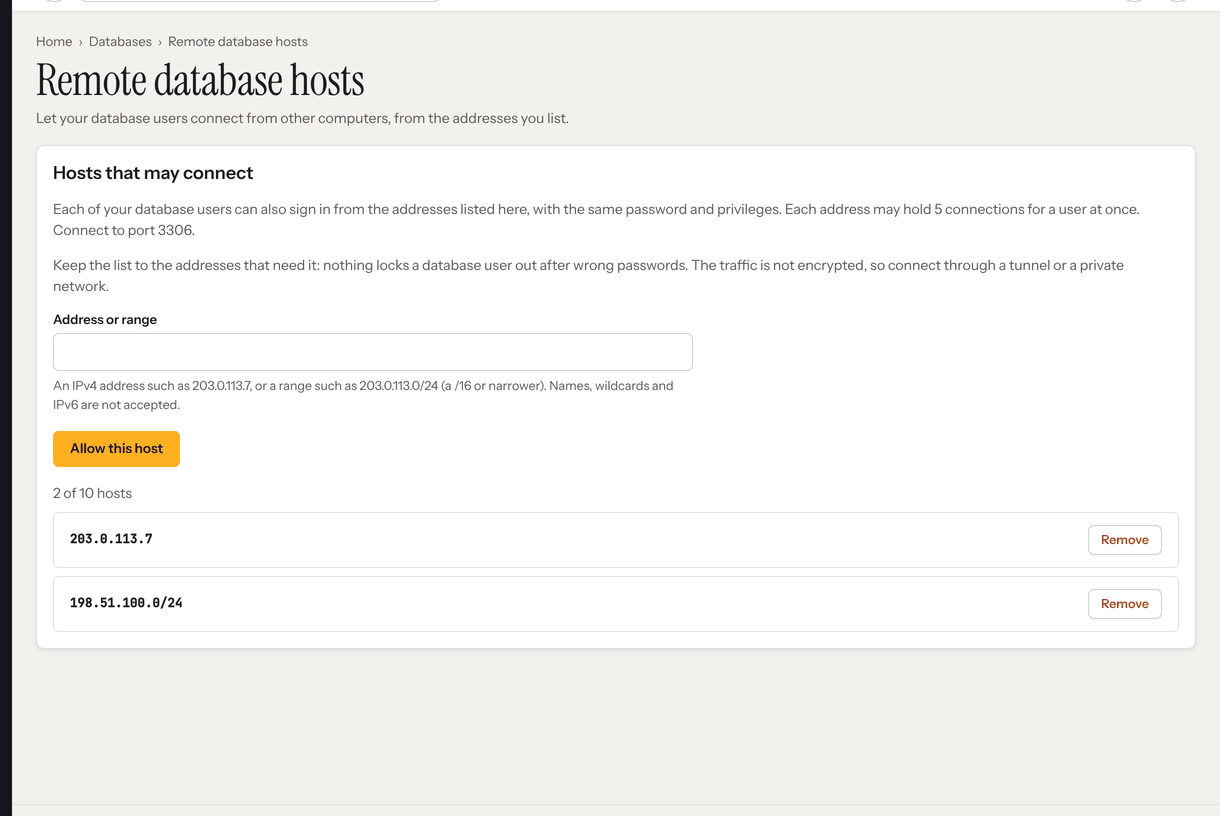
Each database user can then also sign in from that address, with the same password and privileges. The page shows the port to connect to.
If something goes wrong
- If you see "Remote access is off on this server", your database users can sign in from this server only. Ask your host to turn it on.
- If you see "The list is full", remove an address you no longer use.
- If your address is not accepted, names, wildcards and IPv6 addresses can't be used. Type a plain IPv4 address.
PostgreSQL databases
What this does: makes PostgreSQL databases and users, and chooses which databases each user may use.
When you need it: when an app asks for a PostgreSQL database rather than MySQL.
Where: Databases > PostgreSQL databases
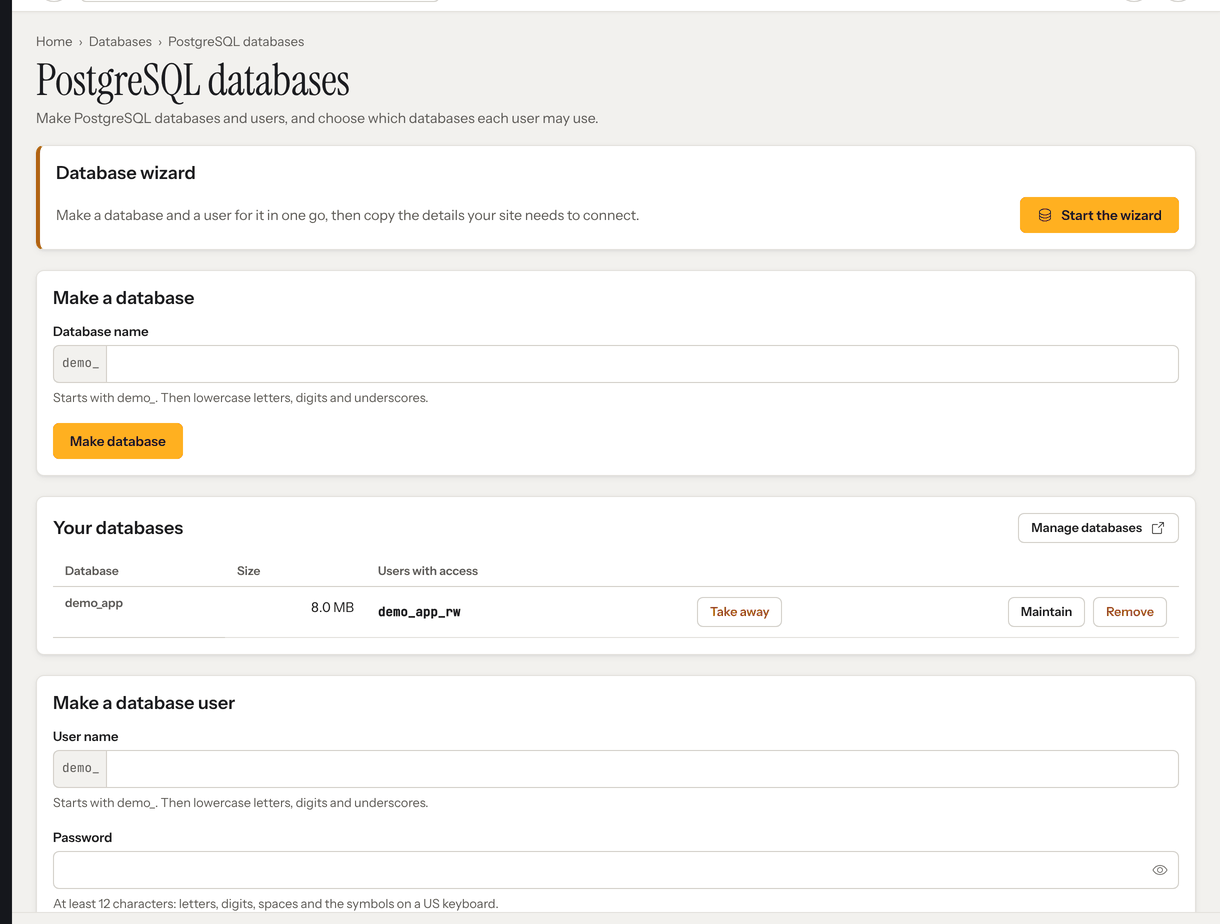
This page works just like MySQL databases above, with the same Database wizard, the same prefix and the same steps. The differences:
- Under Choose what the user may do, pick Everything, Read and write rows or Read only.
- A password may use only letters, digits, spaces and the symbols on a US keyboard.
- Instead of Check and repair there is Maintain. Run it when your site is quiet. Its choices are Analyze (refreshes the figures the database uses to answer quickly), Vacuum (gives back the space that deleted rows hold) and Reindex (rebuilds each table's indexes, which mends a damaged one; the table can't be written to meanwhile).
To make a PostgreSQL database
- Open Databases, then PostgreSQL databases.
- Click Start the wizard and follow the four steps, as for MySQL above.
- Click Create database and user, then Copy all details.
If something goes wrong
- If you see "Use only letters, digits, spaces and the symbols on a US keyboard.", take out accented letters or other special characters.
MongoDB databases
What this does: makes MongoDB databases and users, and chooses which databases each user may use.
When you need it: when an app asks for a MongoDB database, or for a "MongoDB connection string".
Where: Databases > MongoDB databases
This page only shows once your host has installed MongoDB on the server. If you can't find it, ask your host.
Names start with your account's prefix, as for MySQL. There is no wizard: you make the database, then the user, then give the user the database. A user given a database may read and change everything in it, but can't open any other account's data.
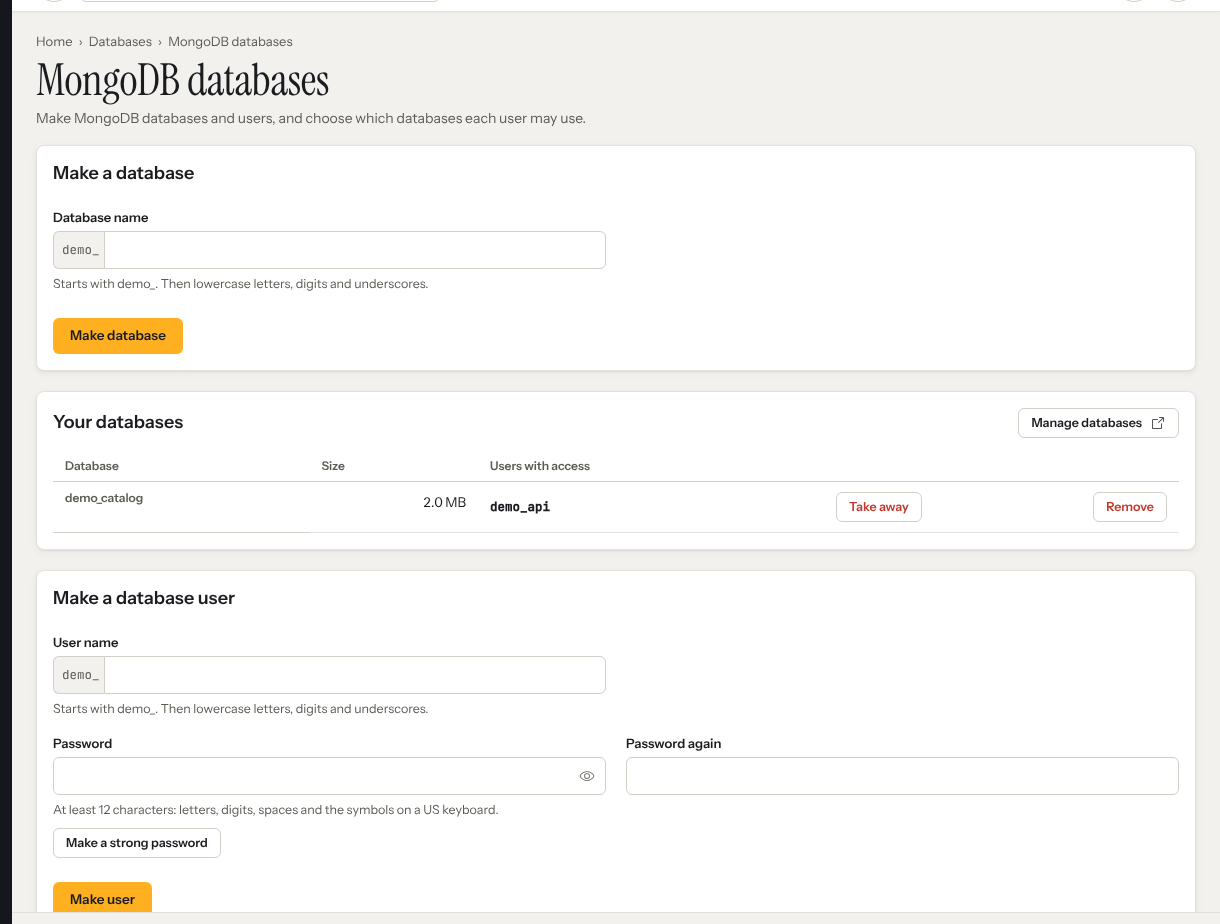
To make a MongoDB database and its user
- Open Databases, then MongoDB databases.
- Under Make a database, type a name after the prefix in Database name, such as
app, and click Make database. - Under Make a database user, type a User name, such as
app, and a password twice (or click Make a strong password), then click Make user. Keep the password somewhere safe: your app needs it. - Under Give a user a database, pick the user and the database and click Give access.
- In your app's setup, use host
127.0.0.1, port27017, your database name and user name (prefix included), the password, andadminas the authentication database. As one connection string it looks like this:mongodb://demo_app:YOUR-PASSWORD@127.0.0.1:27017/demo_app?authSource=admin
MongoDB only answers apps on this server. An app on your own computer can't connect to it.
To look inside a MongoDB database
- Under Your databases, click Manage databases. The database manager opens in a new tab, signed in for an hour.
- Click your database, then a collection (MongoDB's word for a table) to see its documents.
To remove a MongoDB database
- Under Your databases, click Remove beside it and confirm. To stop a user using a database without removing it, click Take away.
If something goes wrong
- If you see "Use only letters, digits, spaces and the symbols on a US keyboard.", take out accented letters or other special characters from the password.
- If your app says "Authentication failed", check that the user name includes the prefix, that the password is right, and that the connection uses
authSource=admin. - If your app says it isn't authorized on the database, give the user that database under Give a user a database.
Redis
What this does: gives your account its own Redis cache. A cache keeps answers your site works out again and again in memory, so pages load faster.
When you need it: when your site is slow, or a plugin (for example a WordPress cache plugin) asks for Redis.
Where: Databases > Redis
To turn Redis on
- Open Databases, then Redis.
- Choose the Memory. 64 MB is enough for most sites.
- Click Turn Redis on. You see "Redis is on. Give your site the socket below."
- Click Copy the socket and paste it into your site's cache settings.
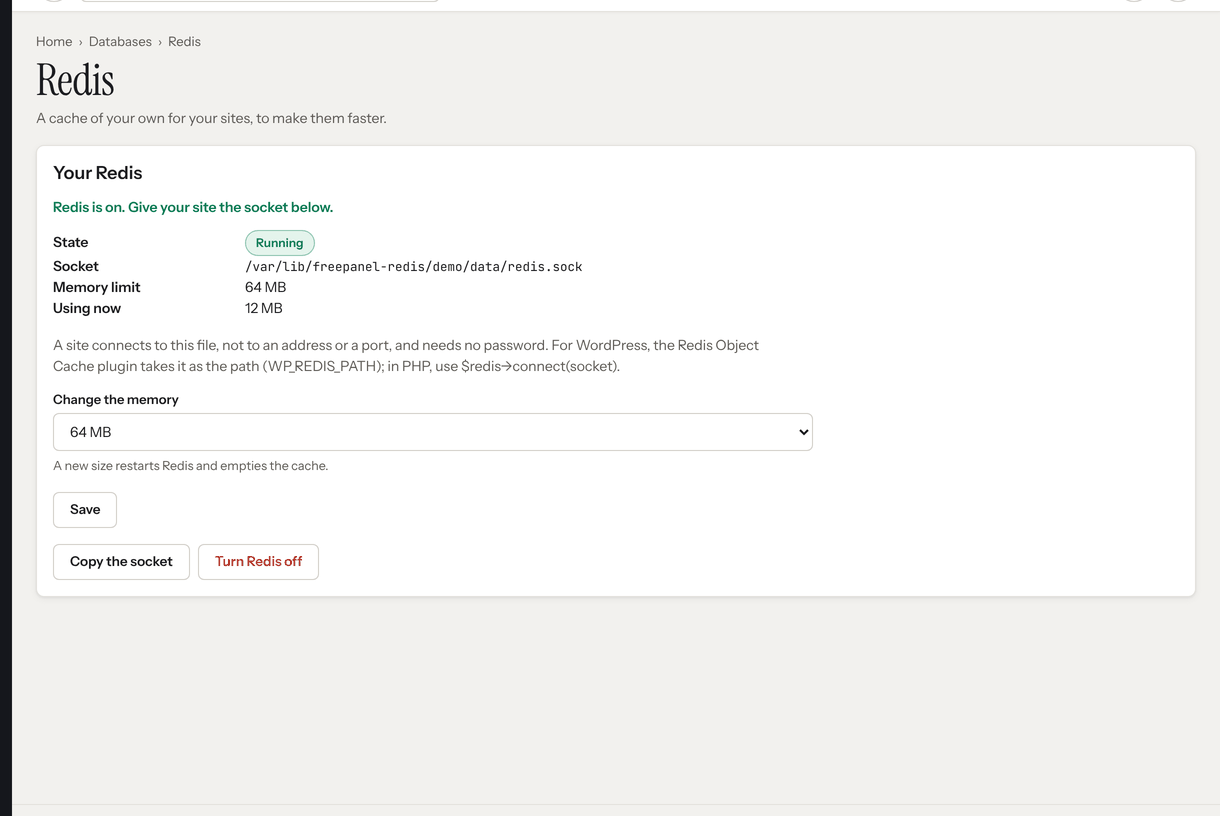
A socket is a special file in your account. Your site connects to it instead of to an address and port, and needs no password. Only your own sites can use your Redis.
To change the size, use Change the memory; this restarts Redis and empties the cache. To stop it, click Turn Redis off, then Turn it off.
If something goes wrong
- If you see "Redis is not set up on this server.", ask your host.
- If the state is "Suspended with the account", Redis starts again when your host lifts the suspension.
Memcached
What this does: gives your account its own Memcached cache, another kind of memory cache that makes sites faster.
When you need it: when an app or plugin asks for Memcached rather than Redis.
Where: Databases > Memcached
To turn Memcached on
- Open Databases, then Memcached.
- Choose the Memory. 64 MB is enough for most sites.
- Click Turn Memcached on. You see "Memcached is on. Give your site the socket below."
- Click Copy the socket and give it to your site's cache settings.
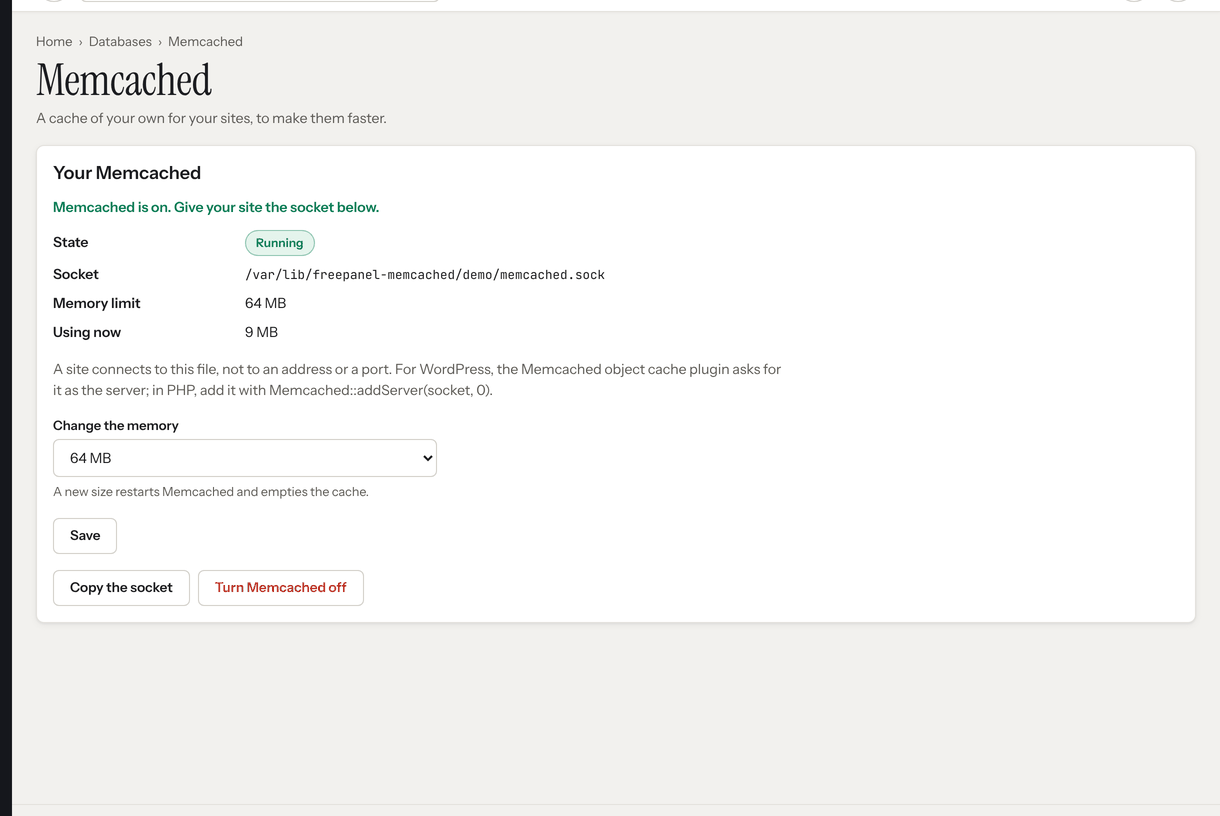
A new memory size restarts Memcached and empties the cache. To stop it, click Turn Memcached off, then Turn it off.
If something goes wrong
- If you see "Memcached is not set up on this server.", ask your host.