Billing and the store
Reports
What this does: the Reports group tells you how your business is doing. It has two tools. Overview shows what needs your attention today. The Reports tool adds up the money you took, what you sold, who owes you and the tax you charged.
When you need it: Overview every morning; the Reports tool at the end of a month, or when your accountant asks for figures.
Overview
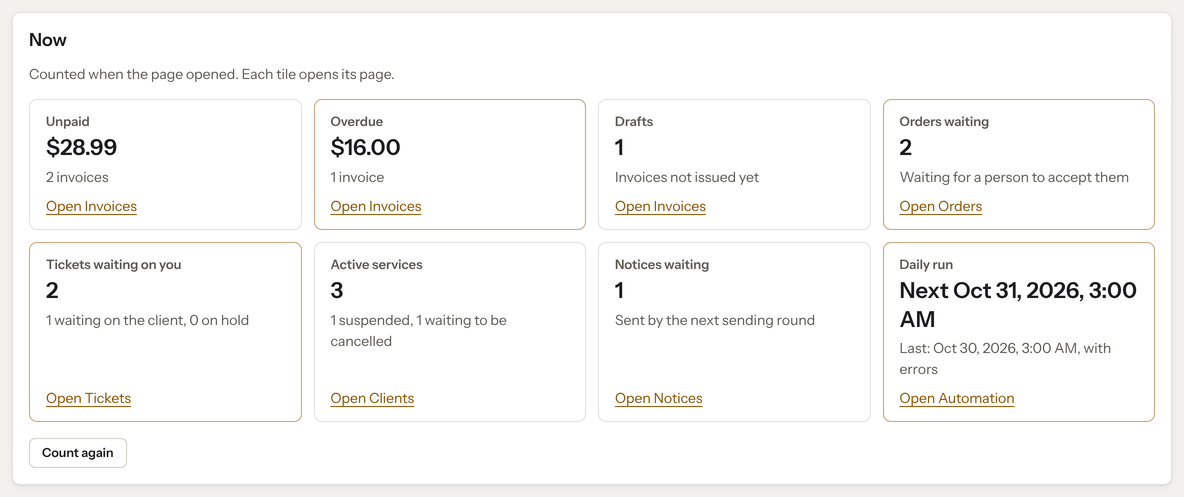
What this does: shows tiles of what needs action now: Unpaid and Overdue invoices with their total, Drafts not issued yet, Orders waiting, Tickets waiting on you, Active services, Notices waiting to be sent, and the Daily run: when it runs next and how the last run went.
When you need it: as your start page for billing each day.
Where: Reports > Overview
To see what needs your attention
- Open Reports > Overview. The tiles are counted when the page opens.
- Read each tile. For example, Overdue $16.00, 1 invoice means one client is late paying.
- Some tiles need a word of explanation:
- Notices waiting: reminders and overdue notices the daily run made, which the next sending round emails. See Notices.
- Active services, "waiting to be cancelled": services a client cancelled in their client area. They stay active until the end of the period they paid for.
- Click the link at the bottom of a tile, such as Open Invoices or Open Orders, to go straight to that list.
- To count again without leaving the page, click Count again.
If something goes wrong
- If the Daily run tile says Off, the daily run is not turned on, so no renewal invoices or reminders go out. Turn it on in Automation.
- If it says "with errors", open Automation, click Events on that run and read what failed.
Reports
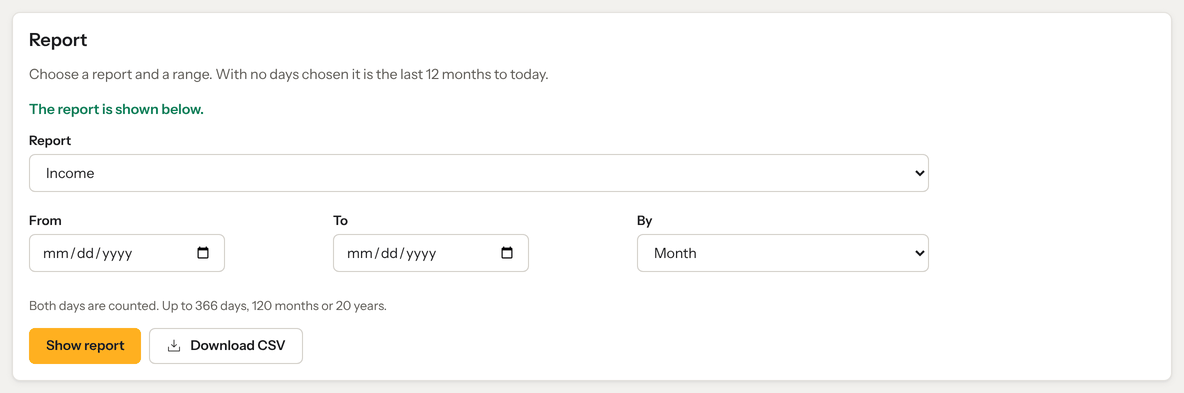
What this does: four reports, each as a chart and a table, and each as a CSV file you can open in a spreadsheet:
- Income: money taken, money given back and the difference, by period and by gateway.
- Sales by plan: new clients, new and ended services, and for each plan what is running now.
- Aged debt: what each client owes today, sorted by how long it is past its due day.
- Tax: the tax on your invoices, by tax name and rate.
All amounts are in US dollars, the only currency billing uses, and all days are in UTC (world time).
When you need it: to see your income for a month, to chase clients who owe you, or to fill in a tax return.
Where: Reports > Reports (the Reports tool inside the Reports group)
To show a report
- In the menu on the left, click the Reports group, then the Reports tool in it.
- Under Report, choose Income, Sales by plan, Aged debt or Tax.
- Pick the first day in From and the last day in To. Both days are counted. Leave them empty for the last 12 months to today. Aged debt takes no days: it is always what is owed today.
- Under By, choose Day, Month or Year.
- For Tax, choose under Count invoices whether to count invoices Issued in the range or Paid in the range.
- Click Show report. The chart and the table appear below.
- To keep the figures, click Download CSV.
If something goes wrong
- If you see "The first day comes after the last one.", swap From and To.
- How long a range can be depends on By: up to 366 days with Day, 120 months with Month, or 20 years with Year. For a longer one, choose a bigger By, or show it in parts.