Billing and the store
Utilities
What this does: the Utilities group holds the tools you use now and then: bringing clients in from another billing system, checking the emails billing has sent, the reminders waiting to go out, and sending one message to many clients.
When you need it: when you move to freePanel from another billing system, when a client says they never got an invoice, or when you have news for everyone.
Import
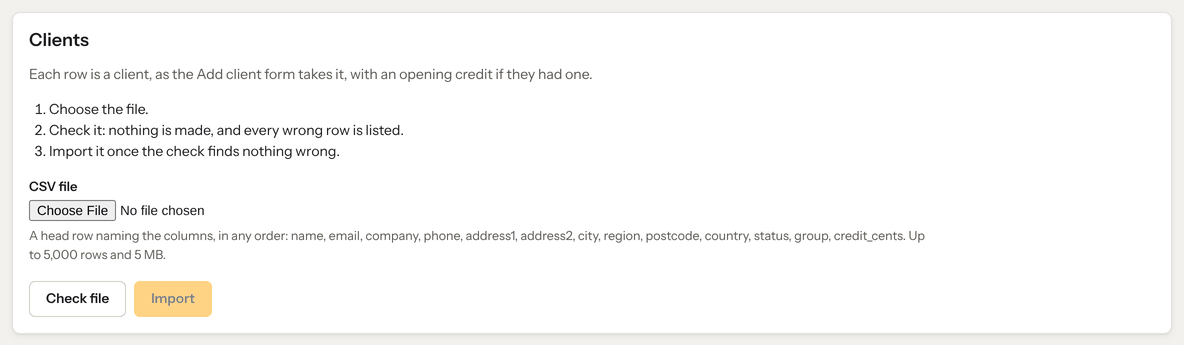
What this does: brings your clients, what they owe you and their services in from another system, as CSV files (a CSV file is a plain table saved as text, with commas between the columns). Each file is checked first, and imported all at once or not at all.
When you need it: once, when you start using freePanel billing and already have clients elsewhere.
Where: Utilities > Import
Import the files in this order: Clients first, then Opening balances and Services, because those two name each client by email address.
| File | One row is | Columns |
|---|---|---|
| Clients | a client, with an opening credit if they had one | name, email, company, phone, address1, address2, city, region, postcode, country, status, group, credit_cents |
| Opening balances | an issued, unpaid invoice of what the client owed in the old system | customer_email, description, amount_cents, due_on |
| Services | an accepted order and its service, on the schedule it had; nothing is invoiced | customer_email, plan, term, started_on, next_due, renewal_cents, status |
The first row of each file names the columns, in any order. A file can have up to 5,000 rows and be up to 5 MB. Amounts ending in _cents are in cents: 1500 is $15.00. Days are written year-month-day, such as 2026-11-01.
What each column may hold:
| Column | What to put in it |
|---|---|
status (Clients) | active, inactive or closed; empty is active |
group (Clients) | the name of a client group you made already, or empty |
country (Clients) | two letters, such as GB |
due_on (Opening balances) | the day it was due, such as 2026-10-15, or empty |
plan (Services) | the name of one of your plans, as in Products and services, such as Standard |
term (Services) | monthly, quarterly (every 3 months), semiannual (every 6 months), annual, biennial (every 2 years) or triennial (every 3 years) |
started_on (Services) | the day the service began, such as 2025-03-01 |
next_due (Services) | the first day of the next period not yet invoiced: a whole number of terms after started_on, and not more than one term ago |
renewal_cents (Services) | the price per term in cents; empty uses the plan's price for that term |
status (Services) | active or suspended; empty is active |
An example row of each file, under its first row of column names:
name,email,company,phone,address1,address2,city,region,postcode,country,status,group,credit_cents
Grace Hopper,grace@example.net,Hopper Web Works,,1 Example Street,,London,,SW1A 1AA,GB,active,Agencies,2500
customer_email,description,amount_cents,due_on
grace@example.net,Hosting for October,1500,2026-10-15customer_email,plan,term,started_on,next_due,renewal_cents,status
grace@example.net,Standard,monthly,2025-03-01,2026-12-01,1500,activeTo import your clients
- In your old system or a spreadsheet, save your clients as a CSV file with the columns above. The first row holds the column names.
- Open Utilities > Import. In the Clients card, click CSV file and choose the file.
- Click Check file. Nothing is made yet. You see, for example, "The file is ready: 42 rows can be imported.", or a list under What is wrong, with the Row, the Column and what to fix.
- If something is wrong, fix those rows in your spreadsheet, save the file again and click Check file again. Row 1 is the head row.
- When the check finds nothing wrong, click Import. You see "42 were made."
- Do the same in the Opening balances and Services cards.
If something goes wrong
- If you see "Check this file before importing it.", click Check file first.
- If you see "The file is larger than 5 MB.", split it into two files and import them one after the other.
- A row imported once is skipped if you import the same file again, so trying again is safe.
Moving everything from your old billing system at once
If your clients are in the billing system most hosts use today, you do not have to build the CSV files by hand. A command on your server reads them straight from the old system, through its API, from its database, or from a copy of its database (an SQL dump), and moves your clients, their services, their domains and what they still owe, all at once or not at all. It only reads from the old system: nothing there is changed.
- Sign in to your server over SSH. Put the old system's API login (or its database login) in a file only you can read, for example
old-billing.credwith the linesidentifier=...andsecret=..., then runchmod 600 old-billing.cred. The login is never typed on the command line, shown or saved anywhere else. - Run a check first. Nothing is written:
freepanelctl billing-migrate -from api -source https://billing.example.com/ -credentials old-billing.cred - Read what it lists: how many clients, services, domains and unpaid balances it would move, what is wrong (for example a plan you have not made here yet), and what stays in the old system and why. Make the plans and groups it names, or map them in a small file (
-map), and run the check again. - When the check finds nothing wrong, run the same command with
-applyadded. You can run it again later for clients who signed up in the meantime: what was moved before is not moved twice.
You can do the same on this page, under Move from another billing system: choose Its API (its address, an API identifier and secret, typed each time and never kept) or A copy of its database (a dump file), click Check, read what it found, then click Move. Move works only right after a check that found nothing wrong, with the same settings.
If you are a reseller, the page shows only this part, and your clients go into your own billing: nobody else on the server sees them. The move must fit your limits. Each service that is not tied to one of your hosting accounts will need one, so it counts against your accounts, disk and bandwidth. If the move goes over a limit, the check says which limit and by how much.
Paid invoices stay in the old system as your history, and clients set a new password and enter their card again here. Imported domains have renewal off until you switch it on.
Message log
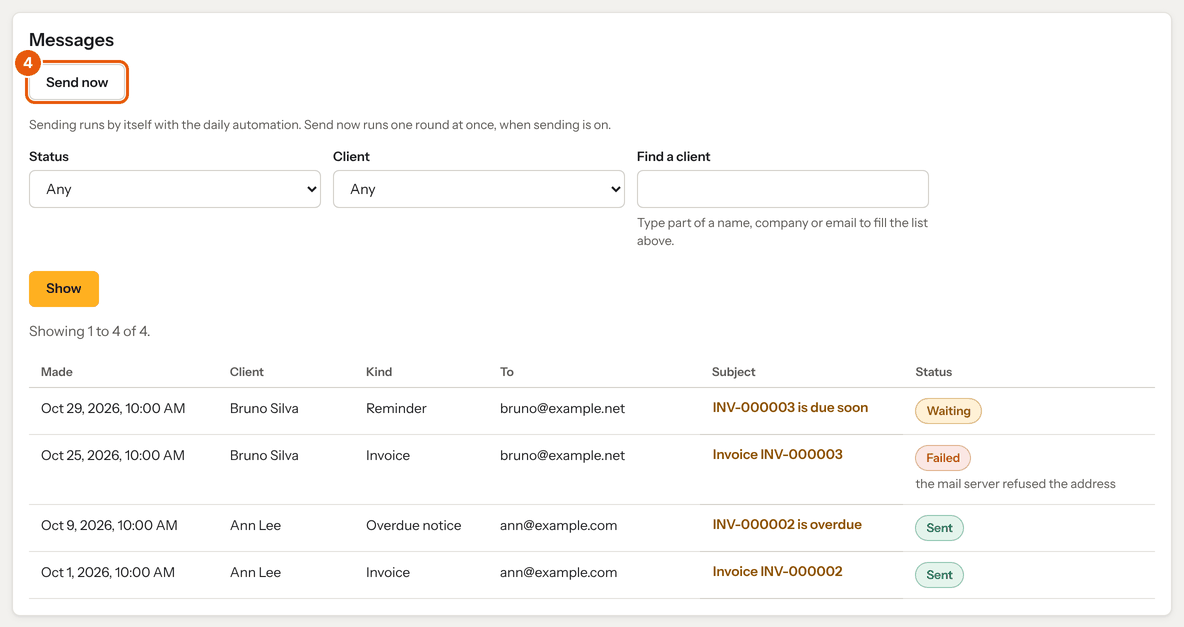
What this does: lists every email billing wrote to clients: invoices, reminders, notices and messages to many. Each shows who it went To, its Subject and its Status: Waiting, Sent or Failed. Each is tried three times before it stays failed.
When you need it: when a client says they never got an invoice or a reminder.
Where: Utilities > Message log
To check whether a message was sent
- Open Utilities > Message log.
- To see one client only, type part of their name in Find a client, choose them under Client, and click Show.
- Read the Status of the message. Click its subject to read the whole message, with when it was Sent, how many Tries it took and the Last error.
- Messages marked Waiting go out in the next sending round: once a day with the daily run, if it is on in Automation. To send them now instead, click Send now, then Send now again to confirm. You see "One round ran: 2 made, 2 sent, 0 failed."
If something goes wrong
- If a message shows Failed, open it and read Last error. It often means the server's own mail service is not running: check Services and status > Services.
- If no message has been written at all, sending is off. Turn on Send messages to clients in Message templates. Invoices, reminders and notices made while it was off are never sent; messages to many clients you queued while it was off go out in the first sending round after you turn it on.
Notices
What this does: lists the reminders, overdue notices and service notices the daily run made for clients. The next sending round writes each one out as an email; you then find it in the Message log. A notice made while sending was off is never sent.
When you need it: to check that the right clients were reminded about an invoice.
Where: Utilities > Notices
To see the notices
- Open Utilities > Notices. The newest are first.
- Narrow the list with Kind, Status or Client, and click Show.
- Click the invoice in the About column to open it, or Open the Message log to see the emails written from the notices.

Mass message
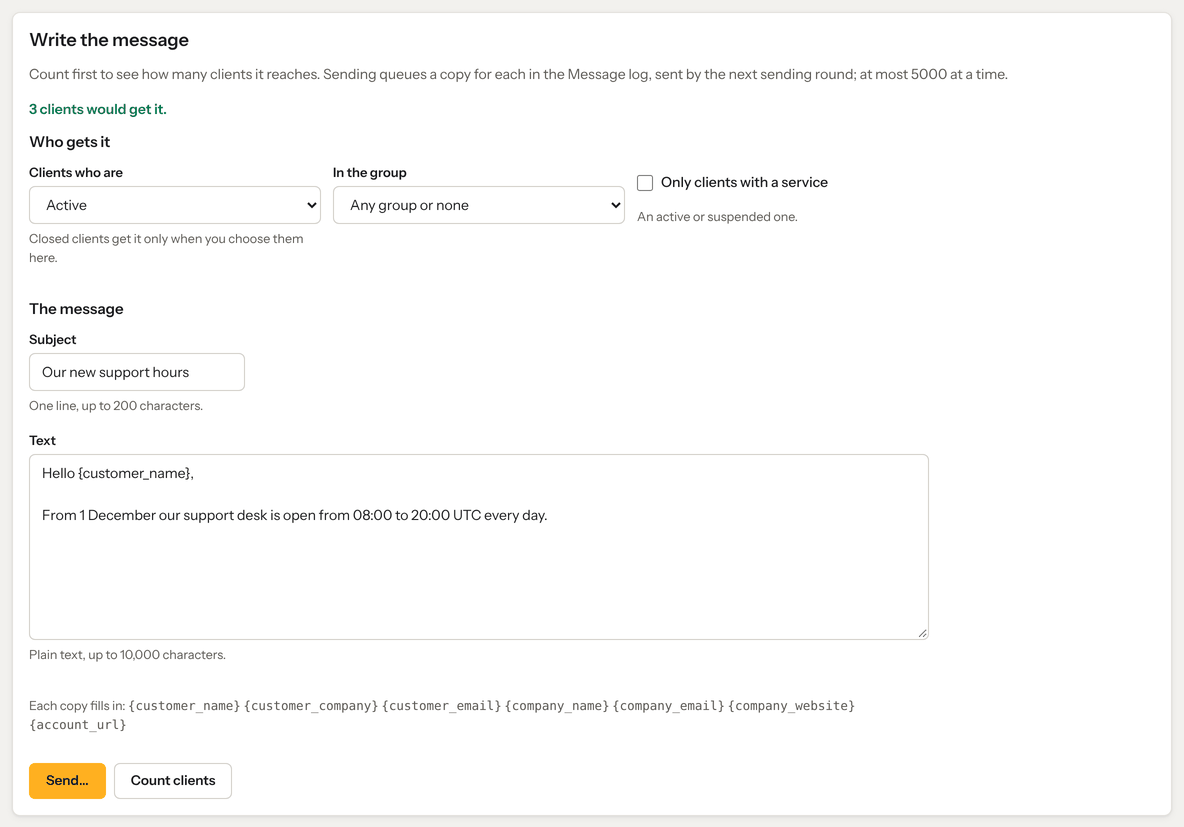
What this does: sends one email to many clients at once: all clients of a status, of a group, or only those with a service. Each client gets their own copy. You count first, so you know how many it reaches.
When you need it: for news every client should get by email, such as new support hours. For news they read when they sign in, use Announcements.
Where: Utilities > Mass message
To send a message to many clients
- Open Utilities > Mass message.
- Under Who gets it, choose Clients who are (for example Active), a client group under In the group, and tick Only clients with a service if you like.
- Type the Subject and the Text. Placeholders such as
{customer_name}are filled in for each client; the form lists them under Each copy fills in:. - Click Count clients. You see, for example, "3 clients would get it."
- Click Send…. The panel asks "Queue this message for 3 clients? It can't be taken back once it is sent."
- Click Queue messages. You see "3 messages are queued; the next sending round sends them." That is with the daily run, or when you click Send now in Message log.
If something goes wrong
- If you see "No client matches, so there is nothing to send.", widen the choice under Who gets it.
- If you see "Sending is off, so queued messages wait until it is turned on.", click Turn sending on in Message templates and turn it on. These messages are kept and go out in the first sending round after that.