Reseller panel
Your own name servers
What this does: a name server is the server that answers DNS questions for a domain (DNS is the internet's address book). Your customers' domains list name server names, such as ns1.example.com. Name servers of your own put your brand on those names too.
When you need it: when your customers ask which name servers to give their domain registrar (the company where they bought their domain).
Your host can give you name servers of your own, such as ns1.example.net and ns2.example.net, so your customers see your names instead of your host's. Ask your host for it: they set it in the admin panel's Resellers > Reseller name servers. Before they do, point the names at the server at your domain's registrar, as your host tells you.
Once they are set, every zone of your customers' accounts lists your names, and so does every account you make later.
What to tell your customers
To find the name servers your customers' domains list, your own or your host's:
- Sign in to the admin panel with your reseller login.
- Open DNS, then DNS lookup.
- In Name, type one of your customers' domains, for example
site1.example.com. - In Record type, choose NS.
- In Ask, choose This server’s own name server (the other choice, This server’s resolvers, shows what the rest of the internet sees today, which is not what you want here).
- Click Look up. Under NS records, the answers are the name servers to give the registrar, such as
ns1.example.com.andns2.example.com..
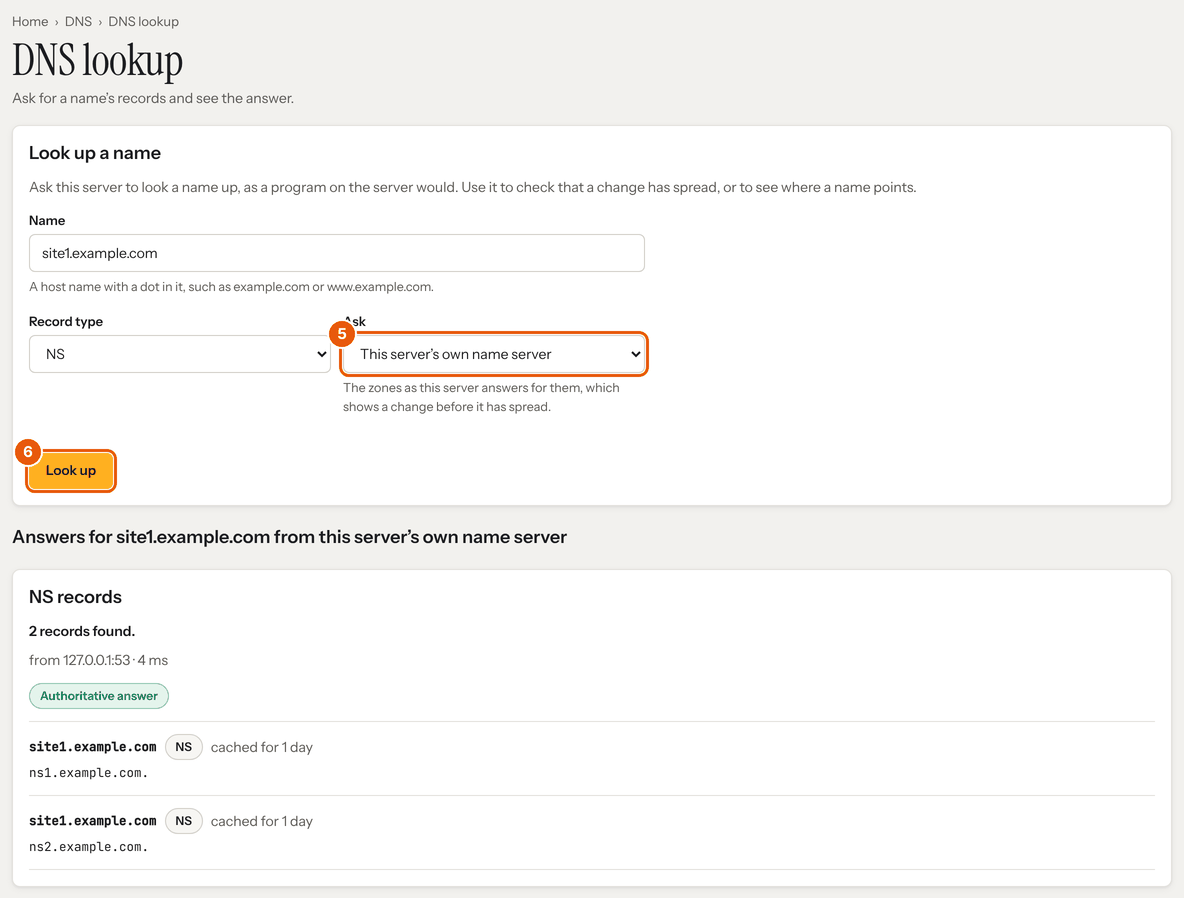
The dot at the end of each answer is DNS's way of writing a full name. Leave it out when you give the names to your customers: they type ns1.example.com and ns2.example.com at their registrar, in the domain's name server settings. The change can take a few hours to spread.