Reseller panel
Your own panel address
What this does: gives you an address of your own, such as panel.resl.example.com, where your customers sign in to their customer panel and to your store (the shop where they order hosting from you, if your host has billing turned on). The address gets its own free certificate, so browsers show it as secure, and the sign-in page there shows your name and logo.
When you need it: when you don't want your customers to see your host's server name in their browser.
Before you start
The address must be:
- one of your accounts' domains, or a name under one. For example, if your own hosting account is
resl.example.com, you can usepanel.resl.example.com; - proven to be that account's. If your host asks for proof of new domains, open that account's Domains page in the customer panel: a domain still waiting for proof shows the record to add there (a TXT record named
_freepanel-verify.and the domain). Add it in the domain's DNS; once the server finds it, the domain is proven. Your host can also approve it by hand; - not the server's own name, and not used by another reseller.
You can have one address.
To set up your panel address
On the example server, the reseller resl has its own hosting account with the domain resl.example.com, and sets up panel.resl.example.com.
- Find your host's server address. In the admin panel, open DNS, then DNS lookup. In Name, type your host's server name (the part of your sign-in address between
https://and:7443, such asserver.example.com), choose A in Record type and click Look up. The answer, such as203.0.113.10, is the address. - Open your own hosting account in the customer panel: go to
https://server.example.com:7444/(your host's server name with:7444) and sign in with your reseller username and password. - In the customer panel, open Domains > DNS records for your domain, and add an A record (a record that points a name at an address): name
panel, type A, value the address from step 1. If your domain's DNS is somewhere else (for example at the company where you bought it), add the same record there instead. - Back in the admin panel (signed in with your reseller login), open Resellers, then Reseller panel address.
- Read What it does: it says which names you may use.
- Under Address, type the name, for example
panel.resl.example.com, withouthttps://or a path. - Click Save address. You see "Saved. panel.resl.example.com is the address now."
- Look at How it stands. Panel answers there should say Yes. Certificate says Waiting until the free certificate arrives (the line Why says what it waits for), then Active, with its end date under Valid until.
- When the certificate is in place, open the Customer panel link to see your sign-in page.
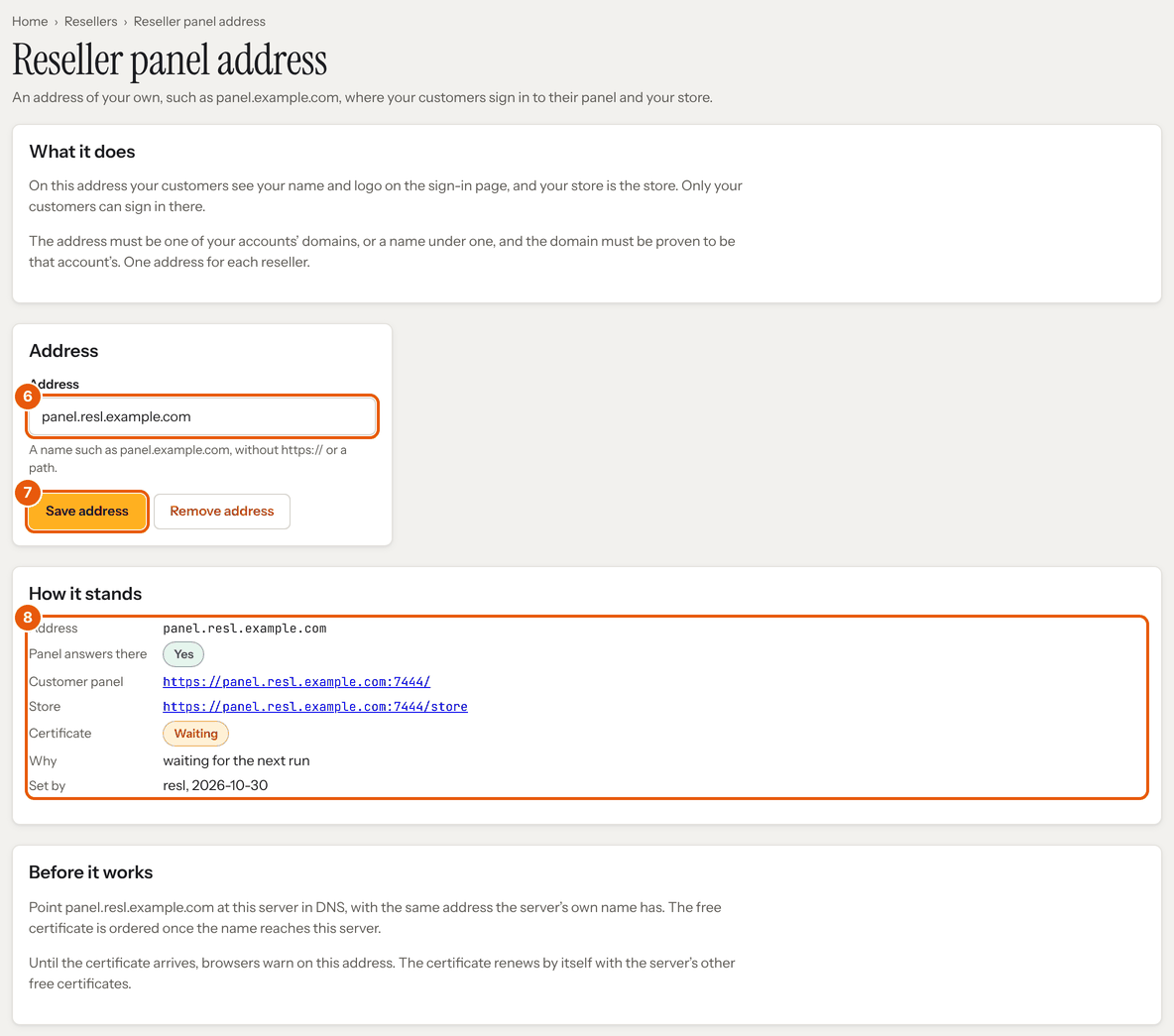
The links in How it stands end in :7444, the customer panel's port, as in the picture. On a server with web hosting, once the certificate is in place, they show the address without a port, such as https://panel.resl.example.com/. Give your customers the link the page shows.
Once the certificate is in place, the emails your customers get (password reset links, the welcome message, invoices) link to your address too. The certificate renews by itself.
Who can sign in there
Only your own logins and your customers can sign in on your address. Anyone else gets the same answer as a wrong password. Your host signs in on their own address.
If something goes wrong
- If browsers warn on the address, the certificate has not arrived yet. Check with DNS > DNS lookup that the name points at the server, then wait. Why under Certificate says what it is waiting for.
- If you see "Use a name such as panel.example.com: letters, digits, hyphens and dots only.", remove
https://, slashes and spaces. - If the server refuses the name, it is not one of your accounts' domains or a name under one, the domain is not proven yet, or another reseller uses it.
- If you see "The panel does not answer on this address: its domain is no longer one of the accounts’ proven domains.", the domain was removed from your account or is waiting for proof again. Prove it again, or set another address.
To stop using the address, click Remove address. Your customers then sign in on your host's address again.