Licence
Licence
What this does: your licence lets this server run the freePanel panel. This page covers entering a key, moving a licence to a new server, buying one, getting support, and what happens if the licence can't be checked.
When you need it: when you first install, when you move to a new server, and if the panel ever shows a licence banner or locks.
Where: Branding and API > Licence. Every part of that page is described in Licence in the admin pages.
How the licence works
- A licence key is a long line that starts with
FP1.. You enter it once on each server. - About once a day, the panel asks the licence service whether the key is still good. The answer is called a lease: a signed note that says "this server is licensed until ...".
- Only the key, a random server ID, the server's name, its freePanel version and a one-time number are sent. Nothing about your accounts, domains, mail or use is sent.
- The server needs outgoing HTTPS (port 443) to reach the licence service. Nothing needs to come in.
Activate a key
To enter a licence key
- Open Branding and API > Licence. A server with no key opens on this page by itself.
- Under Enter a licence key, paste your key in Licence key.
- Click Save key.
- You see Key saved. and This server is licensed.
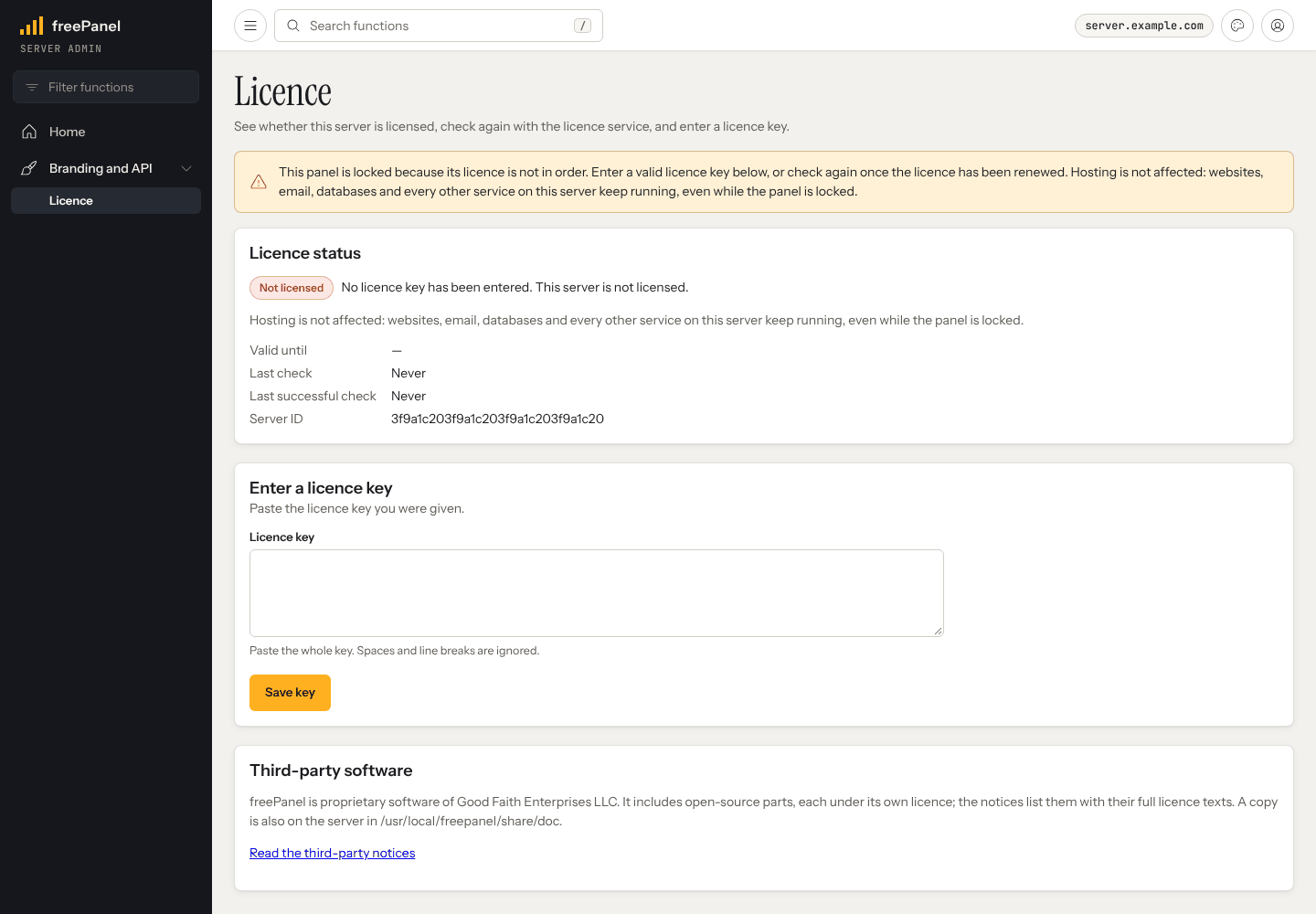
To change to another key later, paste it under Change the licence key and click Save key. The key in use stays until the new one is accepted.
What the status means
The Licence status card at the top says where things stand:
| You see | What it means | What to do |
|---|---|---|
| Licensed | All is well. | Nothing. |
| Not licensed | No key has been entered, or the licence service has not answered for it yet. | Enter your key. |
| Grace period | The licence could not be renewed lately, but the panel works for now. It shows the date it locks on. | Check the server can reach the internet, then click Check now. |
| Locked | The panel is locked until the licence is put right. A reason is shown below. | See If the panel is locked. |
| Not enforced | This build of freePanel does not check for a licence. | Nothing. |
The card also shows Licensed to, Plan, Licence ID, Includes, Valid until, Last check and the Server ID.
What your licence includes
There are two licences. freePanel is the hosting panel alone. freePanel Complete is the hosting panel plus billing: the store, the client area, invoices, orders and support tickets. Includes on the Licence page says which you have: Hosting panel, or Hosting panel, Billing.
With a licence that doesn't include billing, the billing pages are not in the menus, and the store and client area don't open. Everything else works the same. To add billing, buy freePanel Complete.
To check the licence again now
- Click Check now.
- You see Checking with the licence service…, then Checked. and the new status.
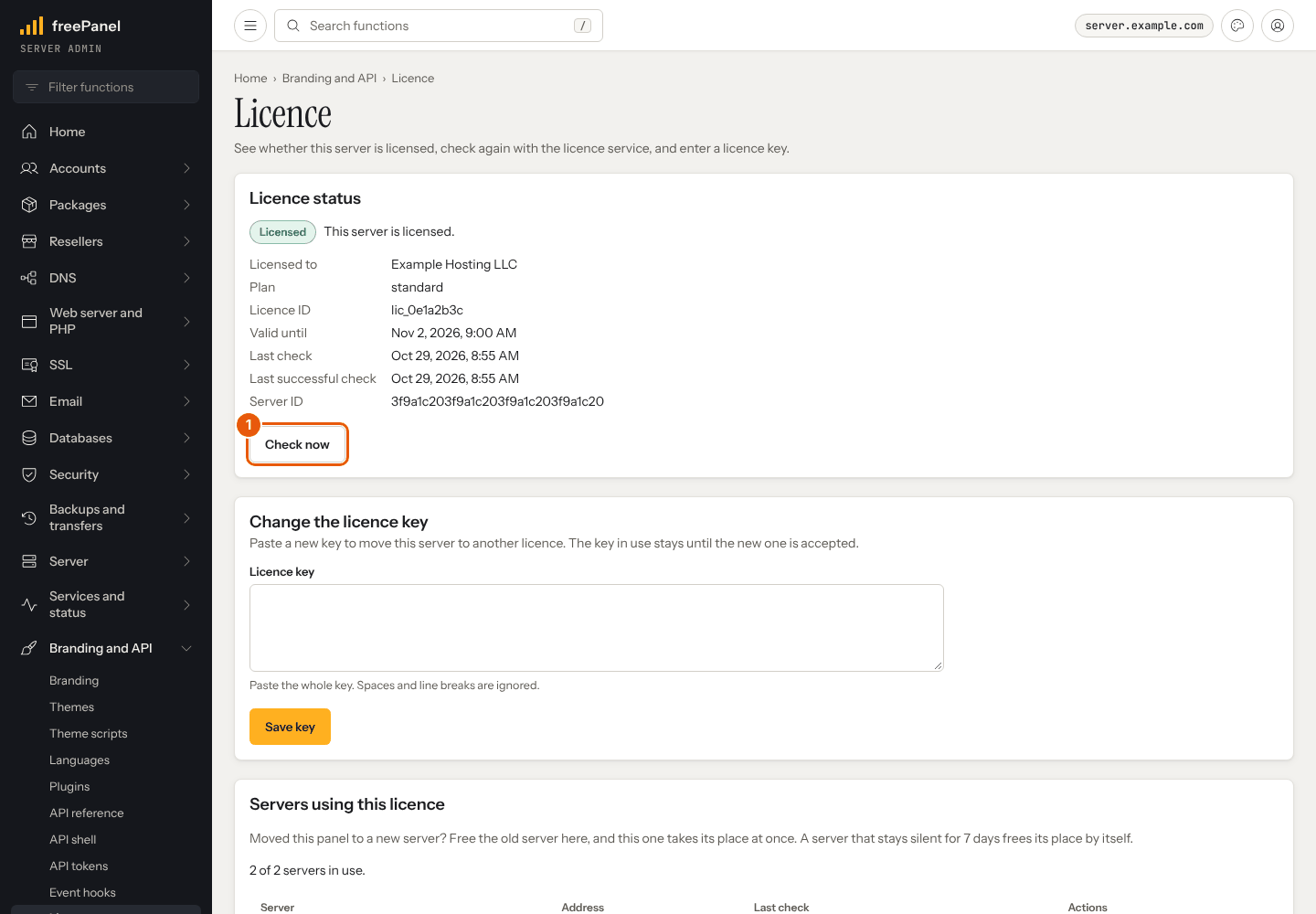
You can check once a minute.
Move a licence to a new server
A licence is held by one server at a time (or more, if your licence allows more servers). When you move to a new server, the new one needs the place the old one held.
- If only the server's address changed (same server, new IP address), you need to do nothing. The licence follows it, up to 3 times in 30 days.
- If the old server is switched off, its place frees itself after it has been silent for 7 days.
- To move at once, free the old server from the new one.
To move the licence to this server
- Install freePanel on the new server and enter the same licence key there.
- If the old server still holds the place, you see The licence is in use on another server.
- Under Servers using this licence, find the old server in the list. This server is marked This server.
- Click Free next to the old server.
- You are asked Free this server? Its panel locks at its next check. Its websites and email keep running. Click Free again to confirm.
- You see The server was freed. This server takes the place at once and is licensed.
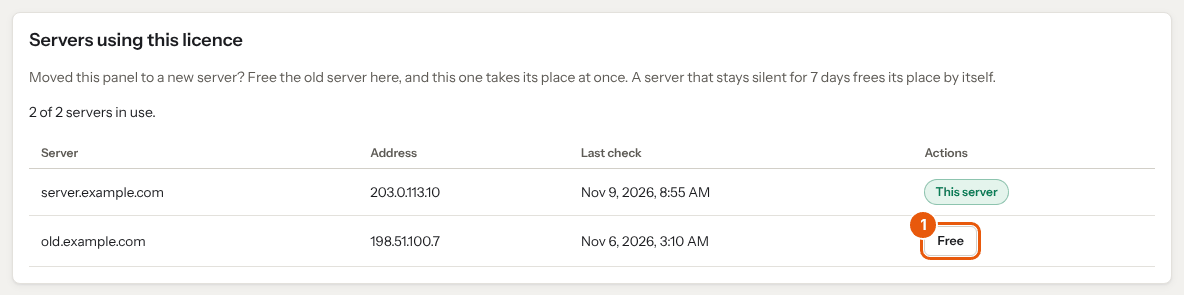
A licence can free up to 5 servers in 30 days. Past that, the licence service asks you to write to support.
Buy a licence
When the panel knows where licences are sold, the Buy or manage a licence card is shown. If your panel doesn't show it, see the prices at https://freepanel.atlantishosting.net/#pricing and write to support@atlantishosting.net to get a key. Never send your licence key by email.
To buy a licence from the panel
- On Branding and API > Licence, click Buy a licence.
- The freePanel licence site opens in a new tab. Choose your plan and pay there. Stripe or PayPal takes the payment.
- Once the payment has gone through, your account page on the licence site shows the licence. Click Get a delivery code. The code is shown once and works for one hour.
- Go back to the panel's tab. Under Delivery code, type in the code and click Put the key in. You see Your purchase went through and its key is in use.
Only type in a code you got from your own account on the licence site. Never give it to anyone. If your panel has no Delivery code field (an older version), copy the key from your account page into Licence key instead.

On a server that is already licensed, Buy a licence buys another licence, for another server. Manage licences and billing opens your account on the licence site, where you can add servers, change your card or cancel.
Get support
Every licence includes email support. If you want faster replies, round-the-clock emergency help, or a one-off fix, you buy those on the freePanel licence site.
To get support from the panel
- On Branding and API > Licence, find the Support card and click Get support.

- The freePanel licence site opens in a new tab. Sign in with the account you bought your licence with.
- Choose what you need:
- A support plan is paid each month or year. It covers one of your licences, for as many servers as that licence has. Under Licence, choose the licence, then click Continue to payment (or Continue to PayPal).
- A one-off fix is paid once, for one problem. Under Describe the problem, write the server's name, any error message and what you tried. Then click Continue to payment (or Continue to PayPal).
- Pay by card (Stripe) or with PayPal.
- You get an email when the payment goes through. For a fix, the support team writes back to your account's email address.
A support plan only works with a licence that renews. If you cancel the licence, its support plan stops too. Your account page on the licence site lists your plans under their licence, and your fixes under Support requests.
If the licence can't be checked
If the server can't reach the licence service for a while (your server's network is down, or the licence service is), the panel keeps using the lease it has. Nothing locks while the lease lasts. Today a lease lasts 7 days, and after it ends the panel keeps working for 7 more days in its Grace period, with a banner:
The licence could not be renewed. The panel locks on ... unless it is renewed before then.
The panel locks only when that time has run out, or when the licence service says the licence is suspended, revoked, expired or in use on another server.
If the panel is locked
When the panel is locked, you, the admin, can still sign in and open the Licence page. It shows This panel is locked because its licence is not in order. and the reason. Your resellers and customers see This panel is unavailable and Contact your host.
| Reason shown | What to do |
|---|---|
| No licence key has been entered. | Enter your key. |
| The licence service has not given this server a lease yet. | Check the server can reach the internet over HTTPS, then click Check now. |
| The licence lease has ended. | Same as above. |
| The licence is in use on another server. | Free the other server, as Move a licence shows. |
| The licence has expired. | Renew it on the licence site (Manage licences and billing), or enter a current key. |
| The licence has been suspended. or The licence has been revoked. | Contact the seller of your licence. |
| The licence service does not know this key. | Check you pasted the right key. |
If you see The clock on this server looks wrong, which can make a licence look ended. Check the date and time., set the server's clock right. On the server, type timedatectl and press Enter. Universal time should be the current time in UTC (world time), and System clock synchronized should say yes. If it says no, type timedatectl set-ntp true as root (with sudo in front if your prompt ends in $) to have the server keep its clock right through the internet, wait a minute, then click Check now. Your hosting company can help if it stays wrong.
Upgrading a server that ran without a licence
A server that was already running freePanel before its version checked a licence gets 14 days to enter a key. The banner says This server needs a licence key by .... A brand-new install doesn't get this time: it opens on the Licence page until a key is entered.
Third-party software
freePanel includes open-source parts, each under its own licence. To see them, click Read the third-party notices on the Licence page: it lists each part with its full licence text. A copy is also on the server, in /usr/local/freepanel/share/doc.