Moving in
Import a backup file
What this does: you copy a full-account backup file from another panel onto this server. freePanel reads it, shows you what is inside, and makes the account here with its files, websites, email, databases and DNS.
When you need it: when you have an account's backup file, but freePanel can't sign in to the old server (it is gone, or you don't have SSH access to it). If you can reach the old server, Move accounts here is easier.
Where: Backups and transfers > Import a backup file. Every part of that page is described in Import a backup file in the admin pages. This page walks you through one import.
Step 1: copy the file onto the server
The file must end in .tar.gz or .tgz, and its name may have only letters, digits, dots and dashes. Rename it first if it has other characters, such as spaces or underscores.
The file goes in the folder /backup/import/ on this server. Opening Backups and transfers > Import a backup file once makes that folder, so open that page first. (Or, on the server as root, type mkdir -p /backup/import.)
Copy the file from your computer
- Open a terminal on your own computer (PowerShell on Windows, Terminal on a Mac).
- Go to the folder that holds the file. For example, type
cd Downloadsand press Enter. - Type this, using your file's name and your server's address, and press Enter:
scp backup-examplenet.tar.gz root@203.0.113.10:/backup/import/ - Type the root password when asked. You see the file copy, with how much is done.
scp copies a file to a server over SSH. It comes with Windows 10 and later, and with every Mac.
If your server doesn't let root sign in over SSH, copy the file to your own user's home folder instead, then move it as root:
- On your computer:
scp backup-examplenet.tar.gz you@203.0.113.10:(with your user name; the:at the end means "my home folder"). - Sign in to the server as that user, and type
sudo mv ~/backup-examplenet.tar.gz /backup/import/. - Type
sudo chown root:root /backup/import/backup-examplenet.tar.gz, so the file belongs to root, like the folder.
Step 2: read the file
- Open Backups and transfers > Import a backup file.
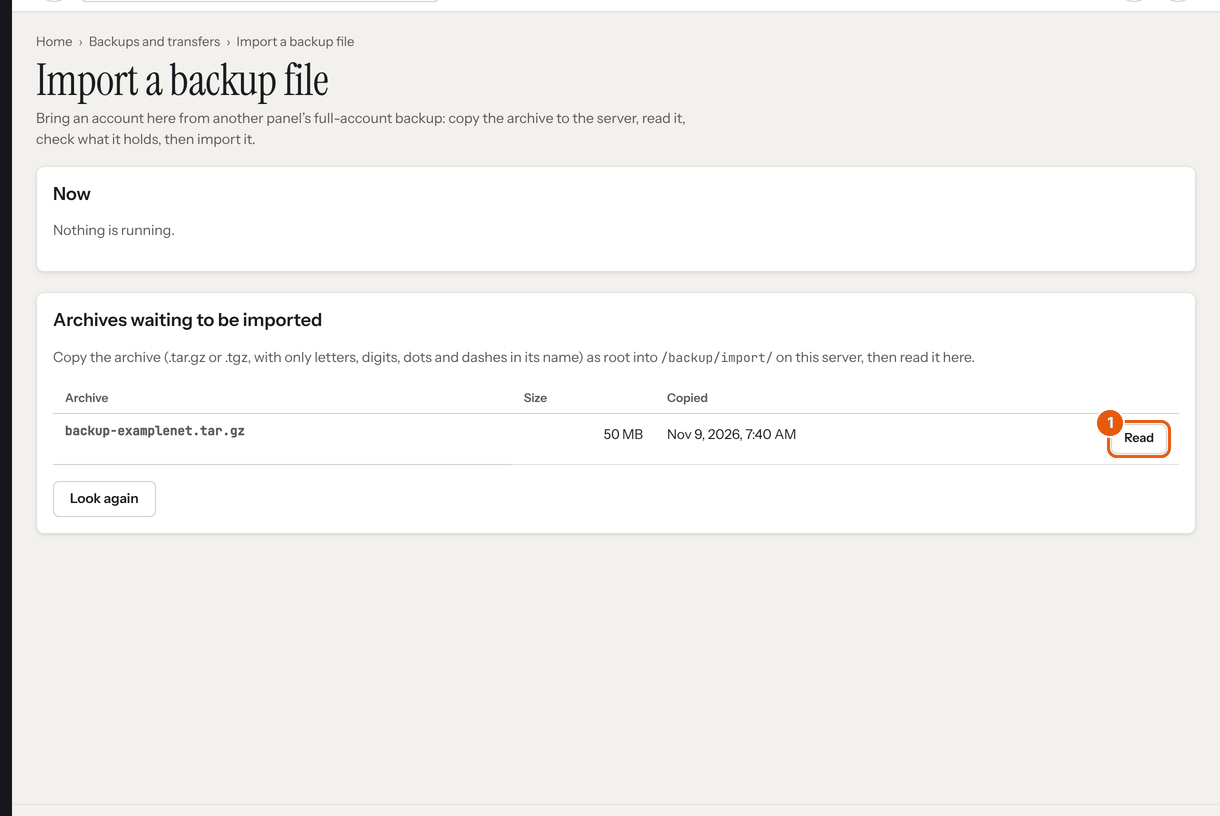
- Under Archives waiting to be imported, you see your file. If not, click Look again.
- Click Read next to it. You see Reading backup-examplenet.tar.gz. This page shows what it holds when reading ends. A big file can take several minutes.
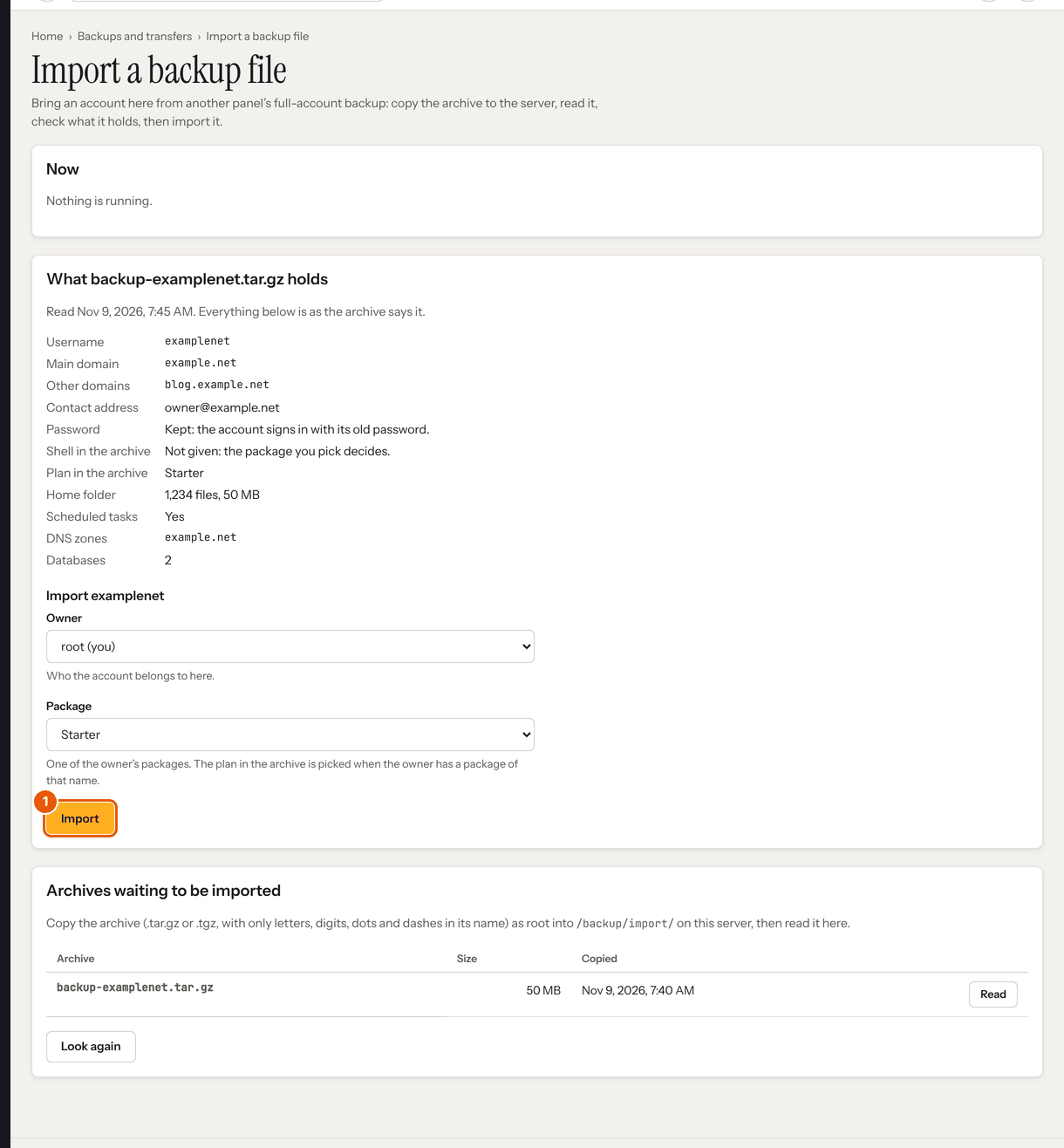
- When it ends, you see What backup-examplenet.tar.gz holds: the Username, the Main domain and Other domains, the Contact address (the customer's email), the Password, the Shell in the archive (whether the account could type commands over SSH there), the Plan in the archive (the name of its package on the old server), the Home folder size, Scheduled tasks, DNS zones and Databases.
Read the Password line. Kept: the account signs in with its old password. means the customer signs in as before. If it says Not kept, set a new password after the import, in Accounts > Account password, and tell the customer.
The Shell in the archive line also says what the account gets here: SSH needs a package that grants shell access.
Read Left out, if it is shown. What is left out isn't imported. For example, a database the file can't bring is listed here: make it and load it yourself after the import.
Step 3: import it
- Under Import ..., choose the Owner: you, or one of your resellers.
- In Package, pick one of the owner's packages. If a package has the same name as the plan in the file, it is picked for you.
- Click Import.
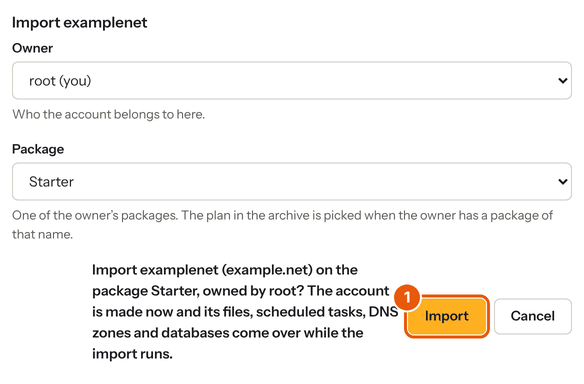
- You are asked Import examplenet (example.net) on the package ..., owned by ...? Check the names, then click Import again. To change something, click Cancel.
- You see ... is made, and its import has started. The files, scheduled tasks, DNS zones and databases come over while it runs.
- When it ends, you see The import of ... has ended. Brought over: ..., with the parts it brought.
Then point the domain here, as Moving in shows.
If something goes wrong
- If your file is not listed, check it is in
/backup/import/(not a folder inside it), ends in.tar.gzor.tgz, and has only letters, digits, dots and dashes in its name. Then click Look again. - If you see "A backup of ... is running. Reading and importing wait until it ends.", wait: one backup, restore or import runs at a time. The page goes on by itself.
- If you see "The archive couldn't be read", the file is damaged or not a full-account backup. Make a new backup on the old panel and copy it again.
- If you see "This archive can't be imported as it is:", read the reasons below it. Most often, the username or a domain already exists on this server.
- If you see "This owner has no packages", choose another owner, or make a package for this one first.
- If you see "The import of ... failed: ...", read the reason after the colon, fix it, and import again.