Hosting panel
Advanced
What this does: the Advanced tools run commands and scheduled tasks, look up DNS, change how your web server treats folders and files, and scan your files for viruses.
When you need it: most people only need Scheduled tasks (an app asks you to "set up a cron job") and Virus scan. The others are for when a developer or a guide asks for them.
A few words you will meet on this page:
- A command is a line of text that tells the server to do something, such as running a script.
- A shell is the program that reads commands and runs them.
- A file extension is the ending of a file's name, such as .html or .jpg. It tells programs what kind of file it is.
Terminal
What this does: opens a shell in your browser, the same as signing in over SSH, with your own files, limits and rights.
When you need it: when a guide or your developer tells you to run a command, such as one that installs or updates an app.
Where: Advanced > Terminal
To open a terminal
- Open Advanced, then Terminal.
- Click Open terminal. You see "The terminal is open. Type to use it."
- Click the black screen and type a command, then press Enter.
- When you are done, click Close terminal.
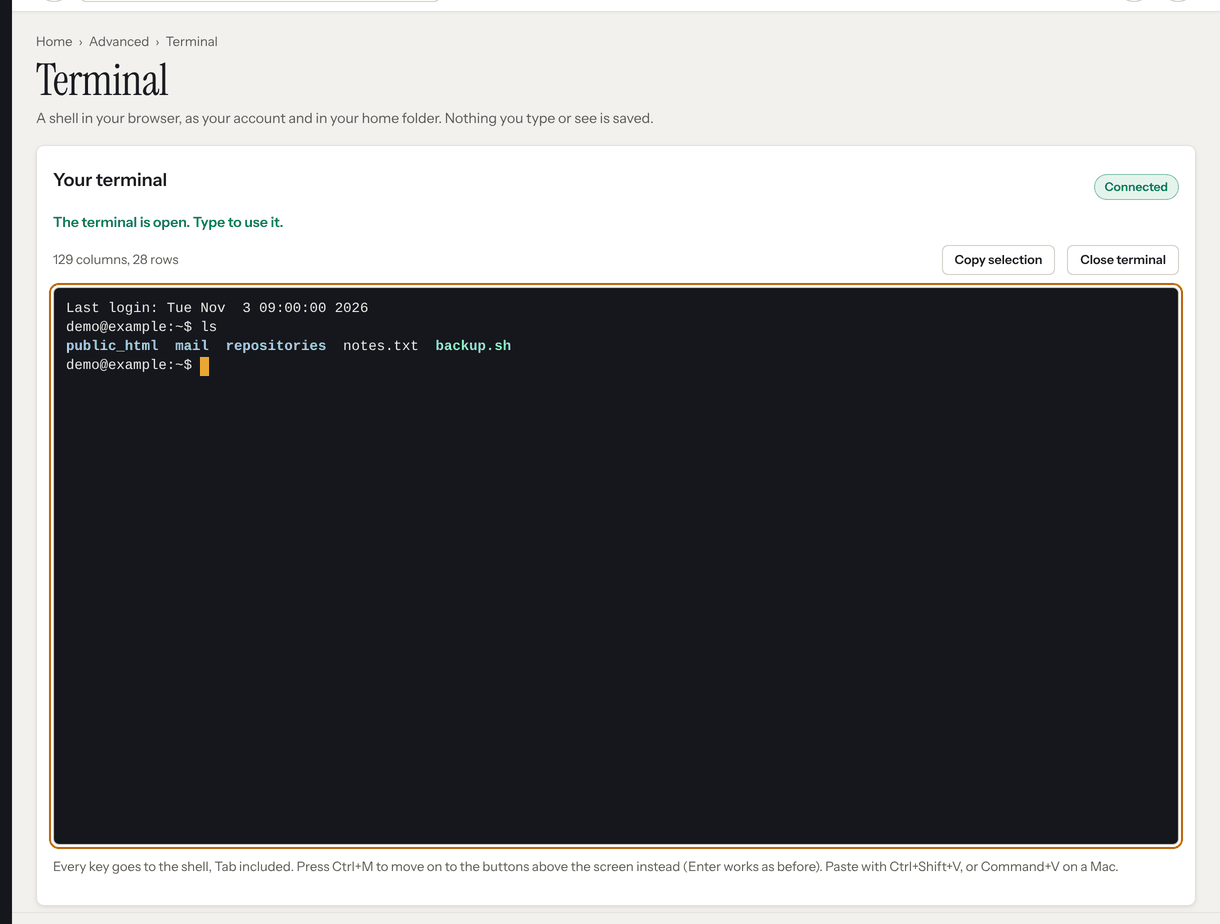
The terminal ends when you close it, leave the page or leave it alone for 15 minutes. To paste, press Ctrl+Shift+V (Command+V on a Mac). Every key goes to the shell, Tab included; press Ctrl+M to move to the buttons above the screen.
If something goes wrong
- If you see "Your account has no shell access", ask your host to turn it on for your account.
- If you see "This terminal is no longer open.", click Open a new terminal.
- If the connection drops, click Reconnect to carry on where you left off.
Scheduled tasks
What this does: runs a command on a schedule, such as every 15 minutes or once a day, as your account. Scheduled tasks are also called cron jobs.
When you need it: when an app asks you to set up a cron job, for example WordPress, a shop or a newsletter that sends mail in the background.
Where: Advanced > Scheduled tasks
To add a scheduled task
- Open Advanced, then Scheduled tasks.
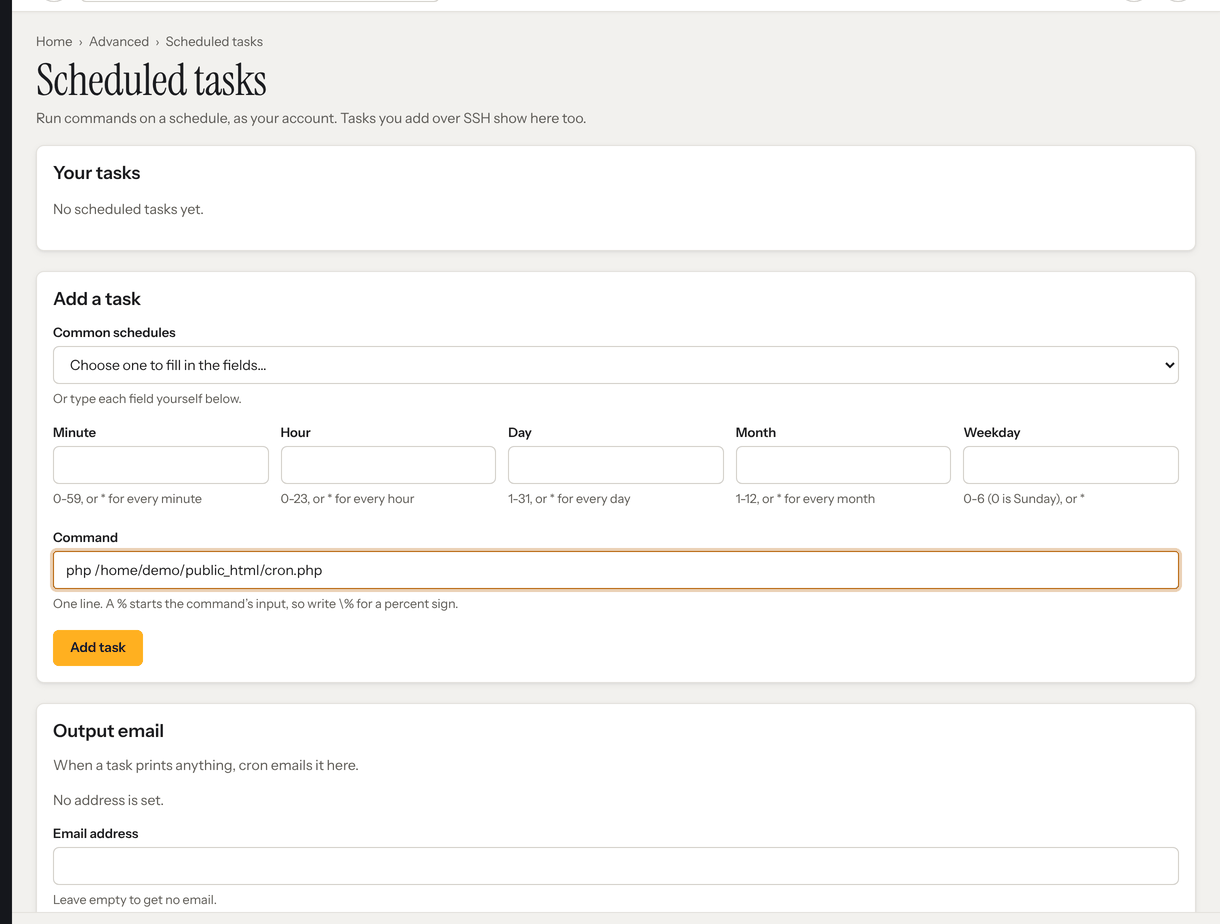
- Under Add a task, pick a time in Common schedules, such as Every 15 minutes or Once a day (midnight). This fills in Minute, Hour, Day, Month and Weekday for you.
- In Command, paste the command the app gave you.
- Click Add task. You see "Task added." It shows under Your tasks.
To get the output by email
- Under Output email, type an Email address.
- Click Save email. When a task prints anything, it is emailed there. Leave it empty to get no email.
If something goes wrong
- If you see "Fill in Minute: a number, a range such as 1-5, a list such as 0,30, a step such as */15, or *.", pick a Common schedules entry again, or fix that field.
- If a task doesn't seem to run, set an Output email to see what it prints. If your account has shell access, paste the same command into Advanced > Terminal and press Enter: if it prints an error there, the task fails the same way.
- If your command has a % sign, write it as \%.
- If you see "This account is suspended.", tasks are kept but don't run. Ask your host.
DNS lookup
What this does: asks for a domain's DNS records and shows the answer, as the server sees it.
When you need it: to check that a DNS change has spread, or to see where a name points.
Where: Advanced > DNS lookup
To look up a name
- Open Advanced, then DNS lookup.
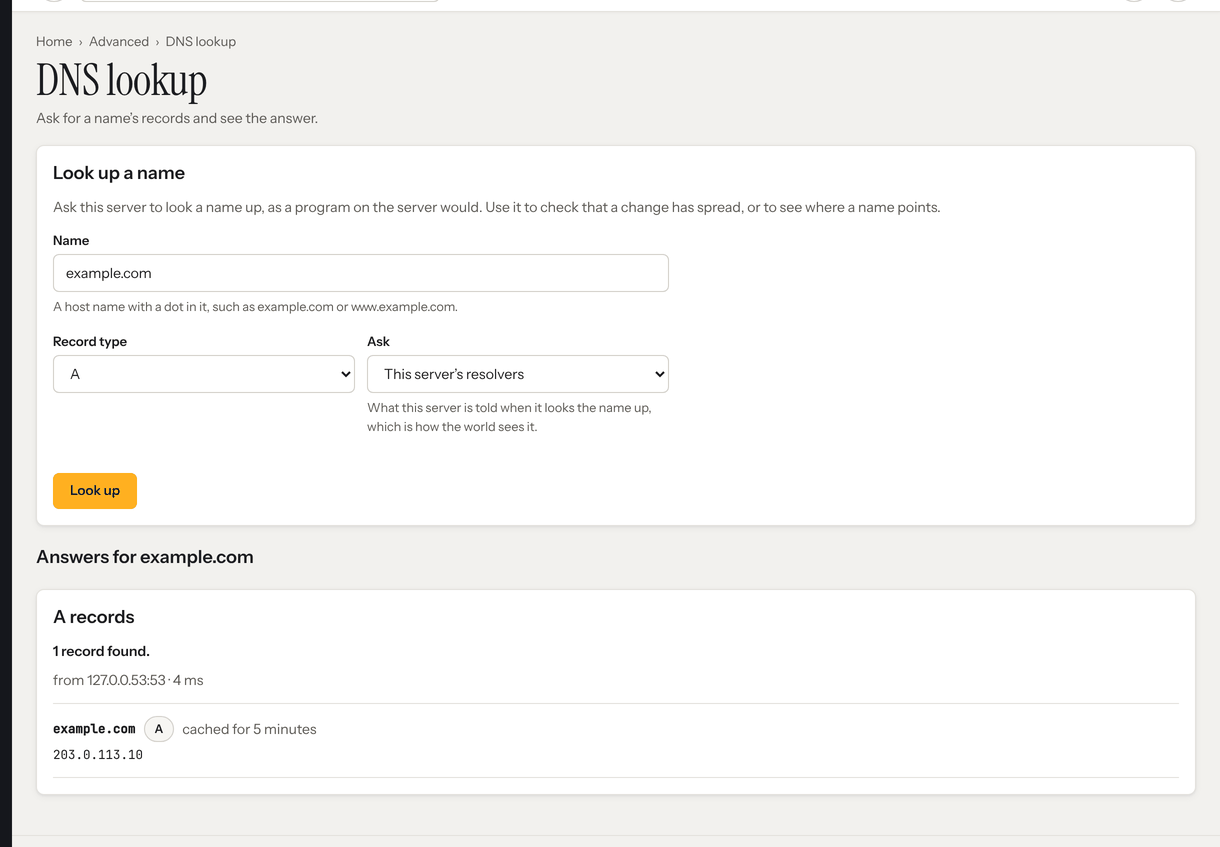
- In Name, type a domain, such as
example.com. - In Record type, pick one, or All common types.
- Under Ask, choose This server's resolvers to see what the rest of the internet sees now, or This server's own name server to see what this server will answer once your change has spread. (A resolver is the server that looks names up for a computer.)
- Click Look up. Under Answers you see the records found.
If something goes wrong
- If you see "The name does not exist.", check the spelling. A new domain can take a while to appear.
- If you see "The name exists, but it has no records of this type.", try All common types.
Folder listing
What this does: chooses whether visitors see a list of files in a folder that has no index page (no index.html or index.php).
When you need it: to hide the contents of a folder of downloads or pictures, or to show a simple list of files on purpose.
Where: Advanced > Folder listing
To change a folder's listing
- Open Advanced, then Folder listing, and pick the Site.
- Under Folders of example.com, click the folder.
- Under When this folder has no index page, choose Do not list the files, List the files or Use the server's setting.
- Click Save. You see "Saved the setting for ...".
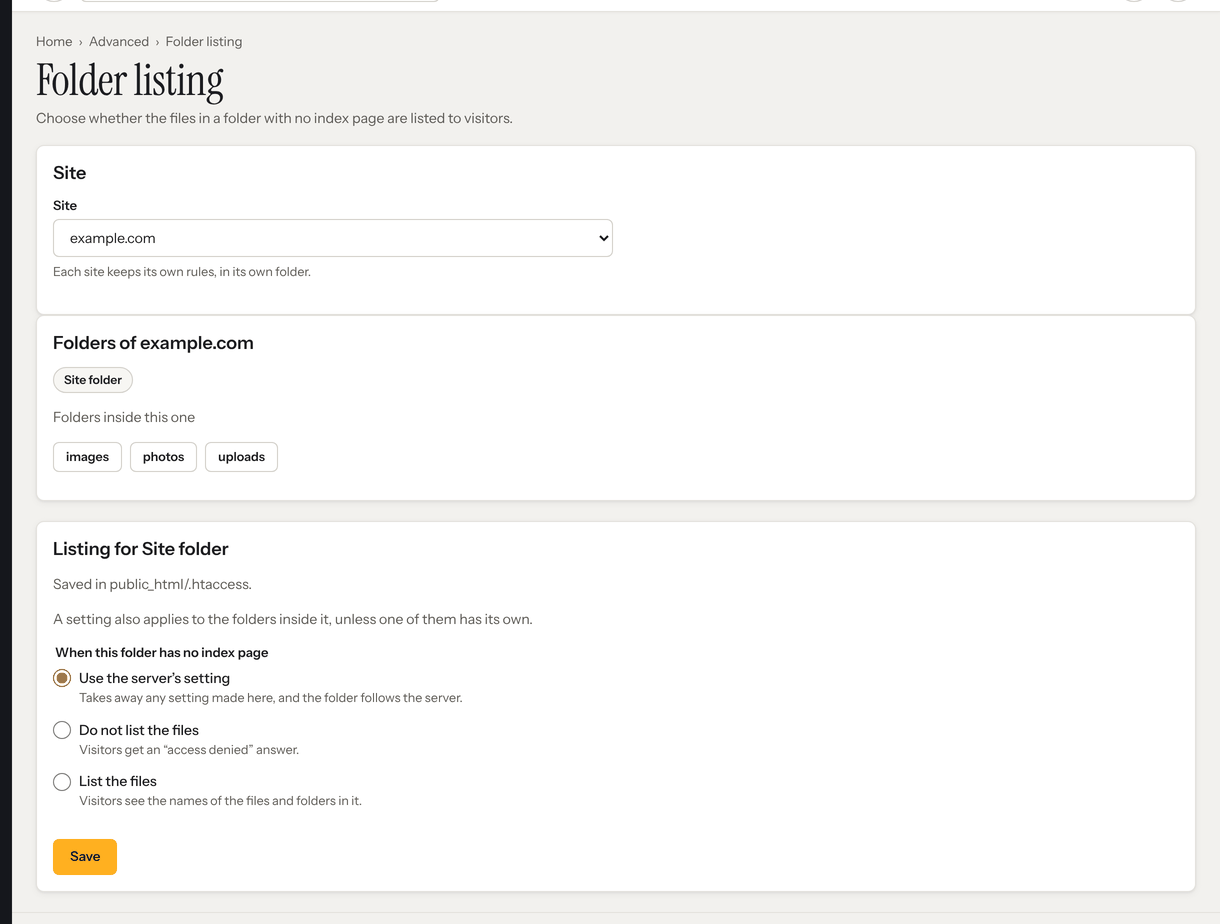
A setting also applies to the folders inside it, unless one of them has its own.
Error pages
What this does: shows a page of your own when a visitor meets an error, such as 404 (page not found).
When you need it: when you want error pages that look like the rest of your site and help visitors find their way.
Where: Advanced > Error pages
To set your own error page
- Make the page first, for example
public_html/errors/404.html, with Files > File manager. - Open Advanced, then Error pages, and pick the Site.
- Beside 404 Not found, type the path on your site, such as
/errors/404.html. - Click Save error pages. You see "Saved. Your site follows the change from the next visit."
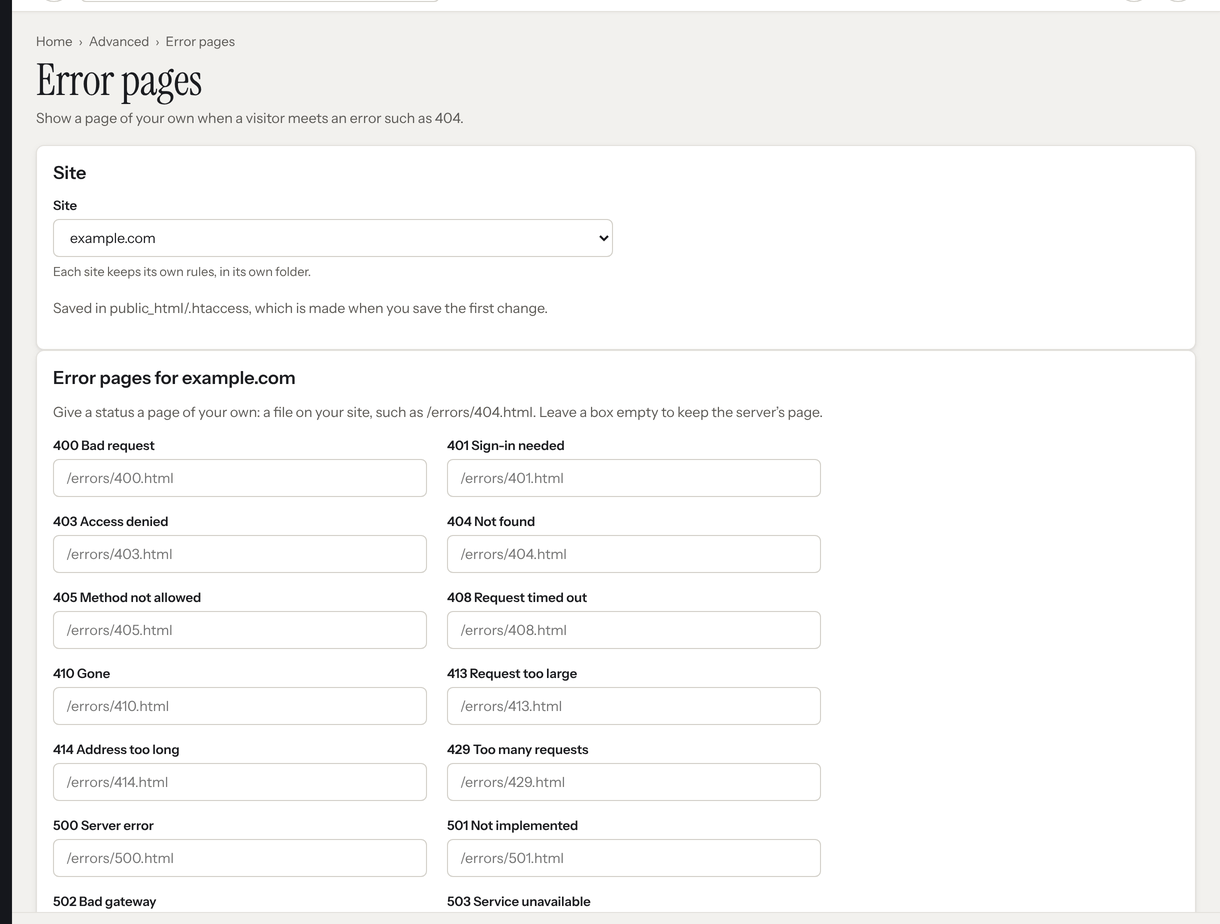
Leave a box empty to keep the server's own page. The page is not checked, so make sure the file is there.
If something goes wrong
- If you see "...: give a path on your site, not a web address.", type only the part after your domain, starting with /.
File types
What this does: tells browsers what kind of file each extension is, so they show, play or download it the right way.
When you need it: when a browser downloads a file it should show, or shows one it should download, for a newer kind of file the server doesn't know.
Where: Advanced > File types
To set a file type
- Open Advanced, then File types, and pick the Site.
- Under Set a file type, type the Extension without the dot, such as
webp. - Type the Type, such as
image/webp. - Click Set. You see "Saved. .webp files are sent as image/webp."
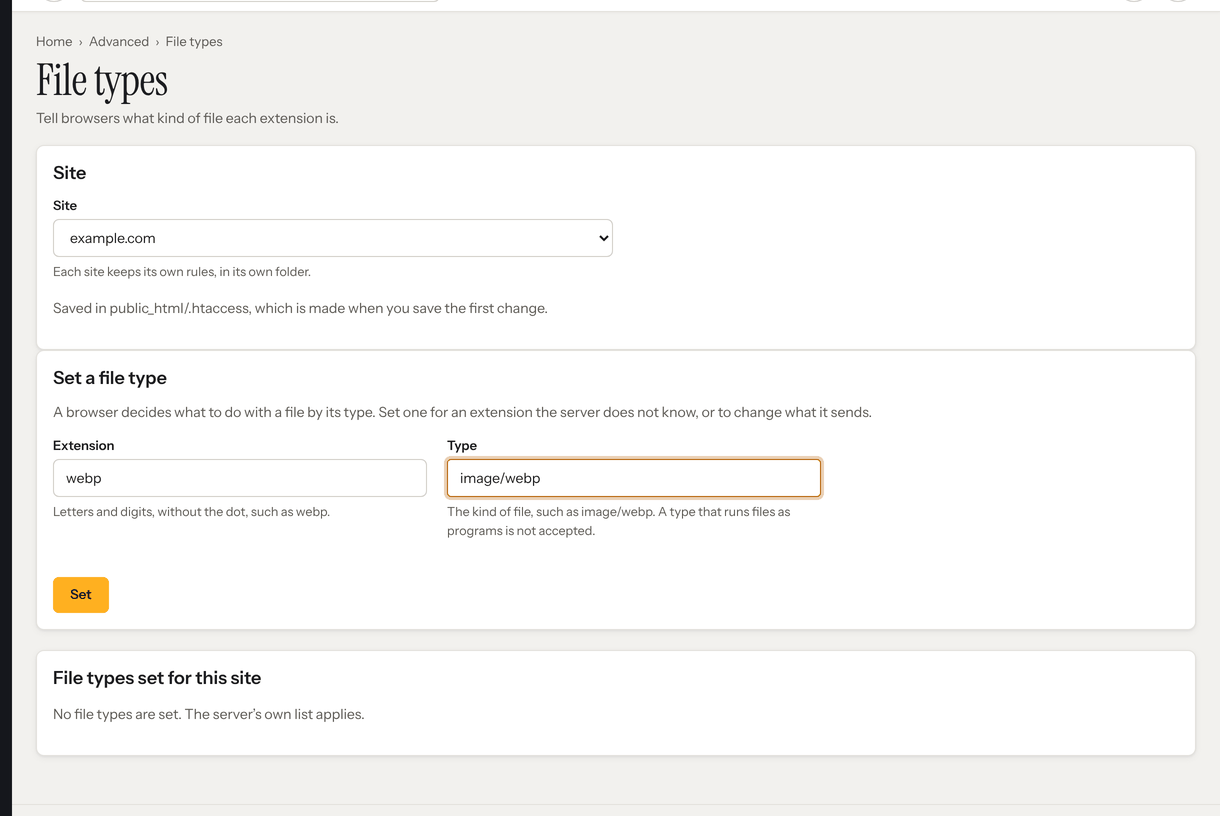
To go back to the server's own type, click Remove beside it.
If something goes wrong
- If you see "... would make files run as a program.", that type is not allowed here. Use a type that only says what the file is.
Virus scan
What this does: checks your files and mail for known malware (harmful programs).
When you need it: when your site behaves strangely, your host warns you, or you have uploaded files from somewhere you don't trust.
Where: Advanced > Virus scan
To scan your files
- Open Advanced, then Virus scan.
- Under What to scan, choose Your websites, Your mail or Everything. Everything takes the longest.
- Click Scan. The page updates by itself; you can leave it and come back.
- Under Result, No known malware found. means all is well. Otherwise each file is listed with the malware it matched.
- To delete files it found, tick them and click Delete selected, then confirm. This can't be undone.
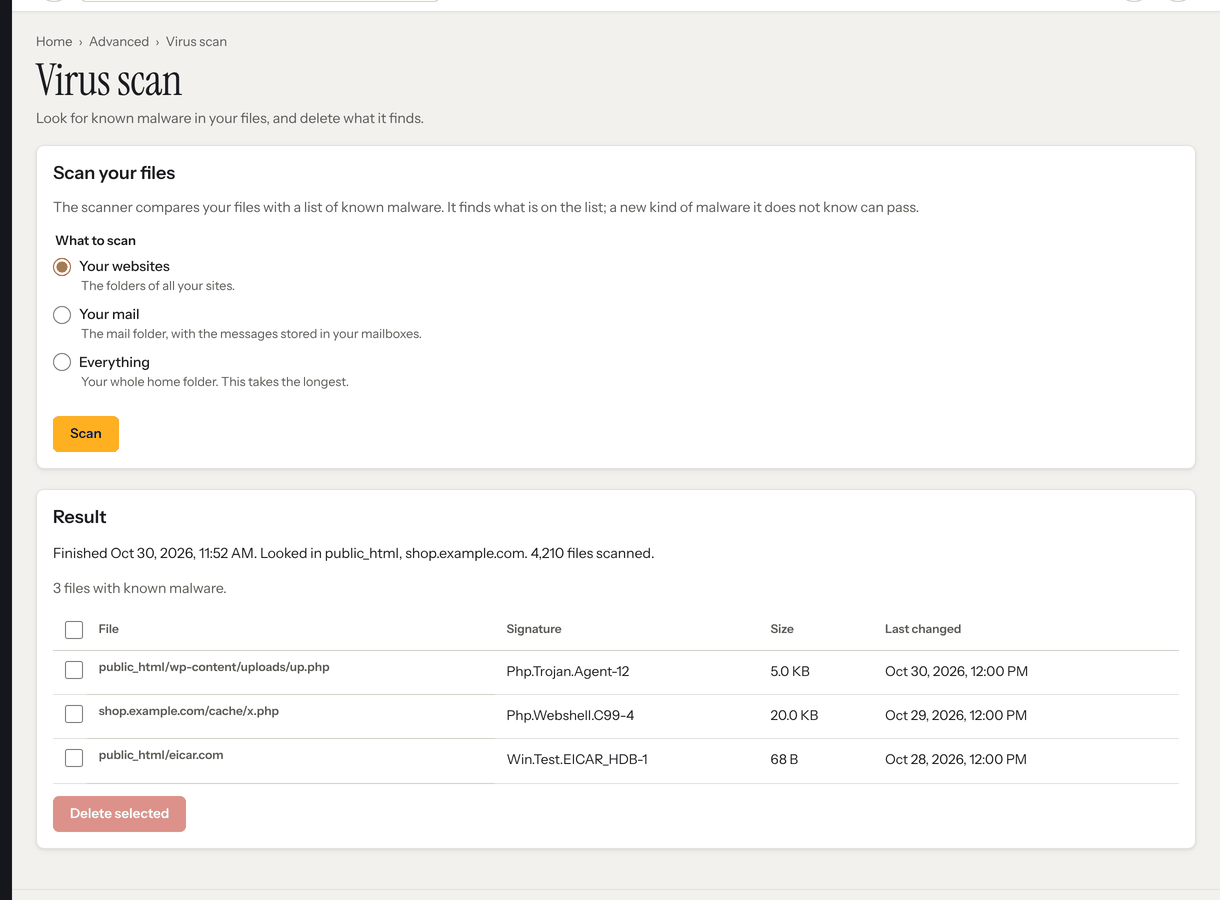
The scanner only finds malware on its list; a brand new kind can pass.
If something goes wrong
- If you see "Your host has not turned the virus scanner on", ask your host.
- If you see "The scan stopped after 2 hours", scan a smaller part, such as Your websites.
File handlers
What this does: makes files with a chosen ending run as PHP, or be sent as they are, in one site.
When you need it: when an old site has PHP code in .html files, for example.
Where: Advanced > File handlers
To make .html files run as PHP
- Open Advanced, then File handlers, and pick the Site.
- Under Set what an ending does, type the Extension, such as
html. - In What it does, choose Run as PHP.
- Click Set. You see "Saved. .html files run as PHP."
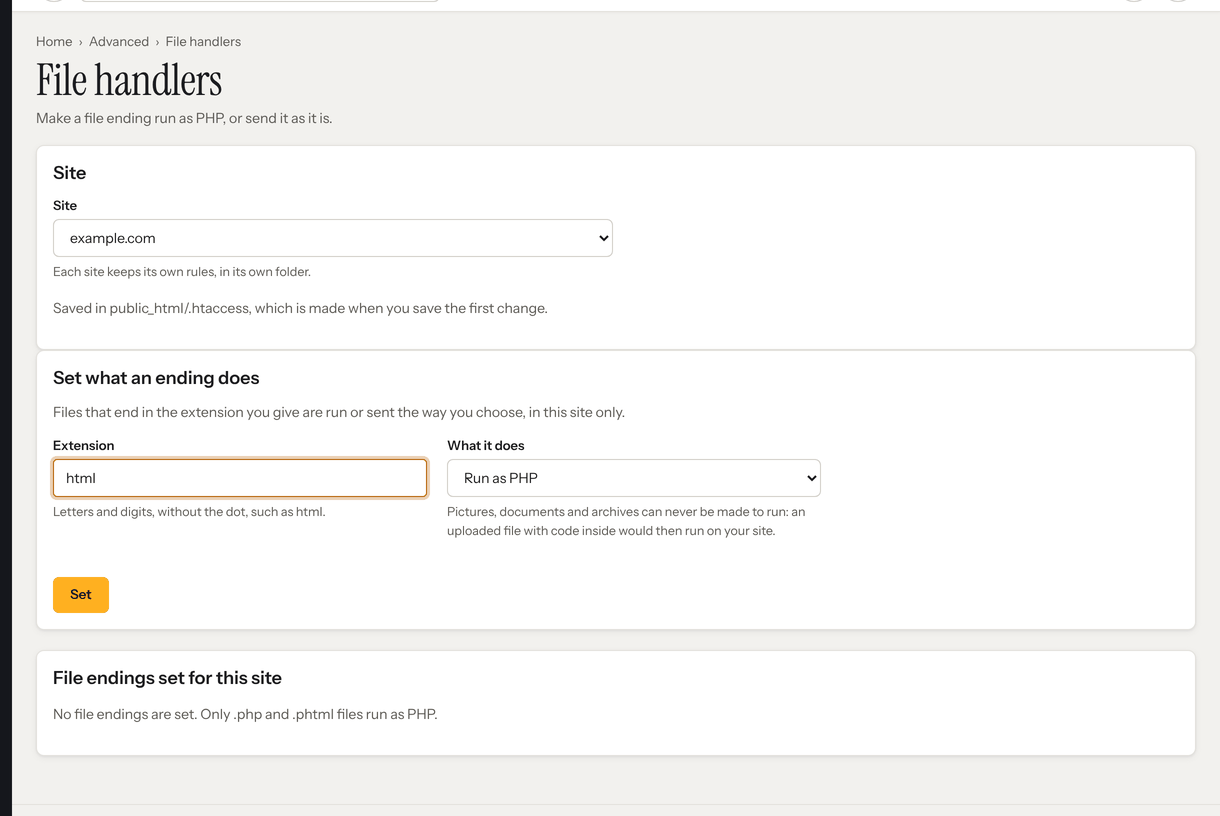
Pictures, documents and archives can never be made to run. Without any setting, only .php and .phtml files run as PHP.
If something goes wrong
- If you see "Files with these endings are still handed to the PHP version this site had before", click Save them again.
API shell
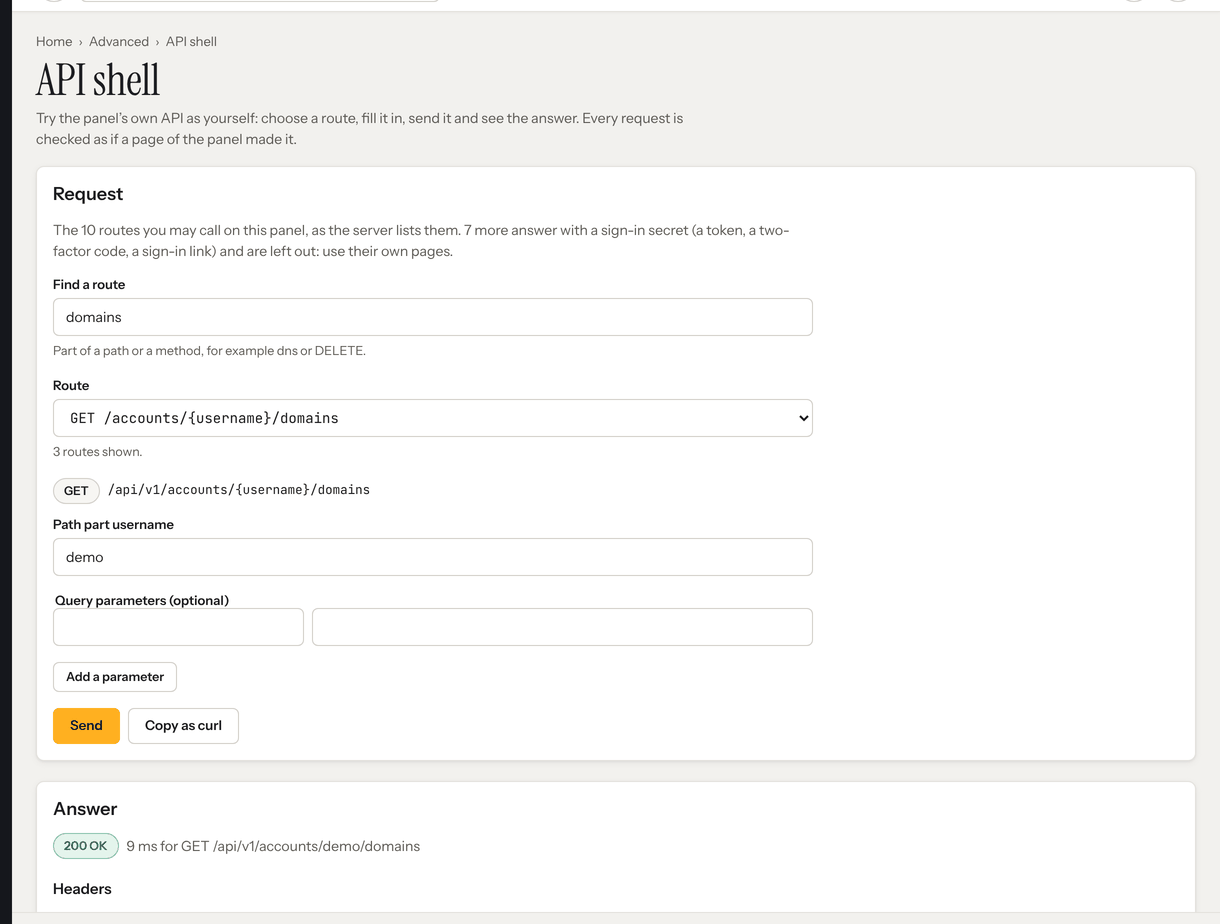
What this does: lets you try your account's API (the way programs talk to the panel) as yourself: pick a route, send it, read the answer, or copy it as a curl command. A route is one thing the API can do, such as listing your domains. curl is a command-line program that sends such requests. A JSON body is the data some routes need, written in a fixed text format; the routes you are likely to try first don't need one.
When you need it: when you or a developer write a script that manages your account, and want to see what a call returns.
Where: Advanced > API shell
To try a route
- Open Advanced, then API shell.
- Type part of a path in Find a route, such as
dns, and pick one under Route. - Fill in any Path part, and optionally Query parameters or a JSON body.
- Click Send. If the request changes something, the panel asks first; click Send it only if you mean it.
- Under Answer you see the status, headers and body.
- Click Copy as curl to get the same request as a command. Put an API token in place of the token mark.