Getting started
Enter your licence key
What this does: the licence key tells freePanel that this server is licensed. Until a key is in, the admin panel opens only on its Licence page.
When you need it: right after you create your admin login. Your websites, email and other services already work without a key; only the panel itself waits for it.
A licence key is a long line of letters and digits you get when you buy freePanel. It starts with FP1. and has four parts joined by dots.
Enter the key
To enter your licence key
- Sign in to the admin panel, at the Admin panel address the installer printed, such as
https://server.example.com:7443. - A new server opens on the Licence page. Otherwise, go to Branding and API > Licence (the Licence page).
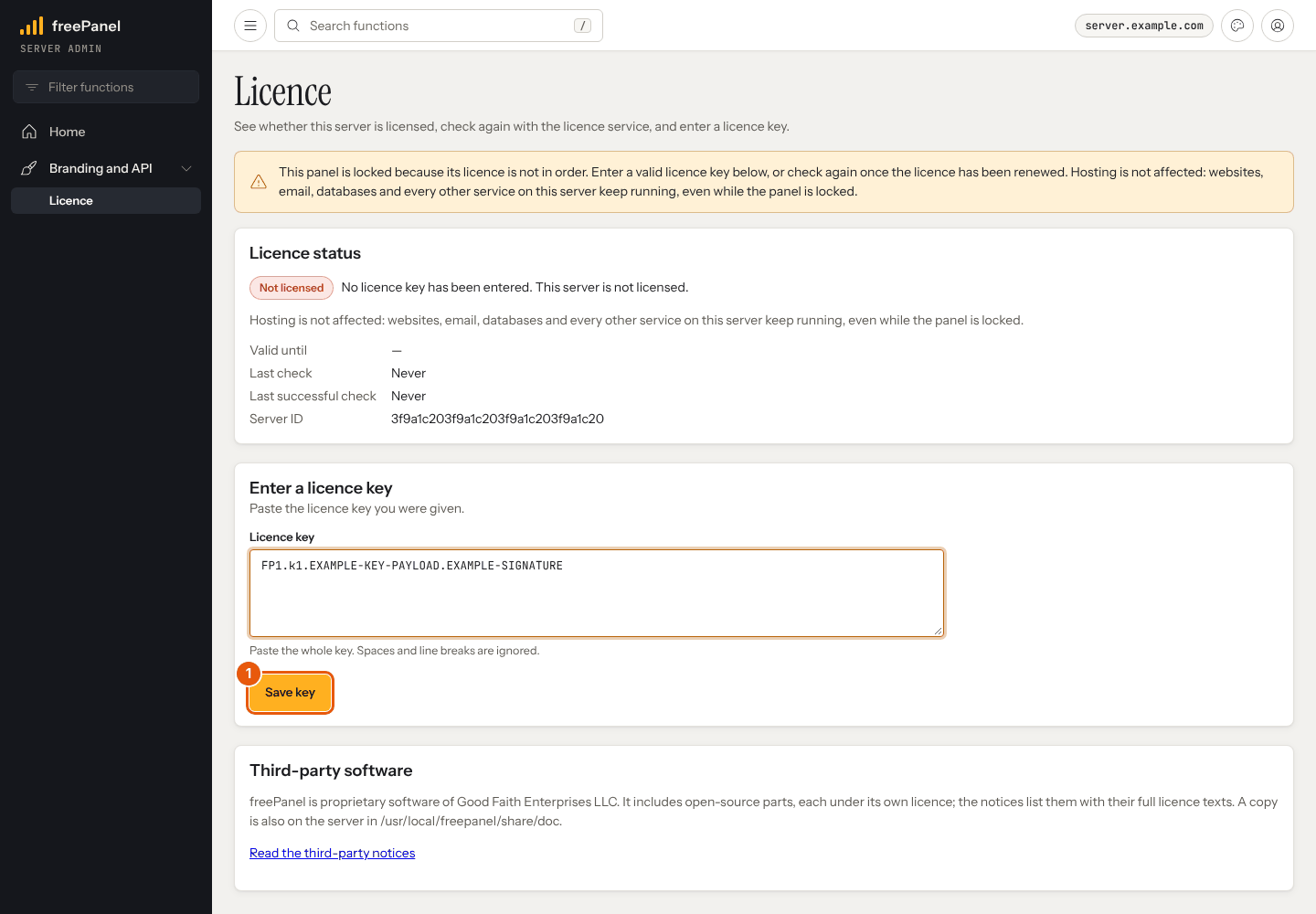
- At the top you see This panel is locked because its licence is not in order., and the status says Not licensed. That is normal on a new server until you save a key: your websites and email are not affected.
- Under Enter a licence key, paste your whole key in Licence key. Spaces and line breaks don't matter.
- Click Save key.
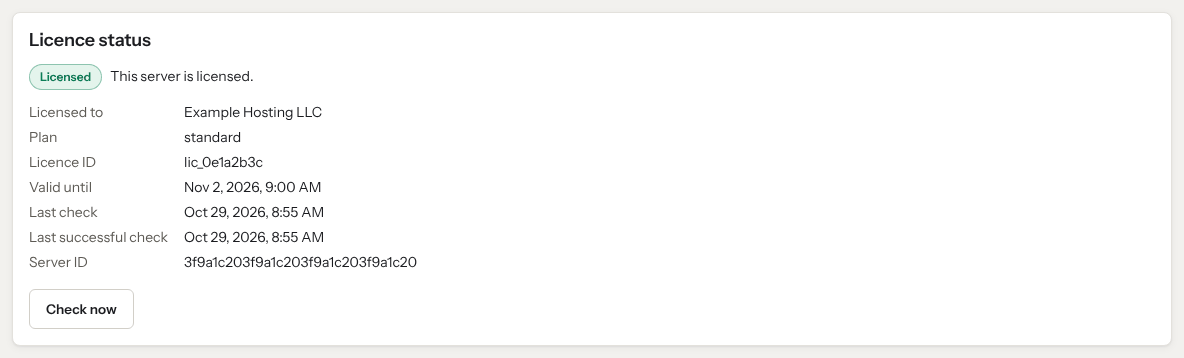
- You see Key saved., and the status at the top says Licensed and This server is licensed. The locked message goes away, and the whole menu comes back.
The server must be able to reach the licence service over the internet, using HTTPS (the secure web connection) on outgoing port 443. Most servers can. Nothing about your accounts, domains or mail is sent: only the key, a random server ID, the server's name and its freePanel version.
Don't have a key yet? If the page shows Buy or manage a licence, click Buy a licence. See Licence for what happens next. If the page doesn't show that card, see the prices at https://freepanel.atlantishosting.net/#pricing and write to support@atlantishosting.net to get a key.
If something goes wrong
- If you see "That is not a licence key. A key starts with FP1. and has four parts joined by dots.", part of the key is missing. Copy it again, from the first character to the last.
- If you see "Paste a licence key first.", the box is empty. Paste the key, then click Save key.
- If you see "This key ended on ...", that key has run out. Ask for your current key and paste that one.
- If you see "The licence is in use on another server.", the same licence is held by another server. See moving a licence to a new server.
- If you see "The last check failed: ...", the key was saved but the server could not reach the licence service. To test the connection, type this on the server and press Enter:
curl -sS https://license.freepanel.atlantishosting.net/healthzIf it prints
ok, the server can reach the licence service: click Check now, the button at the bottom of the Licence status card. If it prints an error or nothing, outgoing connections on port 443 are blocked: check your hosting company's firewall, or ask them.
Give the key during the install (optional)
You can skip this: entering the key on the Licence page, as above, is simplest.
You can also give the key to the installer, so the panel is licensed as soon as it is up. Don't type the key in the install command itself: anyone else signed in to the server can see a running command, and sudo may write it to a log. Instead, first store it in a setting of your terminal session (an environment variable: a named value that programs started from that session can read), then run the installer:
export FREEPANEL_LICENSE_KEY=YOUR-KEY
curl -fsSL https://repo.atlantishosting.net/install | sudo -E bash
Replace YOUR-KEY with your key. The export line is a command of its own, so the key is not part of the install command. sudo -E means "run as root and keep my settings", so the installer can read the key. If you are signed in as root, type the same export line, then the plain command curl -fsSL https://repo.atlantishosting.net/install | bash.
If the key can't be stored during the install, the installer shows a warning, finishes anyway, and the panel opens on its Licence page so you can enter it there.