Reseller panel
Your limits and rights
What this does: explains the limits your host gives you (how much you may sell) and the rights they may turn on for you (what extra things you may do), and how a host sets both, one reseller at a time or with a template.
When you need it: when the panel says you can't do something, or when you are a host deciding what your resellers may do.
This page has two kinds of steps: the ones marked as a reseller are for you, the reseller; the ones marked as a host are what your host does in their own admin panel, so you know what to ask for.
Your limits
Your host sets three limits for you, for all your customers together:
| Limit | What it counts |
|---|---|
| Accounts | How many hosting accounts you may have. |
| Disk space | The disk space of all your accounts' packages added up, in MB. |
| Monthly bandwidth | The monthly traffic of all your accounts' packages added up, in MB. |
Any of them can be unlimited. The limits are checked when you make an account, change an account's package, or change a package that accounts use. If a change would take you over a limit, the panel refuses it and says so. Ask your host for more.
If your host lowers a limit below what you use, your accounts keep running. You just can't make new ones until you are under it again.
To find out your limits as a reseller
Your own menu has no page that lists your limits: only your host sees them, on Reseller usage. You can still tell where you stand:
- Ask your host for your three limits. They read them off the page shown in the next steps.
- Count what you have given out: Accounts > All accounts lists your accounts with their packages, and Packages > Packages shows each package's disk space and monthly bandwidth. Your disk and bandwidth used are the sums of your accounts' packages.
- When you reach a limit, the panel says so and names it, for example "reseller resl may have at most 3 accounts", "reseller resl would exceed 10240 MB of disk", or "reseller resl has a disk limit, so the package needs one too" (with a disk or bandwidth limit, every package you make must set one).
To see a reseller's limits as a host
- In the admin panel, open Resellers, then Reseller usage.
- Find the reseller. You see each limit as "used of limit (percent)", such as "3 of 3 (100%)", and Near a limit next to the name at 90% or more.
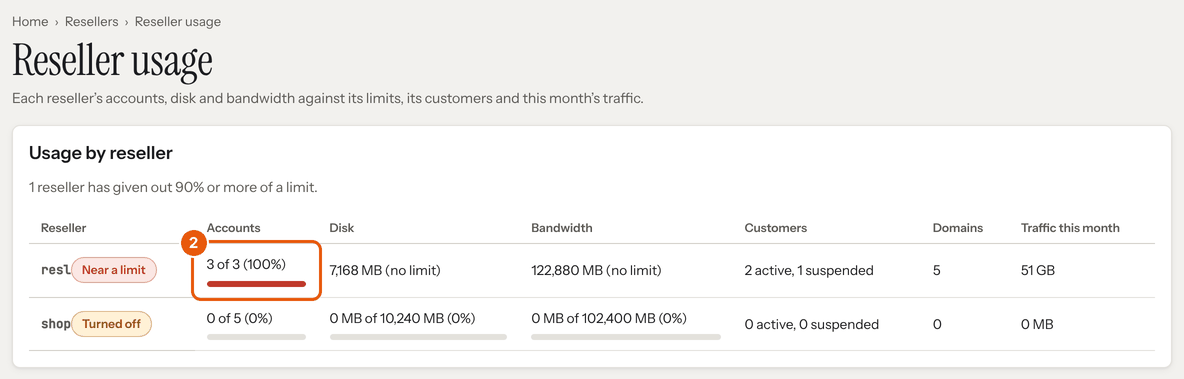
To change a reseller's limits, see Resellers.
Your rights
Every right is off until your host turns it on:
| Right | What it lets you do |
|---|---|
| Stopped sites | Bring back your accounts whose sites stopped for going over their monthly bandwidth, for 2 hours at a time, on Accounts > Bandwidth use. |
| Branding | Set your own name, help link and logo for your customers. See Your branding. |
Your host's pages name these rights a little differently in places: on Reseller rights, Stopped sites reads "Bring back accounts stopped for bandwidth" and Branding reads "Set its own name, help link and logo for its customers"; on Reseller templates they are Lift bandwidth limits and Own branding. They are the same two rights.
To see which rights you have, open the page: Accounts > Bandwidth use shows a Bring back button next to a stopped account only if you have Stopped sites (without it, you see "Only the server admin can bring these accounts back, unless they let you."), and Resellers > Reseller branding lets you save only if you have Branding.
Without a right, you can still see the page; the panel tells you to ask your host. For example: "Your host has not given you the right to set your own branding, so you can see it here but not change it. Ask your host to turn on Branding for you."
To turn on a right as a host
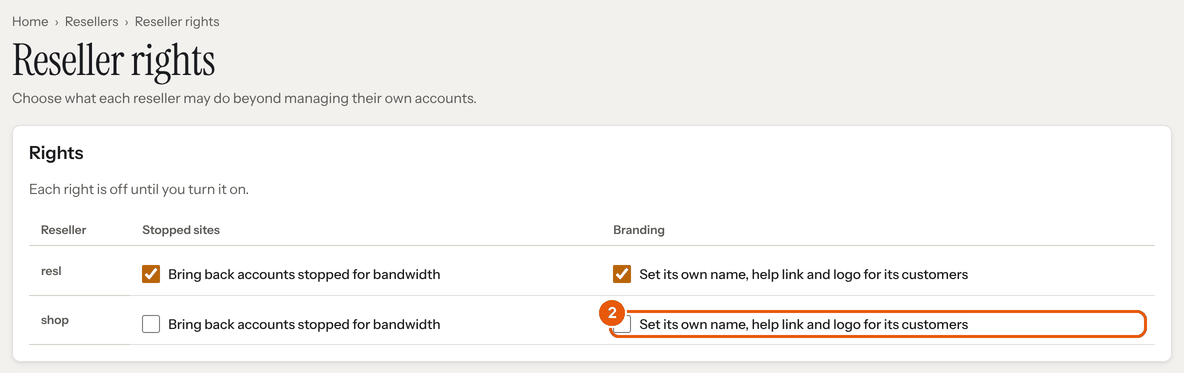
- In the admin panel, open Resellers, then Reseller rights.
- In the reseller's row, tick the box under Stopped sites or under Branding. It is saved at once.
Templates
A host who has many resellers can save a set of limits and rights as a template, such as "Reseller Basic", and give it to a reseller in one step. Giving a template sets the reseller's limits and rights to the template's. Changing or deleting a template later does not change the resellers it was given to.
A host can also reset a reseller: every right is turned off and the limits stay, or the reseller gets a template's limits and rights. Accounts, packages, addresses and branding always stay.
To give a reseller a template as a host
- In the admin panel, open Resellers, then Reseller templates.
- Save a template under Save a template, if you have none.
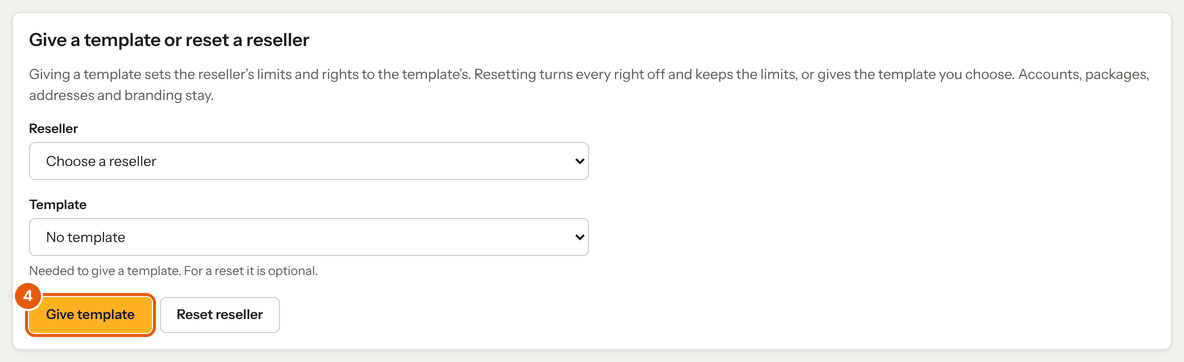
- Under Give a template or reset a reseller, choose the reseller and the template.
- Click Give template. You see, for example, "The template was given to shop."
The full steps are in Reseller templates.