Admin panel
Packages
What this does: a package is a plan of limits you give to hosting accounts: how much disk space, how much monthly traffic, how many domains, mailboxes, databases and FTP logins. Every account runs on one package. The Packages group is also where you choose which tools each package's customers can use.
When you need it: before you make your first account, and whenever you add or change a hosting plan you sell.
Packages
What this does: lists your packages with their limits and how many accounts use each. Here you make new packages, change their limits and remove the ones nobody uses.
When you need it: when you set up the plans you sell, for example "Small", "Medium" and "Large".
Where: Packages > Packages. The group in the menu and the tool in it have the same name: open the Packages group, then click Packages inside it.
To create a package
- In the menu, open Packages, then Packages. You see the list of packages, or "No packages yet. Every account runs on a package, so make one before your first account."
- Click New package. A form opens above the list.
- In Name, type the plan's name, for example
Small. Use letters, digits, spaces, dots, dashes or underscores, up to 64. You can't change it later. - For each limit, untick Unlimited and type a number, or leave Unlimited ticked for no limit:
- Disk space: how much the account may store (website files, email and databases), in MB. 1024 MB is 1 GB.
- Monthly bandwidth: how much data its sites may send to visitors in a month, in MB. 10240 MB is 10 GB.
- Domains: how many domains (websites with a name of their own) it may have, its main domain included.
- Subdomains: how many names under its domains it may make, such as
blog.example.com. - Email accounts: how many mailboxes it may have.
- Databases: how many databases (where programs such as WordPress keep their content) it may have.
- FTP accounts: how many extra logins it may make for copying files with an FTP program.
- If you are the server's admin, tick Shell access (SSH) for accounts on this package only if this plan should let customers sign in over SSH (type commands on the server). See Shell access.
- Tick A dedicated IP address for each account on this package if this plan comes with an IP address of its own. Each new account on it then takes a free address of the server's (one you added on IP addresses, not the main one, not reserved and not given to a reseller), and its websites answer on that address alone. If no address is free, the account is not made and you see "the server has no free IPv4 address left". Removing the account, or moving it to a package without this, frees the address again.
- Click Create package. You see "Small is ready." and the package appears in the list.
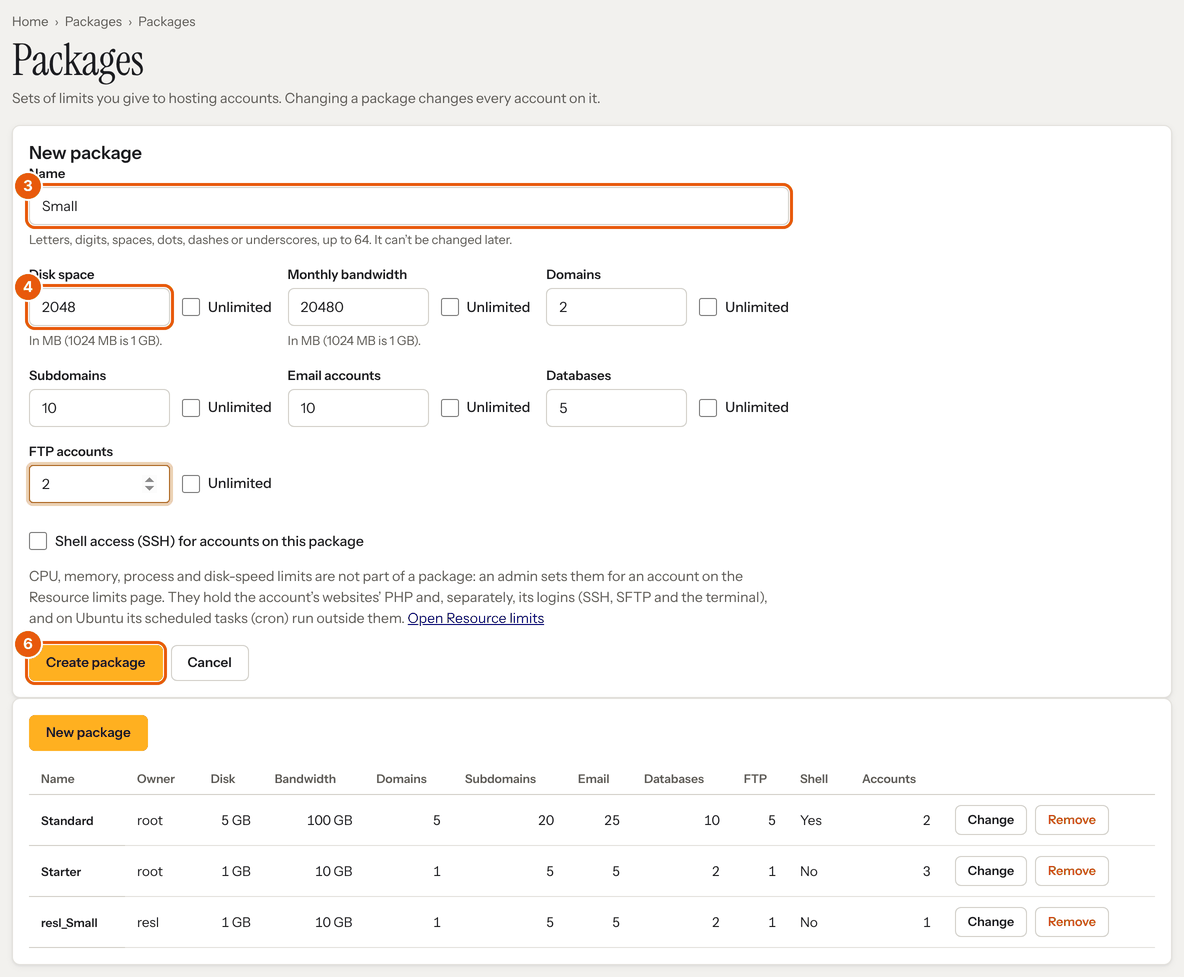
If you don't know where to start, here are the packages of the example server on these pages. Change the numbers to fit what you sell and the size of your server's disk.
| Package | Disk space | Monthly bandwidth | Domains | Subdomains | Email accounts | Databases | FTP accounts | Shell |
|---|---|---|---|---|---|---|---|---|
| Starter | 1024 MB (1 GB) | 10240 MB (10 GB) | 1 | 5 | 5 | 2 | 1 | No |
| Small (made above) | 2048 MB (2 GB) | 20480 MB (20 GB) | 2 | 10 | 10 | 5 | 2 | No |
| Standard | 5120 MB (5 GB) | 102400 MB (100 GB) | 5 | 20 | 25 | 10 | 5 | Yes |
The list shows big sizes in GB, so 5120 MB shows as "5 GB".
To change a package's limits
- In the list, click Change in the package's row. You see, for example, "Change the limits of Standard. The 2 accounts on it get the new limits at once."
- Change the numbers you need.
- Click Save. You see "Standard is saved."
To remove a package
- Click Remove in the package's row. The row asks "Remove Small?"
- Click the red Remove to confirm, or Cancel to keep it. You see "Small is removed."
If accounts still use the package, the row says so instead and offers only OK.
If something goes wrong
- If you see "… enter a whole number, or tick Unlimited.", type a whole number without units or dots, or tick Unlimited.
- If you see "Starter can’t be removed while accounts use it (3). Move them to another package first.", move those accounts with Change many accounts, then remove it.
- If you see "the dedicated IP address can be turned on only while no account is on …", the setting can't change while accounts use the package. Make a new package with the setting you want and move the accounts to it with Change many accounts: each takes or frees its address as it moves.
- If the server says a reseller's limit would be passed, a reseller has accounts on this package and the new limits would take them over what you allowed them. Raise the reseller's limits in Resellers, or choose smaller numbers.
Processor, memory and disk-speed limits are not part of a package. You set them for one account in Resource limits.
Feature sets
What this does: chooses, for each package, which parts of the customer panel its accounts can use. A part you turn off is hidden from those customers.
When you need it: when you sell a cheaper plan without some tools, for example without databases or without the file manager.
Where: Packages > Feature sets
To choose a package's feature set
- Open Packages, then Feature sets.
- In Package, choose the package, for example
Starter, and click Open. You see Feature set of Starter with a box for each part of the customer panel. - Untick each part this package should not have. For example, untick Scheduled tasks so customers on Starter can't run programs on a timetable.
- Click Save. You see "The feature set of Starter was saved."
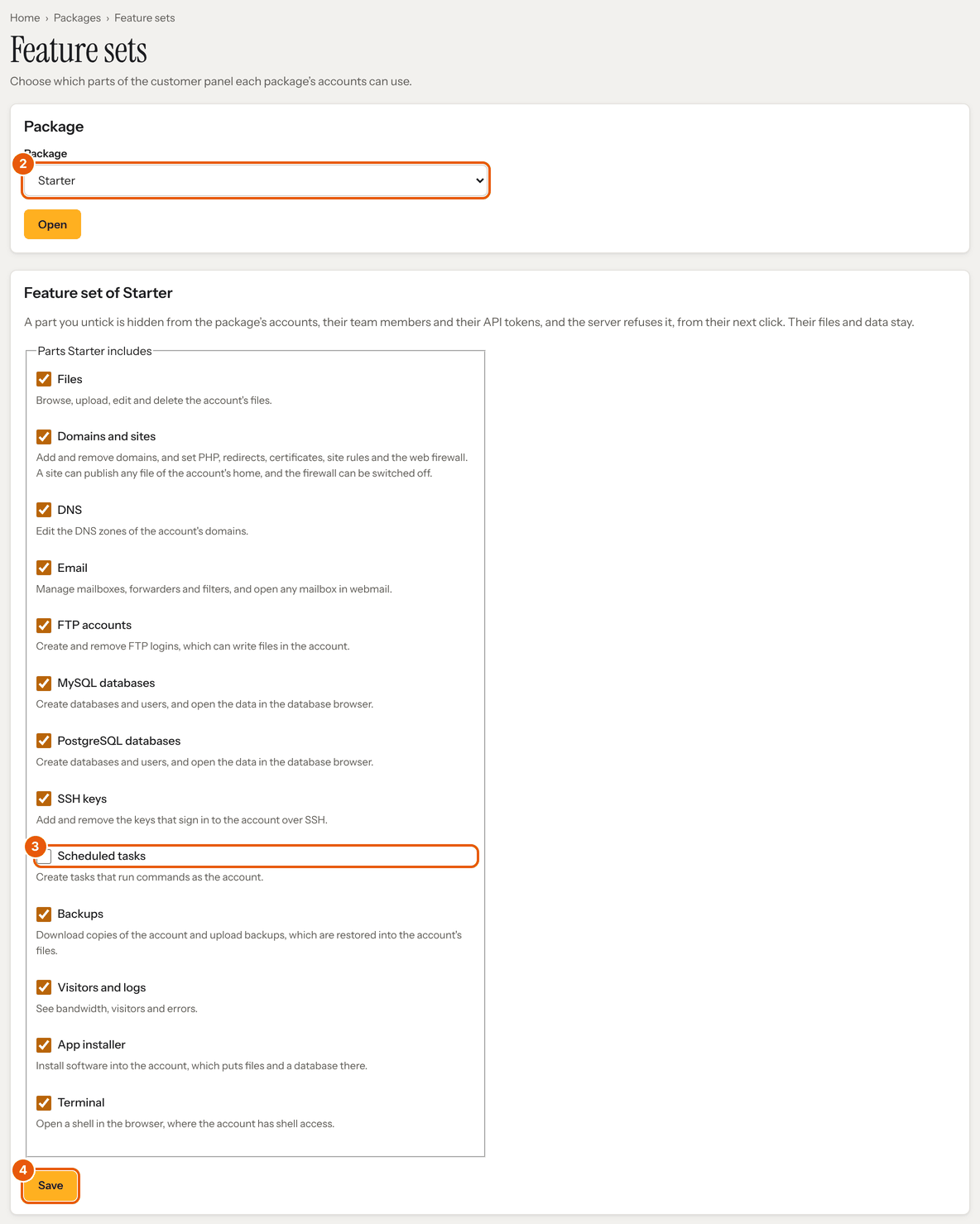
The parts you can turn off, and the words they use:
| Part | What the customer loses without it |
|---|---|
| Files | The file manager: browsing, uploading, editing and deleting their files. |
| Domains and sites | Adding and removing domains, and the settings of their sites (PHP version, redirects, certificates, site rules and the web firewall). |
| DNS | Changing the DNS zones of their domains (the records that say where a domain's site and mail are; see DNS). |
| Mailboxes, forwarders and mail filters, and webmail for any of their mailboxes. | |
| FTP accounts | Extra logins for copying files with an FTP program. |
| MySQL databases and PostgreSQL databases | Making databases (where programs such as WordPress keep their content) of each kind, and the database browser. |
| SSH keys | The keys that let them sign in over SSH (to type commands on the server) without a password. |
| Scheduled tasks | Programs the server runs for them at set times, such as a nightly clean-up (often called "cron jobs"). |
| Backups | Downloading copies of their account and uploading backups to restore. |
| Visitors and logs | Their bandwidth, visitor figures and error logs. |
| App installer | Installing ready-made software, such as a blog or a shop, into their account. |
| Terminal | A command window in the browser, for accounts that have shell access. |
A part you untick is hidden, from their next click, from the package's accounts, from their team members (other people a customer lets into their panel with logins of their own) and from their API tokens (keys that let programs use their account), and the server refuses it. Their files and data stay, so ticking it again brings everything back.
If something goes wrong
- If you see "No packages yet", make a package first in Packages.
- If a customer says a tool is missing, open their package here and check that its part is ticked.