Hosting panel
Billing and support
What this does: the Billing and support tools let you order a bigger plan, add-ons and domains from your host, and ask your host for help with a ticket.
When you need it: when your site has outgrown its plan, when you want a new domain, or when something is wrong and you need your host's help.
A few words you will meet on this page:
- Your billing account is your customer account in your host's store, where invoices are kept and paid. It is separate from this hosting account.
- A plan is what you pay for: how much disk space, how many mailboxes and so on.
- A ticket is a written help request. You and your host write back and forth on it until the problem is solved.
Marketplace
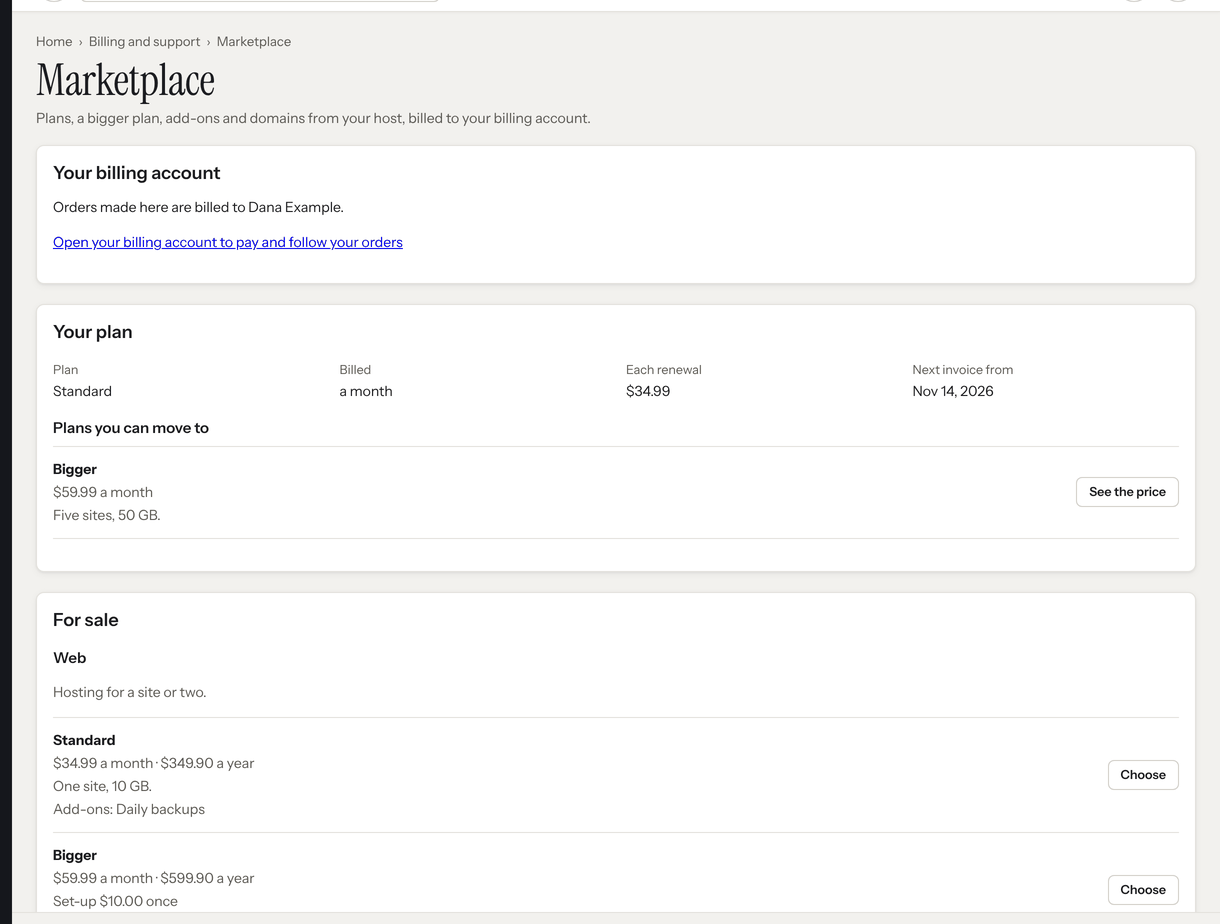
What this does: shows your plan, the plans you can move to, what else your host sells, and domains you can register. Orders are billed to your billing account.
When you need it: when you need more space or features, or want to register a new domain.
Where: Billing and support > Marketplace
To move to a bigger plan
- Open Billing and support, then Marketplace. Under Your plan you see your plan and when it renews. The Your billing account box above it says who orders are billed to, and links to your account in your host's store, where your invoices are.
- Under Plans you can move to, click See the price beside a plan. You see what you pay now (a part-payment for the days left until your next invoice), and what each renewal costs after that.
- Click Move it to confirm. You see "The plan is changed." Any invoice for the difference is in your billing account.
To register a domain
- Under Domains, type a name in Look for a domain, such as
mysiteormysite.com. - Click Look. Each ending shows Free to register with its price, or Taken.
- Pick the number of years and click Register. You see "... is ordered. It is registered once its invoice in your billing account is paid."
- Click Open your billing account to pay and follow your orders, and pay the invoice.
To order something new
- Under For sale, click Choose beside a plan.
- Fill in the Domain for the new account, and choose how it is Billed and any Add-ons.
- Click Check the price. Read the price, then tick I accept the terms of service.
- Click Place the order. You see "Order placed. Your host will look at it". A new plan makes a new hosting account.
If something goes wrong
- If you see "No billing account yet", ask your host to link this account to your billing account. If you have none, sign up in the host's store first.
- If you see "Your billing account isn't active", your host may refuse new orders until it is. Check your billing account for unpaid invoices.
- If you see "Your host has nothing for sale at the moment." or "Your host doesn't sell domains here.", ask your host.
Tickets
What this does: opens a help request (a ticket) to your host, and lets you read and answer your tickets.
When you need it: whenever you need your host's help, for example when something on this page says "Ask your host".
Where: Billing and support > Tickets
To open a ticket
- Open Billing and support, then Tickets.
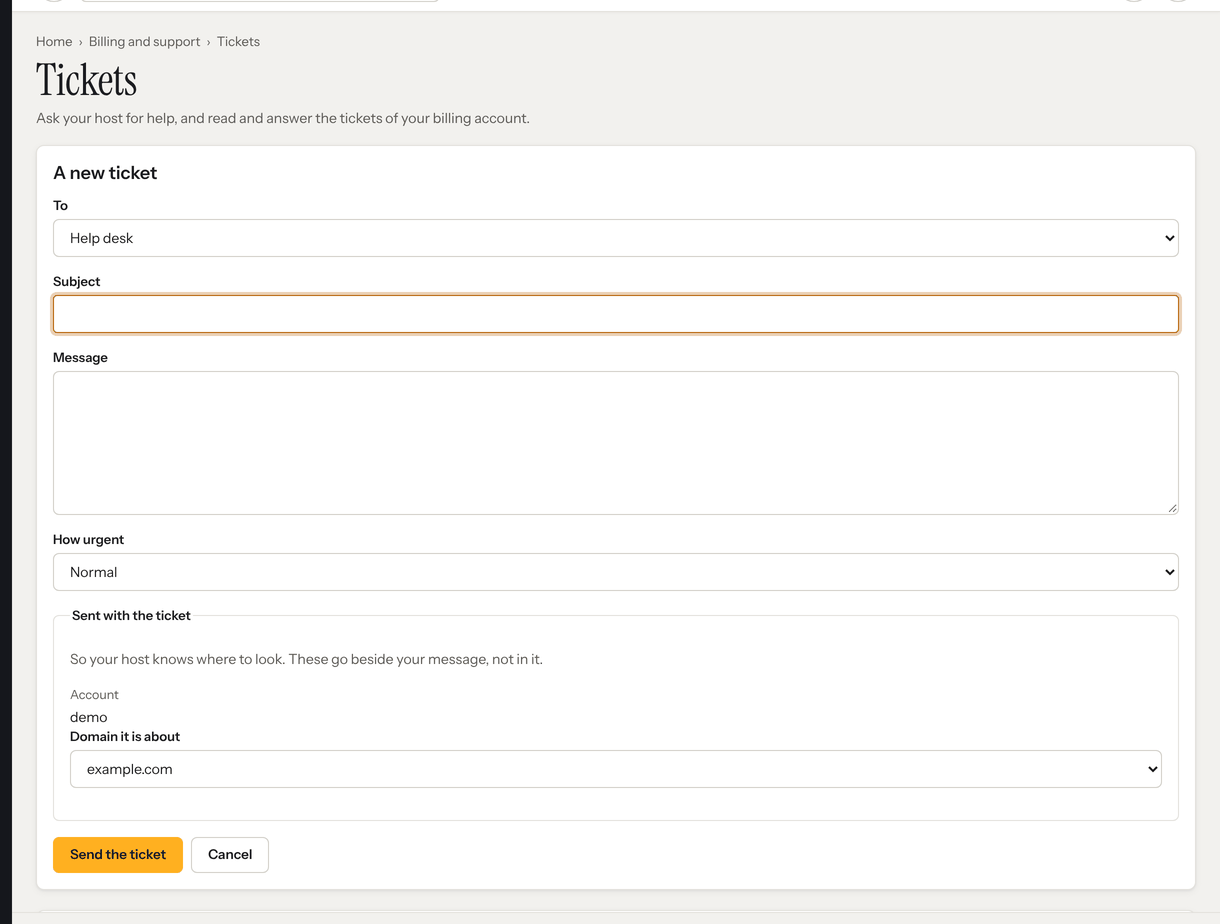
- Click New ticket.
- In To, pick the department, if there is a choice.
- Type a short Subject, such as "Mail to example.com not arriving".
- In Message, say what you did, what you expected and what you saw instead. Copy any error message exactly.
- Choose How urgent: It can wait, Normal or Urgent.
- Under Sent with the ticket, pick the Domain it is about. Your account and the page you were on are sent too, so your host knows where to look.
- Click Send the ticket. You see "Your ticket is sent. Your host's answer will show here."
To answer a ticket
- Under Your tickets, click Read beside the ticket. Its status shows Waiting on your host, Answered, On hold or Closed.
- Type in Your answer and click Send the answer. Answering a closed ticket opens it again.
If something goes wrong
- If you see "Your host takes no tickets here yet.", contact your host another way.
- If you see "Give the ticket a subject." or "Write a message.", fill in both boxes.