Getting started
Welcome
What this does: these pages show you how to install freePanel and run your server with it, one task at a time.
When you need it: read this page first. It tells you where to find each topic.
Two panels
freePanel gives you two panels. A panel is a web page where you manage things by clicking instead of typing commands.
- The admin panel is for you, the person who runs the server. It opens on port 7443 of your server. A port is a numbered door on the server; each service listens behind its own door.
- The customer panel is for your customers. Each customer signs in and manages their own websites, email and files. It opens on port 7444. In the menu of these pages, its tools are under Hosting panel.
Both panels look the same, so what you learn in one helps in the other.
You can only open the admin panel once freePanel is installed. If you haven't installed it yet, start with Start here below.
To find your way around the admin panel
After you install freePanel and create your admin login:
- Open the admin panel in your browser and sign in. You land on the home page. Its title is Server, and Home is lit in the menu.
- Look at the menu on the left. Each name in the menu is a group of tools, for example Accounts (marked 1 in the picture) or DNS.
- Click a group to see its tools. Each tool has its own section in these pages, under the same name.
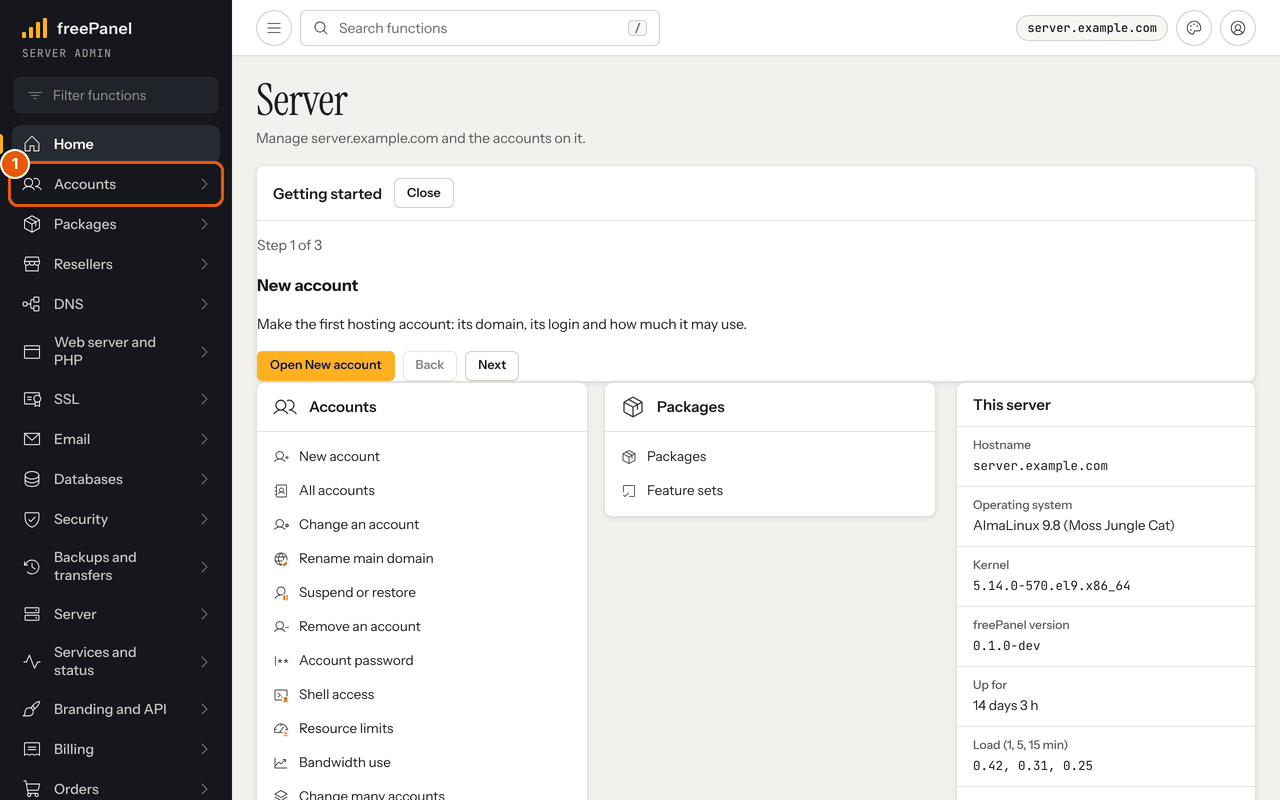
The Getting started card on the home page is a short tour of three pages: a first account, a package and backups. Click Next and Back to move through it, or Close to hide it. Your first hour covers the same pages and a few more.
Start here
New to freePanel? Read these pages in order. Together they take you from an empty server to your first customer.
- Supported systems: the operating systems freePanel installs on.
- Before you install: a fresh server, root access, a name for the server, and DNS.
- Install freePanel: the one-line install, and what it prints.
- Create your admin login: the one-time link the installer prints.
- Enter your licence key.
- Your first hour: certificates, name servers, your first package, account and backup.
Want something other than the plain install? Installer options lists every option.
What is in these pages
| Part | What you find there |
|---|---|
| Getting started | Installing freePanel and your first hour with it |
| Admin panel | Every tool in the admin panel, group by group |
| Hosting panel | Every tool your customers see |
| Reseller panel | What resellers can do and how you set them up |
| Billing and the store | Selling hosting, taking payments and answering support tickets |
| Moving in | Bringing accounts over from another server |
| Licence | Activating and moving your licence key |
| Troubleshooting | What to do when something goes wrong |
| Reference | The API, command-line tools and known limits |
How the pages are laid out
Every tool has the same parts, in the same order:
- What this does and When you need it, in one or two sentences.
- Where the tool is, written as Group > Tool.
- Step-by-step instructions, under a heading that starts with "To". Steps in the panel come with a picture of the screen; steps you type on the server show the text you see instead.
- If something goes wrong: the message you might see, and what to do about it.
Some pages end with a box called For advanced users. It holds extra detail, such as settings files and commands. You can skip it.
Use the search box at the top of every page to find a tool by name.