Billing and the store
Orders
What this does: the Orders group is where new orders arrive and wait for you. You accept or cancel each one, place orders for clients yourself, and set the rules that flag an order for a closer look.
When you need it: every time someone orders a plan. An order does nothing until you accept it: no service starts, no invoice is issued and no hosting account is made.
Orders
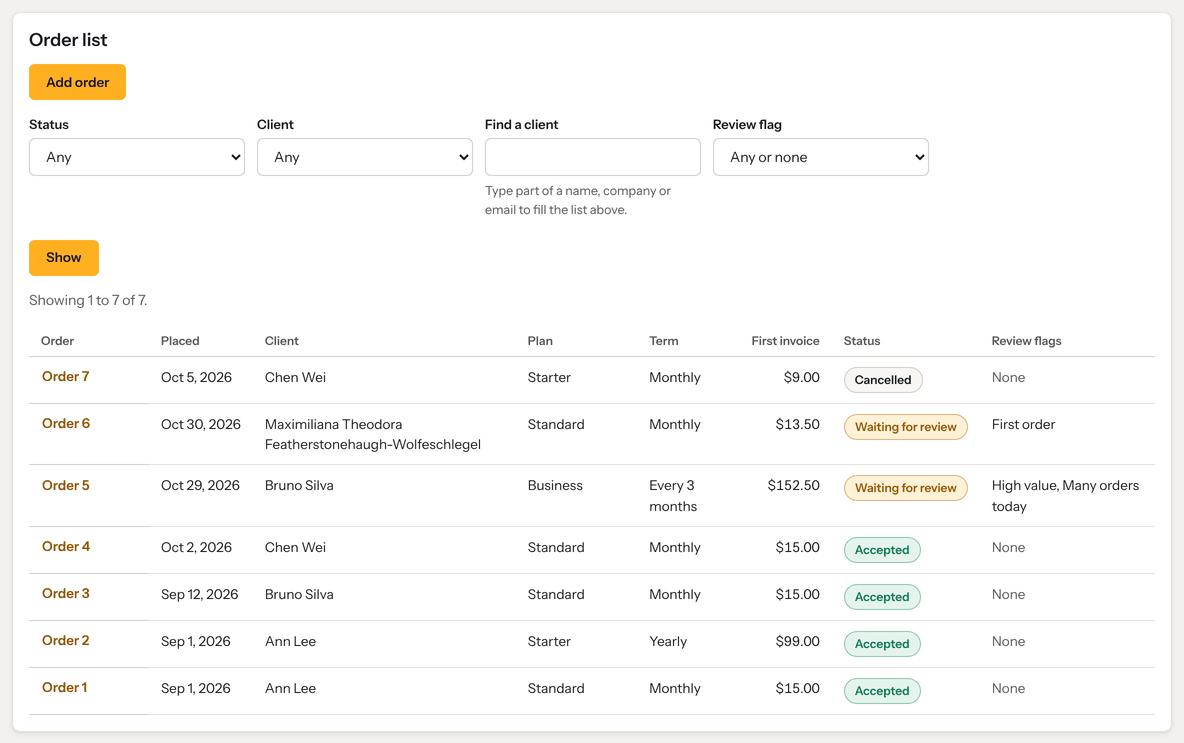
What this does: lists every order with its Status: Waiting for review, Accepted or Cancelled. The Review flags column says why an order may need a closer look, such as First order or High value. Opening an order shows its lines, its price and the hosting account it will make.
When you need it: whenever the Overview shows orders waiting, or a client tells you they have ordered.
Where: Orders > Orders
To accept an order
- Open Orders > Orders. To see only the orders that wait for you, choose Waiting for review under Status and click Show.
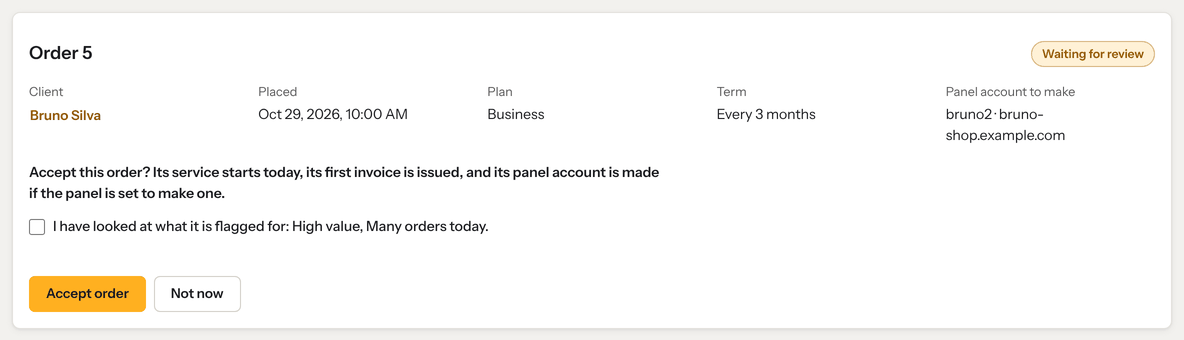
- Click the order's number, for example Order 5. You see the client, the Plan, the Term, the Panel account to make and the order's lines and price.
- If the order has flags, read the Why it waits for review card. For example, High value means the first invoice is at or above the amount in your rule; Many orders today means the client placed several orders in one day. Check the client is who they say before you go on.
- Click Accept order. The panel asks "Accept this order?" and explains what happens. Click Not now if you want to wait.
- If the order has flags, tick I have looked at what it is flagged for.
- Click Accept order to confirm. You see "The order is accepted." The service starts today and its first invoice is issued. If Billing settings say to make the panel account, you also see "The panel account bruno2 was made."
To cancel an order
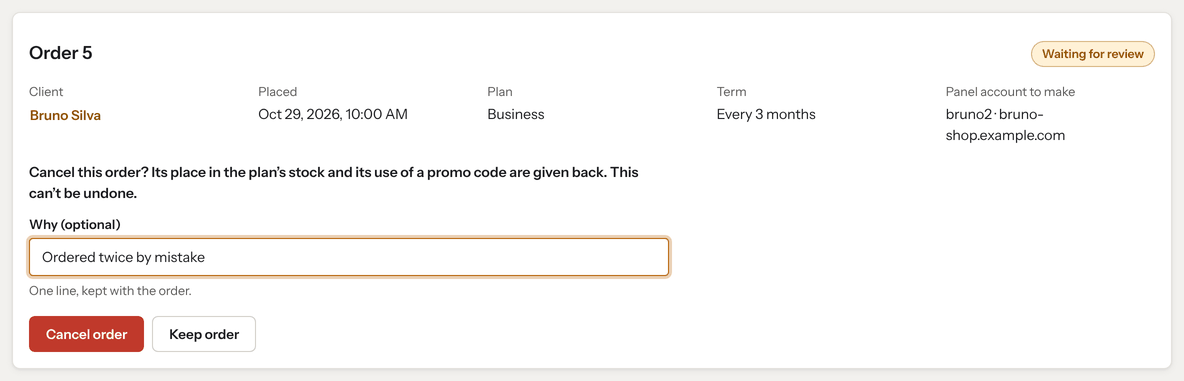
- Open the order and click Cancel order.
- If you like, type Why (optional), for example
Ordered twice by mistake. - Click Cancel order to confirm, or Keep order. This cannot be undone. You see "The order is cancelled." For an order that was waiting, its place in the plan's stock and its promo code use are given back. For an order that was already accepted, its service is cancelled and nothing more is billed; its invoices stay.
If something goes wrong
- If you see "Tick the box to say you looked at the flags first.", tick I have looked at what it is flagged for, then click Accept order again.
- If you see "The panel account could not be made: …", the order is accepted but the hosting account was not made; the message says why, such as the username being taken. Make the account in Accounts > New account, then link it on the client's Services tab (see Clients).
- If an order shows the flag Check failed, an order check could not run. Look at the order yourself before you accept it.
Add order
What this does: places an order for a client yourself, step by step. The price is checked against your plans as they are now, so you see the lines before anything is made.
When you need it: when a client orders by phone or email, or when you move an existing client onto a plan.
Where: Orders > Add order (or Add order on a client's page)
To place an order for a client
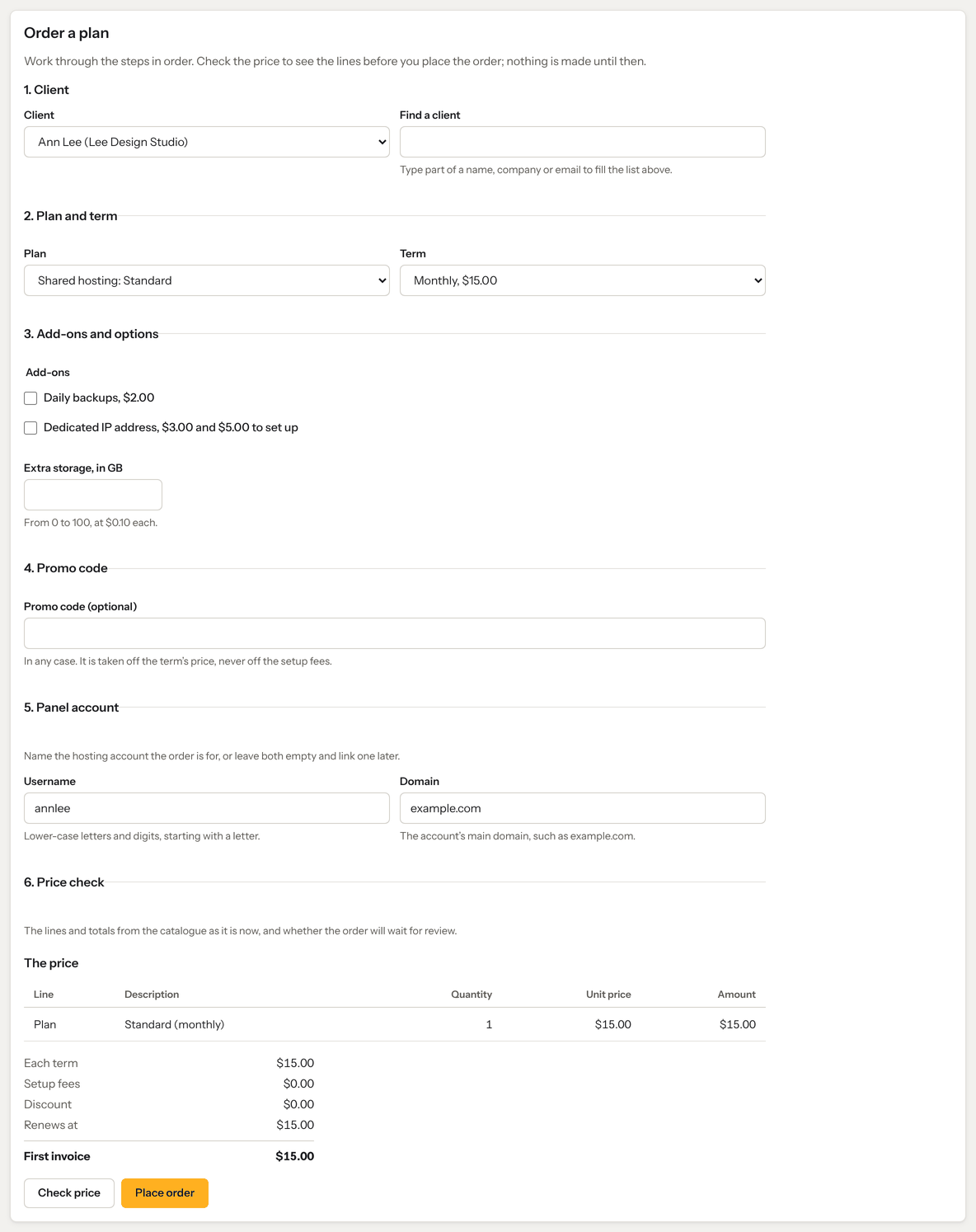
- Open Orders > Add order. The Order a plan form has six parts, each with its own heading. The steps below name each part by its heading.
- In the Client part, choose the client, for example Ann Lee (Lee Design Studio). To find one, type part of their name in Find a client.
- In the Plan and term part, choose the Plan, for example Shared hosting: Standard, then the Term, for example Monthly, $15.00.
- In the Add-ons and options part, tick any extras, such as Daily backups, and type a quantity for options such as Extra storage, in GB. Leave them empty if the client wants none.
- In the Promo code part, type a code if the client has one. It is taken off the term's price, never off the setup fee.
- In the Panel account part, type the Username and the Domain of the hosting account to make, for example
annleeandexample.com. Leave both empty if you will link an account later. - In the Price check part, click Check price. The lines and totals appear under The price, with Each term, Setup fees, Discount, Renews at and First invoice. If the order will wait for review, a line says why.
- Click Place order. You see that the order is placed, for example "Order 8 is placed." Then accept it when you are ready.
If something goes wrong
- If you see "No plan is for sale yet. Add one on Products and services.", make a plan first in Products and services.
- If you see "Something changed since the last check. Check the price again to see it.", you changed a box after checking. Click Check price again.
- If you see "Enter the domain too, or empty the username.", fill in both Username and Domain, or neither.
- If the panel refuses the promo code, the code has ended, is used up, or is not for this plan. Check it in Promotions.
Order review rules
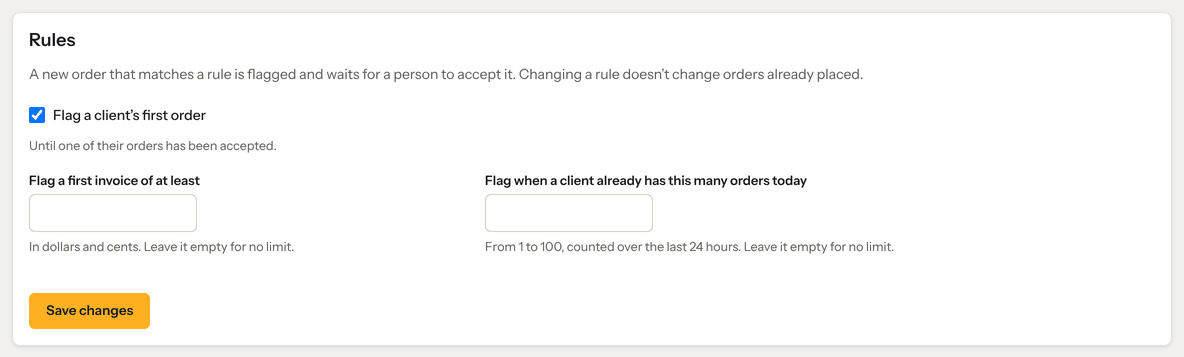
What this does: sets which new orders get a flag. A flag never refuses an order: it marks it so you look before you accept it. No outside fraud service is asked.
When you need it: once, when you set up billing, and again if you get orders you would rather have checked first.
Where: Orders > Order review rules
To set the review rules
- Open Orders > Order review rules.
- Tick Flag a client's first order to flag every order from a client until one of their orders has been accepted.
- In Flag a first invoice of at least, type an amount in dollars, such as
100. Leave it empty for no limit. - In Flag when a client already has this many orders today, type a number from 1 to 100, such as
3. Leave it empty for no limit. - Click Save changes. You see "The rules are saved." Orders placed before keep the flags they had.
The card What the flags mean lists each flag the panel can put on an order, with what it means.
If something goes wrong
- If you see "Enter a whole number from 1 to 100, or leave it empty.", the orders-a-day box has something other than a whole number in it.
- If you see "Enter an amount above zero in dollars and cents, such as 25 or 19.99.", the amount box has letters in it or is zero.