Billing and the store
Selling from more than one server
What this does: when you have several freePanel servers, one of them can run your store for all of them. Clients order in that one store, and their hosting accounts are made on whichever server you choose. Each account stays on the server it was made on.
When you need it: when one server is full, or you want servers in different places, but you want one store, one set of prices and one list of clients.
In this page, the store server is the server that runs your store, and the other server is the one you add to it. The examples use server.example.com as the store server and backup-2.example.net as the other server.
How it fits together
Three tools work together:
| Tool | Where it is | What it does |
|---|---|---|
| Linked servers | Server > Linked servers, on both servers | Connects the two servers safely, with a remote access key |
| Billing servers | Billing setup > Billing servers, on the store server | Lists the servers your store makes accounts on; details |
| Server groups | Billing setup > Server groups, on the store server | Says which servers each plan's new accounts go to; details |
A remote access key is a long password, starting fpn_, that one server gives another so it may reach it. It reaches nothing else.
Linking the other server
These steps are on the Linked servers page of each server, in the Server group of the admin panel.
- On the other server (
backup-2.example.net), open Server > Linked servers and go to Remote access keys. - Under Make a key, type a Name for the store server, such as
store, tick Lets the other server's billing run accounts here, type your own password, and click Make the key. The key is shown only this once: click Copy the key, keep it somewhere safe for step 6, and click I have copied it. Also note This server's certificate fingerprint at the top of the card. A fingerprint is a short code that belongs to one server's certificate (its proof of identity), so you can check you are linking the right server. - On the store server (
server.example.com), open Server > Linked servers and go to Link a server. - Type the other server's Address, for example
https://backup-2.example.net:7443, and click Read its certificate. - Check that the fingerprint shown is the same as the one you noted in step 2, and tick It is the same fingerprint as the one that server shows. If it is not the same, stop: something is in between.
- Type a Name, paste the Remote access key from step 2, type Your password (your own admin password on this store server), and click Link the server. You see "backup-2 is linked."
To add the other server to your store
- On the store server, open Billing setup > Billing servers.
- Under Add a linked server, choose the server in Linked server, for example backup-2.
- If you like, set Most accounts, for example
200. - Click Add server. It is now in the Servers list.
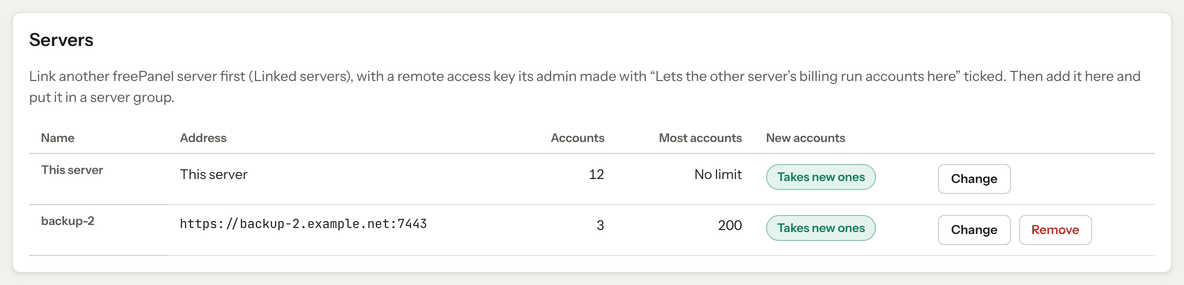
To send a plan's new accounts to the other server
- On the store server, open Billing setup > Server groups.
- Under Add a group, type a Name for the server group, such as
Europe, and choose the Rule: Fewest accounts first or Fill in order. - Tick the servers in the group, such as backup-2, and the plans that use it, such as Standard.
- Click Add group. From now on, each new Standard account is made on a server of this group.
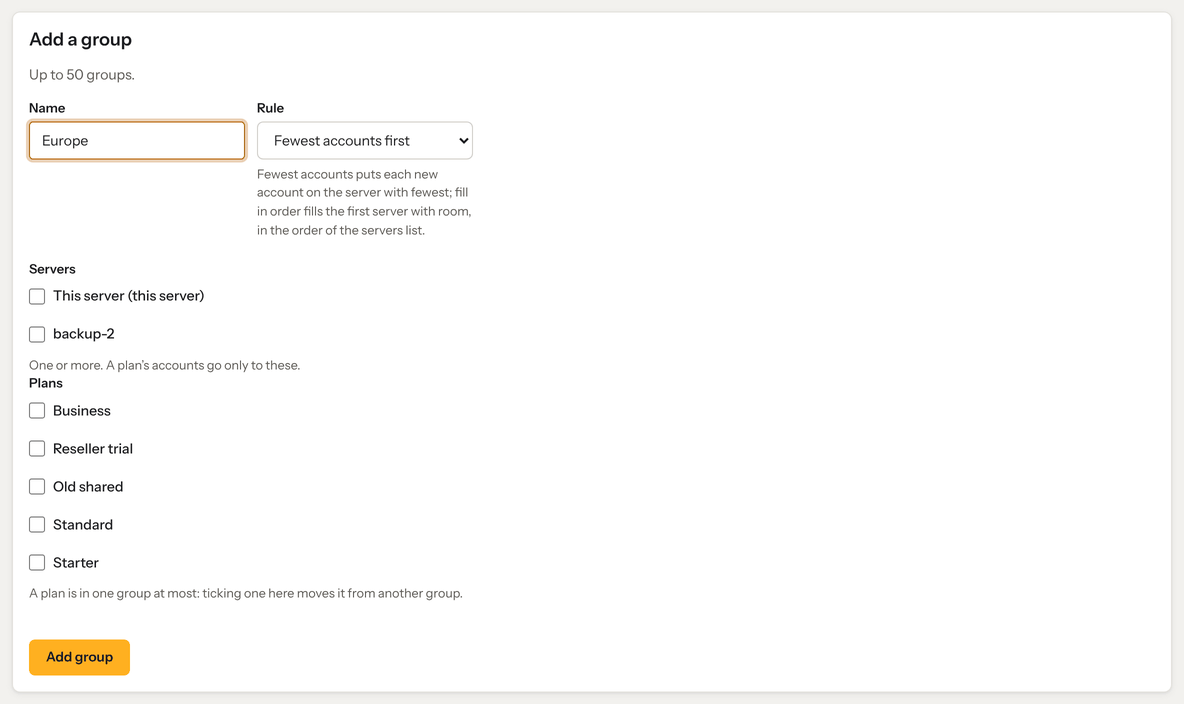
To turn billing off on the other server
The other server has its own store, which you no longer need. Send its visitors to your main store instead.
- On the other server, open Billing setup > Billing servers and scroll to Billing on this server.
- Tick Billing is off on this server.
- In Send customers to, type your main store's address, for example
https://server.example.com:7444/store. - Click Save changes. You see "Billing is off here: the store sends its visitors on."
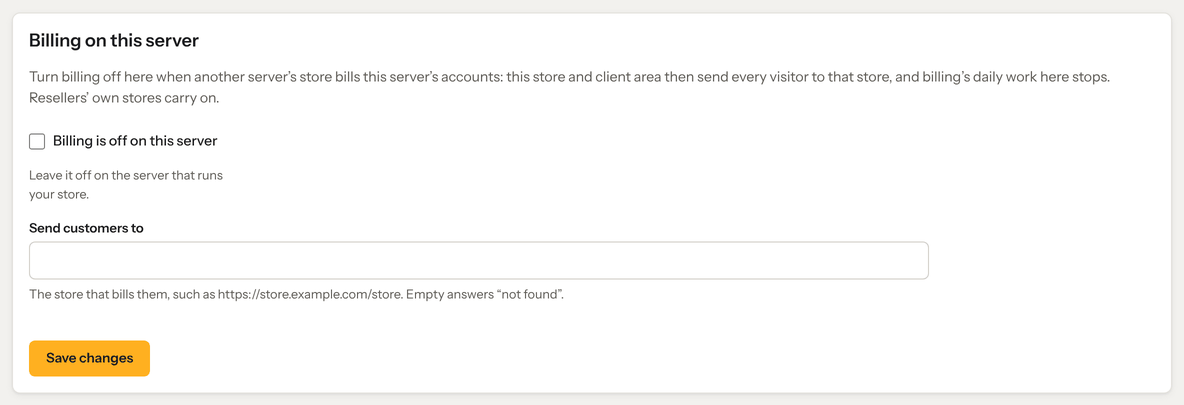
If something goes wrong
- If Billing servers says "This server is not linked to any other freePanel server yet.", do Linking the other server first.
- If you see "Every linked server is on the list.", the server is already added.
- If adding the server is refused, its key may have been made without Lets the other server's billing run accounts here. On the other server, make a new key with it ticked, and link again with the new key.
- If a server's name shows "The link was removed", link it again on Server > Linked servers.
- Moving a plan to another group changes where its next accounts go. Accounts made already stay where they are. To move an existing account, use Move an account on the Linked servers page.