Hosting panel
Preferences
What this does: the Preferences tools change your own login: your password, the email address notices go to, the panel's language, and who else may work in your account.
When you need it: when you first sign in (set a contact address), when you want a new password, or when someone else, such as a web designer, needs to help with your account.
Password
What this does: changes the password you sign in to the panel with.
When you need it: when you think someone else knows your password, or you were given a temporary one.
Where: Preferences > Password
To change your password
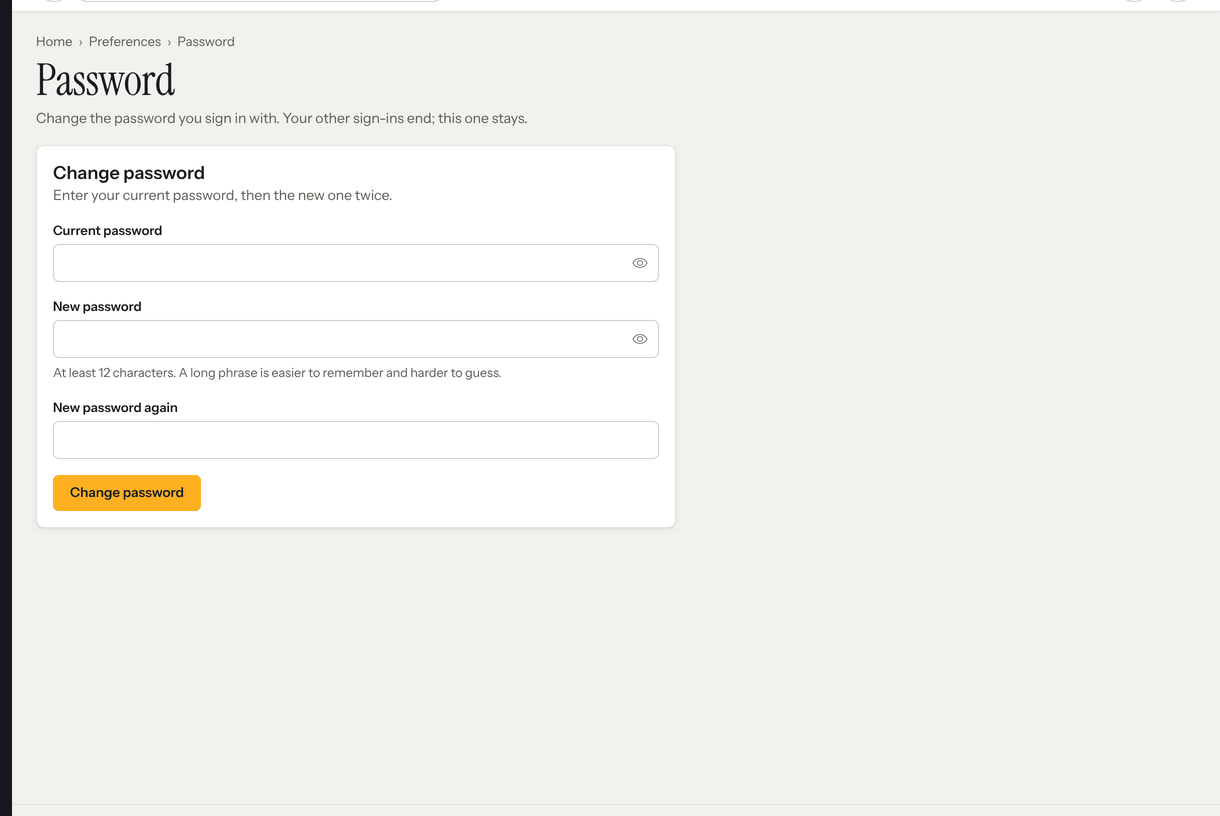
- Open Preferences, then Password.
- In Current password, type the password you use now.
- In New password, type a new one of at least 12 characters. A long phrase is easier to remember and harder to guess.
- Type it again in New password again.
- Click Change password. You see "Your password is changed. Every other sign-in has ended; this one stays."
This changes only your panel login. Mailboxes, FTP logins and database users each keep their own passwords.
If something goes wrong
- If you see "The current password is wrong.", type the password you signed in with.
- If you see "Choose a longer password: at least 12 characters.", make the new one longer.
- If you forgot your password, sign out and click Forgot your password? on the sign-in page. The reset link goes to your contact address (see Contact details below).
Single sign-on
What this does: links your login to your organisation's own sign-in (such as your company account), so you can sign in through it instead of typing your password.
When you need it: only if your host has set this up and your organisation uses it.
Where: Preferences > Single sign-on
To link your login
- Open Preferences, then Single sign-on.
- Type Your password.
- Click Link to ... (the name of your organisation's sign-in). You are taken there to sign in.
- Back in the panel you see "Your login is linked. From now on you can sign in with ...".
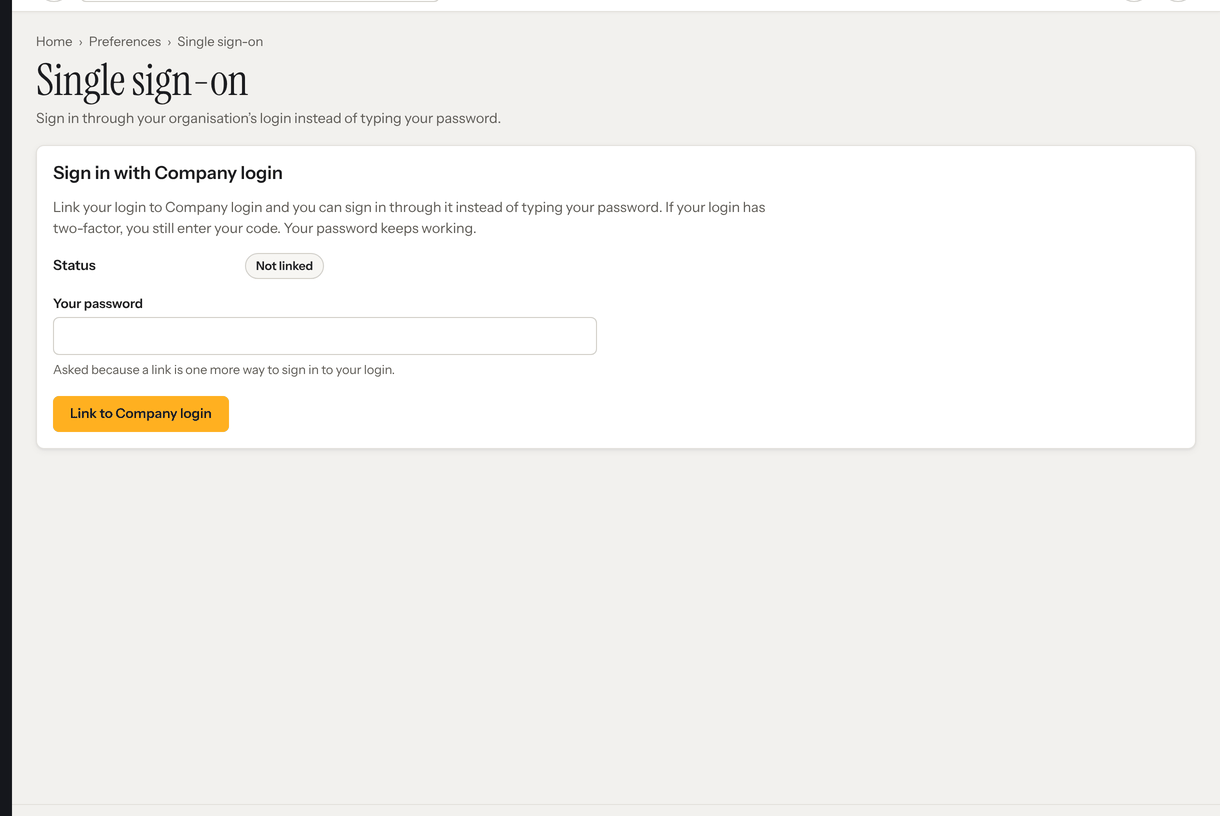
From then on, the sign-in page shows Sign in with single sign-on. If you use two-factor sign-in, you still enter your code. Your password keeps working.
If something goes wrong
- If you see "Single sign-on is not turned on for this panel.", your host has not set it up.
- If you see "That identity ... is already linked to another login here.", that organisation account is linked to a different panel login. Ask your host.
Language
What this does: chooses the language the panel is shown in. The choice follows your login to every browser.
When you need it: when you prefer to use the panel in another language.
Where: Preferences > Language
To change the language
- Open Preferences, then Language.
- Pick a Language.
- Click Save language. You see "Saved. Reload this page to see the panel in it."
- Reload the page.
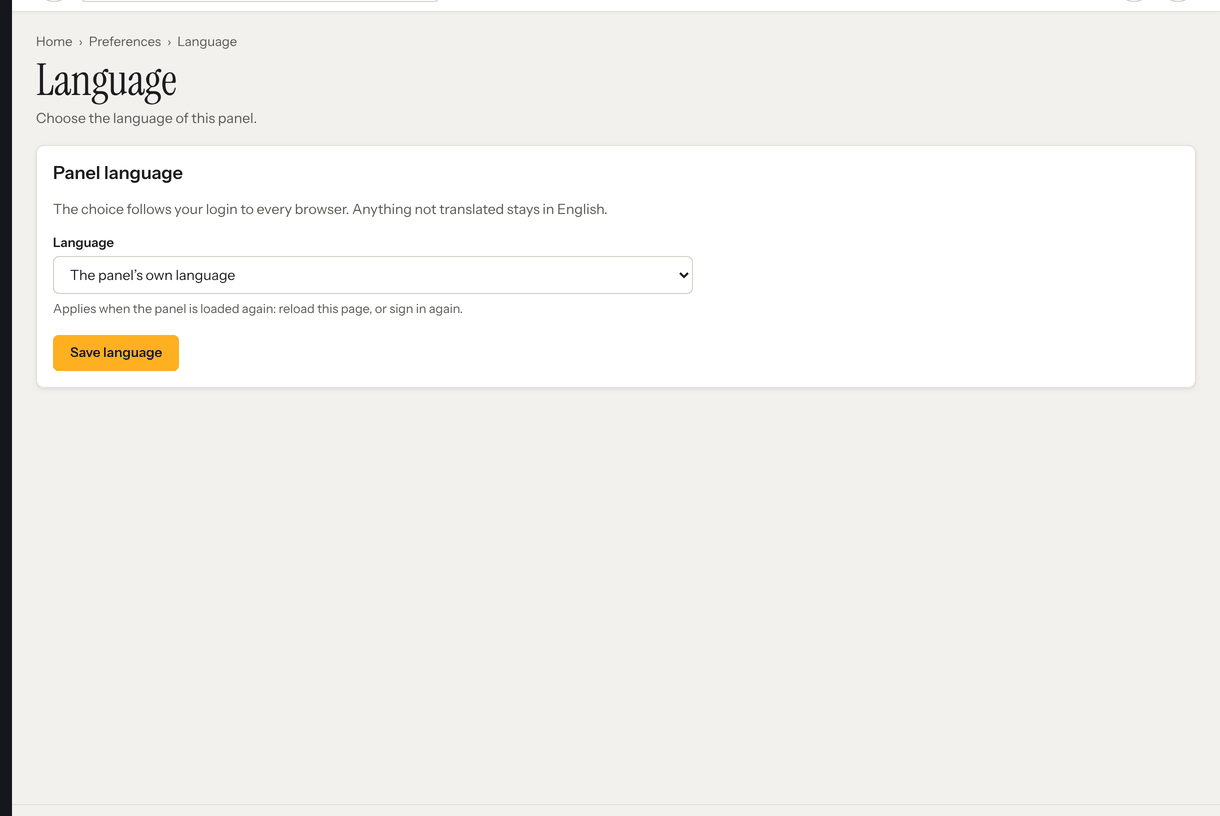
Anything not translated stays in English. If you see "No translations are installed on this server yet", the panel is in English only.
Contact details
What this does: sets the email address where password reset links and notices about your login are sent.
When you need it: straight after your first sign-in. Without it, you can't reset a forgotten password yourself.
Where: Preferences > Contact details
To set your contact address
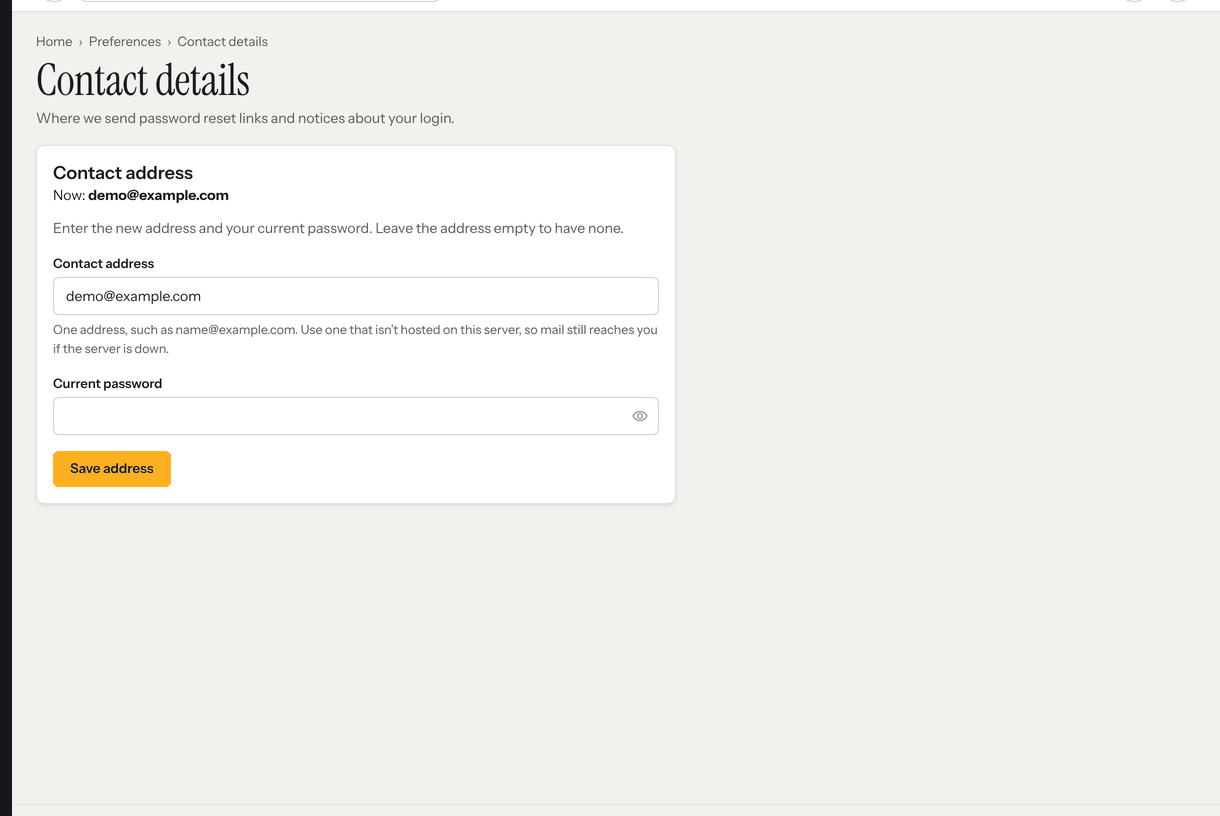
- Open Preferences, then Contact details.
- In Contact address, type your email address. Use one that isn't hosted on this server, so mail still reaches you if the server is down.
- Type your Current password.
- Click Save address. You see "Saved. Reset links and notices now go to ...".
If something goes wrong
- If you see "You have no contact address, so we can't send you a password reset link", add one now.
- If you see "Enter an email address such as name@example.com.", check for typing mistakes.
Team members
What this does: gives other people a login of their own to your account, with only the parts you choose, so nobody has to share your password.
When you need it: when a web designer, a colleague or an assistant needs to help with your files, mail or DNS.
Where: Preferences > Team members
To add a team member
- Turn on two-factor sign-in for your own login first, under Security > Two-factor sign-in.
- Open Preferences, then Team members.
- Under Add a team member, type a Name in lowercase letters, such as
editor. They sign in with the name, an @ and your username: for the account demo,editor@demo. - Type a Password twice, or click Generate a password (this page's button for a strong password). You tell the person the password; no email is sent.
- Optionally, type their E-mail address for their own password resets.
- Under Areas this person may use, tick only what they need, such as DNS or Statistics.
- Type Your password and click Add team member. You see "editor@demo is added. Tell them the password; they sign in with editor@demo at the same address you use."
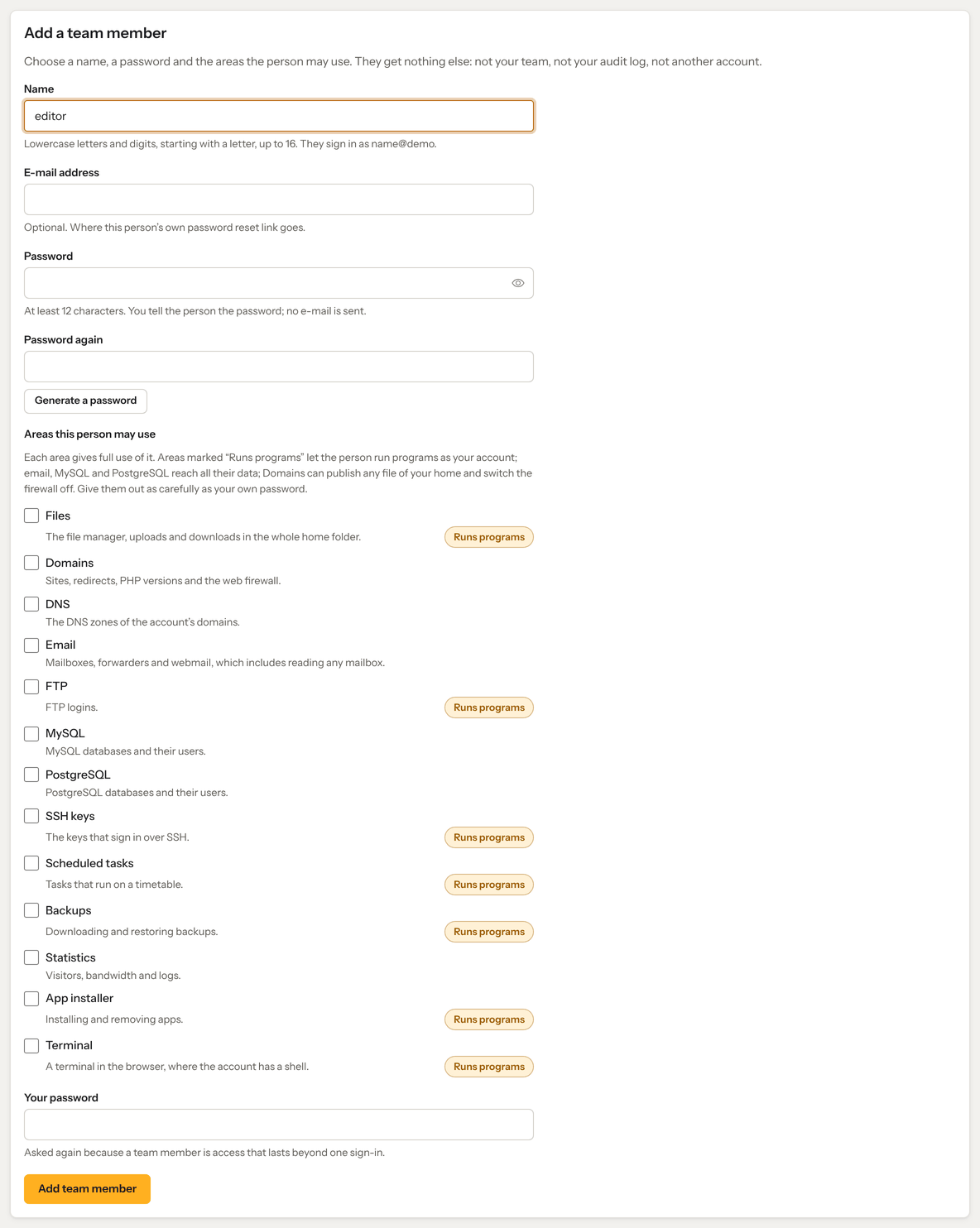
Team members sign in at the same panel address as you, and see only the areas you gave them.
To change what someone may do, click Change. To pause them, click Turn off. To remove them, click Remove.
If something goes wrong
- If you see "Two-factor sign-in first", click Set up two-factor and turn it on (see Security > Two-factor sign-in).
- If you see "That is not your password.", type your own panel password.
Notices by mail
What this does: chooses which notices the panel mails you.
When you need it: when you get too many notices, or want to be told about a sign-in from a new place.
Where: Preferences > Notices by mail
To choose your notices
- Open Preferences, then Notices by mail. The top says where notices go.
- Tick or untick each notice, such as A sign-in from a new place and Bandwidth running out.
- Click Save choices. You see "Saved. Your choices apply from now on."
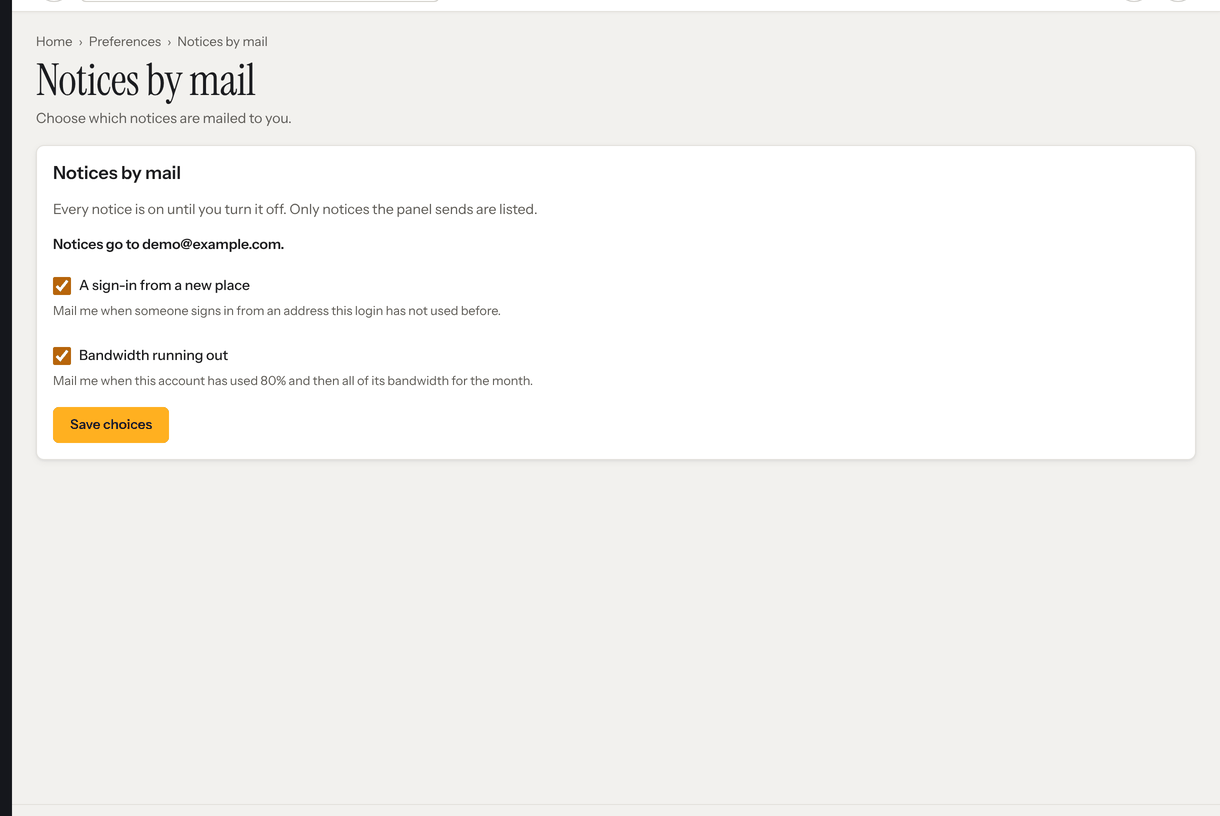
Every notice is on until you turn it off. If you see "This login has no mail address, so no notice is sent.", add one under Preferences > Contact details.
Server information
What this does: lists the facts about this server and your account that other programs ask for: the server name, its addresses, the name servers, your home folder and the PHP versions.
When you need it: when you set up an FTP app, a backup service or a domain at your registrar, and it asks for the server's name, address or name servers. This is the page the other pages send you to for these facts.
Where: Preferences > Server information
To find a server fact
- Open Preferences, then Server information.
- Look under The server, Your account and Websites.
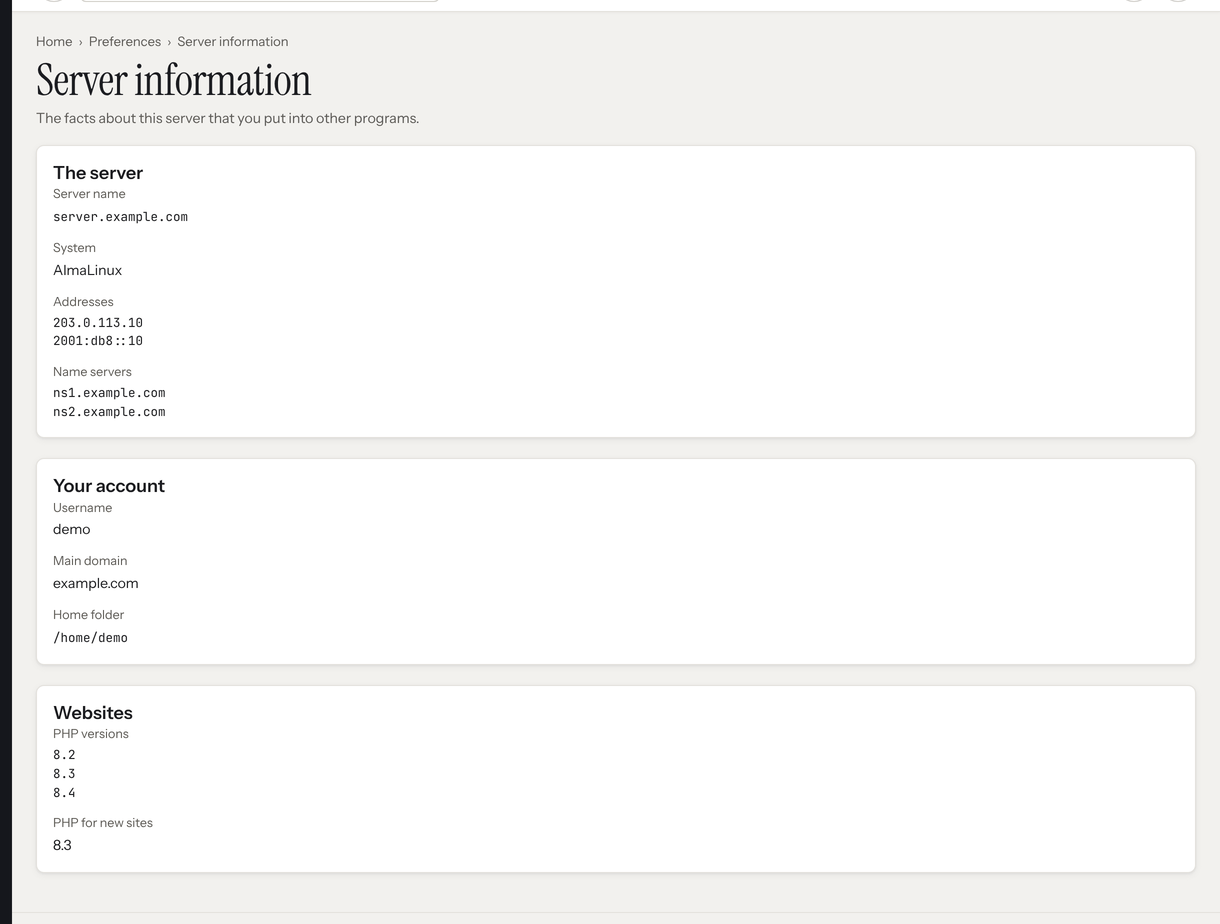
What each fact is for:
| Fact | Where you use it |
|---|---|
| Server name | The server (or host) to type into an FTP app: see Files > To connect with an FTP app. Mail apps use the server shown under Email > Connect a device instead. |
| Addresses | An A record (the first, IPv4 one) or AAAA record (IPv6) if you keep your DNS somewhere else. |
| Name servers | What you give your registrar, so your domain points here: see Domains > To point your domain here. |
| Home folder | The full path of your files, which some apps ask for. |
If you see "The server has nothing to tell you yet.", ask your host.