Reference
Themes and plugins
What this does: a theme changes how your public store and your customers' client area look. A plugin adds pages of its own to your admin panel.
When you need it: when you want your store to match your brand, or want to add a page someone has written for freePanel.
Themes
A theme holds only templates, stylesheets, images, fonts and text. It never holds code that runs on the server. The panel checks every theme when you upload it and each time it is loaded; if it fails, nothing from it is installed or shown, and you get a list of every problem by file and line.
Where: Branding and API > Themes (the server's store). Resellers have Store themes for their own store.
To change your store's theme
- Open Branding and API > Themes.
- Under Upload a theme, choose the theme's zip file in Theme zip. It can be at most 16 MiB.
- Click Upload and check.
- You see ... is installed. Preview it, then activate it when it looks right. If you see The theme was not installed: its check found ... problems., fix each problem at the file and line shown and upload it again.
- Under Installed themes, click Preview next to it. The site opens in a new tab with sample data, so you can look at every page.
- When it looks right, click Activate, then Yes, activate. Visitors see it at once.
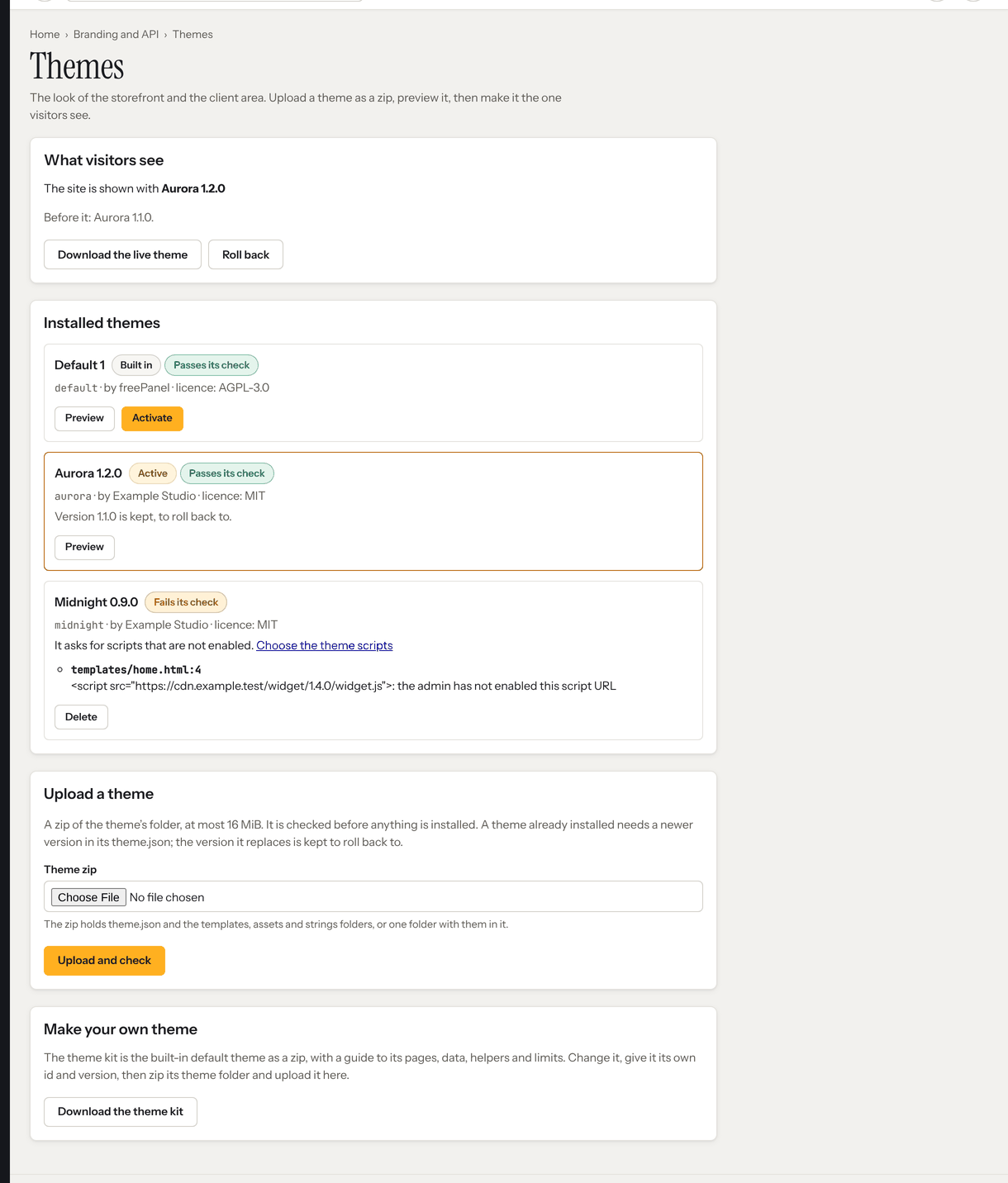
If you don't like it, click Roll back, then Yes, roll back: the theme before it comes back. Rolling back again undoes the rollback.
Each part of the page is described in Themes. Scripts a theme may load in the browser are only those you allow in Branding and API > Theme scripts (how).
Making your own theme
Click Download the theme kit on the Themes page. It is the built-in theme as a zip, with a guide to every page, its data, and the limits a theme must keep. Change it, give it a new id and version in theme/theme.json, zip the theme folder alone, and upload that.
A theme that is already installed can only be replaced by a newer version. The version it replaces is kept, so you can roll back to it.
Plugins
A plugin is a signed package that adds pages to the admin panel. The panel draws those pages itself, so a plugin can't put a script, markup or a link on your panel. A plugin may also have a small program that runs on the server in a sandbox, but only when you press Run, and only if you and the server's root user approve it.
Where: Branding and API > Plugins
Installing a plugin takes three steps, each yours:
- Trust the key that signs it. Under Trusted keys, add the public key the plugin's author gave you, with your password. Add a key only when you know whose it is: get it from the author by another way than the package itself, such as their website.
- Upload the package. Under Install a plugin, upload it. The server checks the signature against your trusted keys before it reads anything, and refuses a package no trusted key signed.
- Approve what it asks for. The page lists each permission the plugin asks for. Read them, click Approve ... with your password, then turn the plugin on.
A new version that asks for more has to be approved again. If you stop trusting a key, every plugin it signed turns off at once.
Each part of the page is described in Plugins.
Plugins that run a program
A plugin that asks to run a program also needs root to approve that exact package on the server, as root:
freepanelctl plugin approve ID VERSION DIGESTThe panel shows the ID, version and digest to use. See freepanelctl.
For theme and plugin authors
The full guides for people who make themes and plugins come with freePanel's source: the theme guide (docs/themes.md) and the plugin guide (docs/plugins.md). The theme kit's own README.md also lists everything a theme can use, written by the panel it came from.